
Ghost of Tsushima Director’s Cut System Requirements
Ghost of Tsushima Director’s Cut requires at least a GeForce GTX 960 4 GB or Radeon RX 5500 XT, a Core i3-7100 or Ryzen 3 1200, 8 GB of RAM, and 75 GB of SSD space. These official minimum requirements target 720p at 30 FPS using the Very Low preset. This is a playable entry point, but it provides lower image clarity and reduced visual detail rather than a conventional 1080p experience.
The recommended Core i5-8600 or Ryzen 5 3600, GeForce RTX 2060 or Radeon RX 5600 XT, and 16 GB of RAM target 1080p at 60 FPS on Medium settings. This configuration should provide smoother camera movement and more responsive combat than the minimum tier. Native 1440p at 60 FPS or 4K at 30 FPS on High requires an RTX 3070 or RX 6800 with a Core i5-11400 or Ryzen 5 5600, while 4K at 60 FPS on Very High raises the GPU requirement to an RTX 4080 or RX 7900 XT.
Ghost of Tsushima Director’s Cut Official system requirements
PlayStation provides four hardware tiers for Ghost of Tsushima Director’s Cut, with each tier tied to a graphics preset, resolution, and average frame-rate target. The specifications should be read as complete configurations: meeting the GPU requirement while falling short on the processor or memory does not place the system fully within that tier.
| Component | Minimum | Recommended | High | Very High |
|---|---|---|---|---|
| Preset | Very Low | Medium | High | Very High |
| Average performance | 720p at 30 FPS | 1080p at 60 FPS | 1440p at 60 FPS or 4K at 30 FPS | 4K at 60 FPS |
| Intel CPU | Core i3-7100 | Core i5-8600 | Core i5-11400 | Core i5-11400 |
| AMD CPU | Ryzen 3 1200 | Ryzen 5 3600 | Ryzen 5 5600 | Ryzen 5 5600 |
| NVIDIA GPU | GeForce GTX 960 4 GB | GeForce RTX 2060 | GeForce RTX 3070 | GeForce RTX 4080 |
| AMD GPU | Radeon RX 5500 XT | Radeon RX 5600 XT | Radeon RX 6800 | Radeon RX 7900 XT |
| RAM | 8 GB | 16 GB | 16 GB | 16 GB |
| Storage | 75 GB HDD space; SSD recommended | 75 GB SSD space | 75 GB SSD space | 75 GB SSD space |
| Operating system | Windows 10 64-bit | Windows 10 64-bit | Windows 10 64-bit | Windows 10 64-bit |
Source: PlayStation’s official system-requirements announcement
What the minimum tier actually means?
The minimum configuration is designed to make the game playable at 1280 × 720 on the Very Low preset. That resolution contains about 56% fewer pixels than 1920 × 1080, substantially reducing the work placed on the graphics card. It also produces a softer image on a 1080p monitor, while the Very Low preset reduces visual quality further to protect performance.
The stated 30 FPS is an average target, not a guaranteed minimum. Performance can fall below it during demanding combat, dense environments, or background activity. A system that only matches the minimum specification should therefore be treated as capable of running the game with compromises, rather than delivering a consistently smooth 1080p experience.
Why the recommended tier is the practical baseline?
The recommended tier targets 1080p at 60 FPS on the Medium preset, making it a more useful reference for a standard gaming monitor. It also raises the memory requirement to 16 GB and specifies SSD storage, reducing the risk of background applications competing for limited RAM or slower storage affecting asset delivery.
Moving from 1080p to 1440p raises the GPU workload by about 78%, which explains the jump from an RTX 2060 or RX 5600 XT to an RTX 3070 or RX 6800. The same High-tier hardware can target 4K at 30 FPS because lowering the frame-rate target gives the GPU more time to render each frame.
Why 4K at 60 FPS needs a stronger GPU?
The official 4K/60 target keeps the same Core i5-11400 or Ryzen 5 5600 processors listed for 1440p/60, but raises the graphics requirement to an RTX 4080 or RX 7900 XT. This indicates that resolution becomes the main performance constraint at the upper tiers: 4K contains four times as many pixels as 1080p, and rendering them 60 times per second requires far more GPU throughput.
PlayStation does not state whether these performance targets were measured at native resolution or with upscaling enabled. They are useful hardware reference points, but they should not be interpreted as guarantees of native-resolution performance under every gameplay condition.
Can your PC run Ghost of Tsushima Director’s Cut?
A useful compatibility check compares the exact PC configuration with one complete official tier. Broad labels such as “Core i5,” “Ryzen 5,” or “RTX graphics” are not enough because products within the same family can differ by several generations and performance classes.
Find your exact PC specifications
- Check the processor and system RAM. Open Settings > System > About and record the full processor name and installed RAM. The processor entry should include the model number, such as Core i5-10400F or Ryzen 5 3500.
- Identify the graphics card. Open Task Manager > Performance > GPU and note the complete GPU name and dedicated GPU memory. On a laptop, check every GPU entry because Windows may list both integrated and dedicated graphics.
- Check available storage. Open Settings > System > Storage and confirm that the drive selected for installation has at least 75 GB free. Additional space should remain available for patches, temporary installation files, and normal Windows operation.
- Confirm the operating system. The official requirement is 64-bit Windows 10. The system type and Windows edition appear under Settings > System > About.
The DirectX Diagnostic Tool provides the same information in one place. Press Windows + R, enter dxdiag, and check the System and Display tabs. The Display tab can also help confirm which graphics processor the system is using.
Match your PC to one performance target
Choose the experience you want before comparing components. A player targeting 1080p at 60 FPS should compare against the recommended tier, while someone using a 1440p monitor should begin with the High tier. Matching only the minimum requirements is not enough for a higher resolution or frame-rate target.
Compare the graphics card first because it has the greatest influence on resolution and graphics quality. Check the processor next, followed by RAM and storage. If the GPU matches the High tier but the processor only matches the recommended tier, the PC does not fully meet the High configuration. Use the lower tier as the conservative expectation until a comparable benchmark shows otherwise.
The weakest relevant component usually defines the practical target. More RAM cannot compensate for an underpowered graphics card, and a faster GPU cannot resolve severe CPU limitations at high frame rates. An SSD can improve loading and asset delivery, but it does not increase the GPU’s rendering capacity.
Compare hardware that is not listed
Most PCs will not contain one of the eight processors or graphics cards named in the official table. An unlisted component can still run the game, but it should be compared through measured performance rather than model names alone.
Use game-specific benchmarks that show the complete test conditions: GPU, CPU, RAM, resolution, graphics preset, upscaling mode, frame generation setting, and game version. A 1440p result using DLSS Quality cannot be treated as native 1440p performance, while a frame-generation result should not be compared directly with traditionally rendered FPS.
VRAM capacity alone does not establish GPU performance. Two cards with 8 GB of VRAM can have substantially different processing power, memory bandwidth, and architecture. NVIDIA and AMD naming systems also do not correspond directly, so an RX 6000-series model should not be matched with an RTX 3000-series model based only on the numbers.
Laptop results require the exact mobile GPU and its power configuration. A laptop GPU carrying the same model family as a desktop card can run at lower power and produce lower frame rates. If no benchmark matches the device closely, select a lower performance tier instead of assuming desktop-level results.
Expected performance by resolution
Resolution determines how many pixels the GPU must produce for every frame, while the frame-rate target determines how often it must repeat that work. Sony’s figures describe average performance for each preset; they do not guarantee the same frame rate in every location or disclose whether upscaling was used during the official tests.
Independent results require the same caution. PC Gamer’s performance analysis was conducted on the global release build published in May 2024, primarily in an open-world area containing dense grass, trees, water reflections, and a long-distance view. It provides useful launch-build context, but later patches, different drivers, and more demanding locations can change the outcome.
720p at 30 FPS
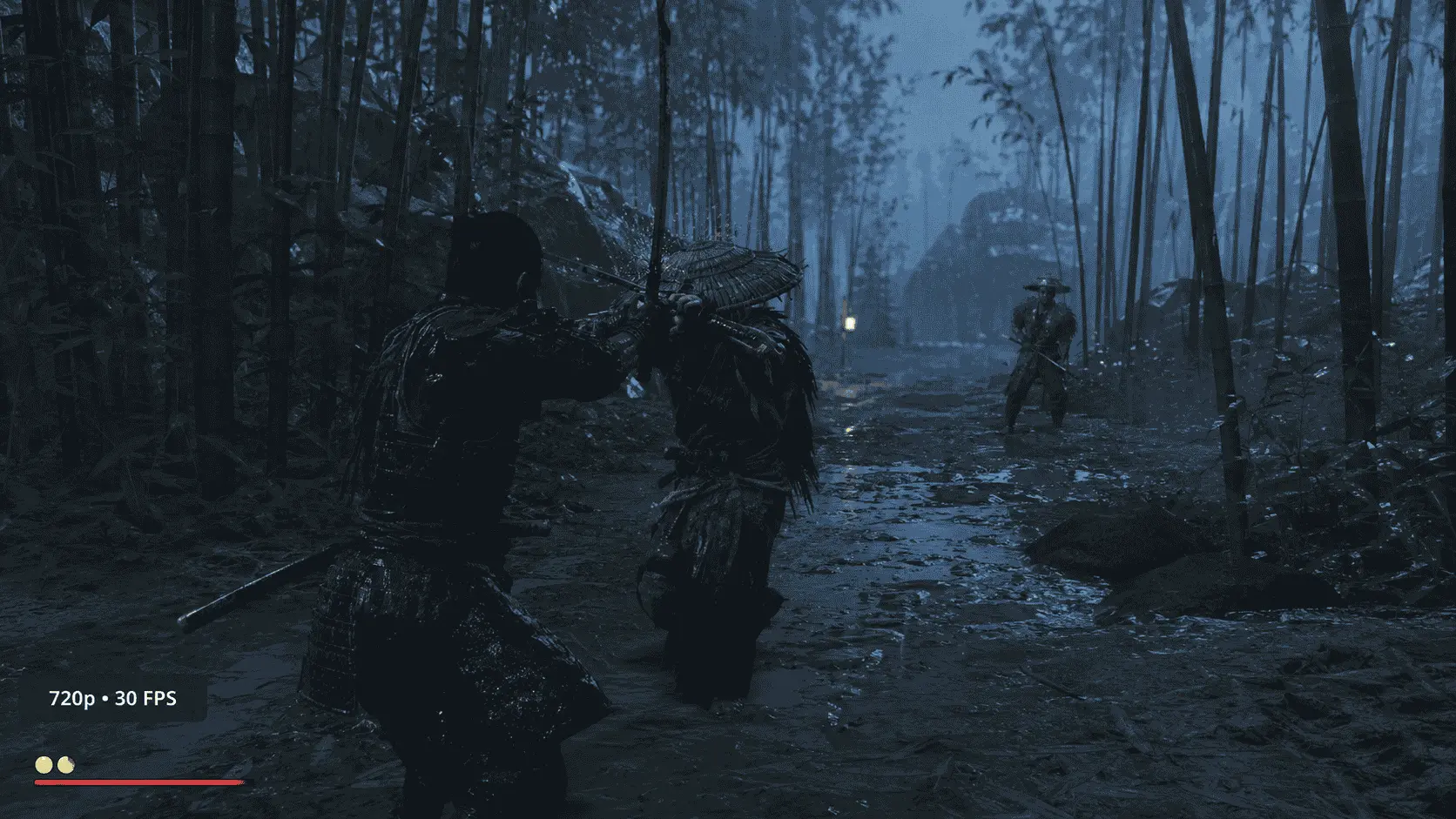
The minimum tier targets 1280 × 720 on the Very Low preset. This is the fallback option for hardware close to the GTX 960 4 GB or RX 5500 XT rather than the intended experience for a modern 1080p display. Stretching a 720p image across a 1080p monitor reduces clarity, while the lowest preset makes distant objects, shadows, and environmental detail less convincing.
A 30 FPS target gives the system approximately 33.3 milliseconds to produce each frame. At 60 FPS, that time falls to about 16.7 milliseconds. The lower target reduces GPU demand but makes camera movement and controller or mouse input feel less immediate. It can remain playable for a third-person action game, provided frame delivery stays consistent.
Systems below the official minimum may start the game after reducing the resolution or enabling aggressive upscaling, but that does not establish dependable performance. GPUs with less processing power or insufficient VRAM can encounter unstable frame rates, severe image degradation, or launch problems that lower settings cannot resolve.
1080p at 60 FPS
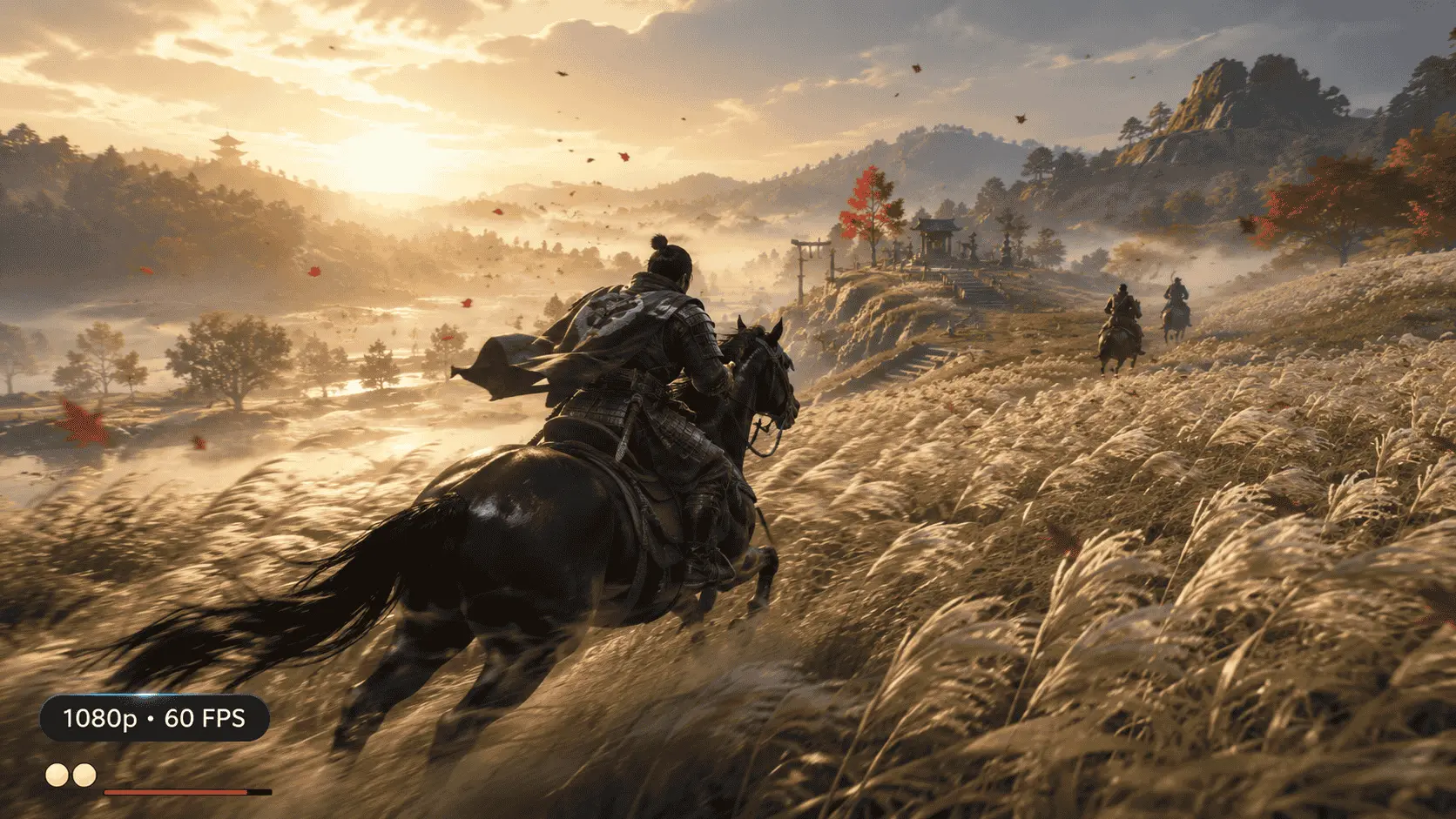
The recommended tier is built around 1920 × 1080 at 60 FPS on Medium settings. Compared with the minimum target, the GPU must render more than twice as many pixels per frame and produce frames twice as frequently. That makes the RTX 2060 or RX 5600 XT tier a more meaningful baseline for smooth combat and camera movement.
PC Gamer tested a Core i5-9600K and Radeon RX 5700 XT at 1080p Medium and reported performance notably above 60 FPS. The RX 5700 XT is faster than Sony’s listed RX 5600 XT, so this result does not prove that every recommended-level system will hold 60 FPS. It does, however, support the official target under a documented open-world workload.
Medium settings are also a better starting point than dropping directly to Very Low. They preserve more of the foliage, lighting, shadows, and environmental presentation while leaving room to reduce individual demanding settings if performance falls in towns or busy combat sequences.
1440p at 60 FPS
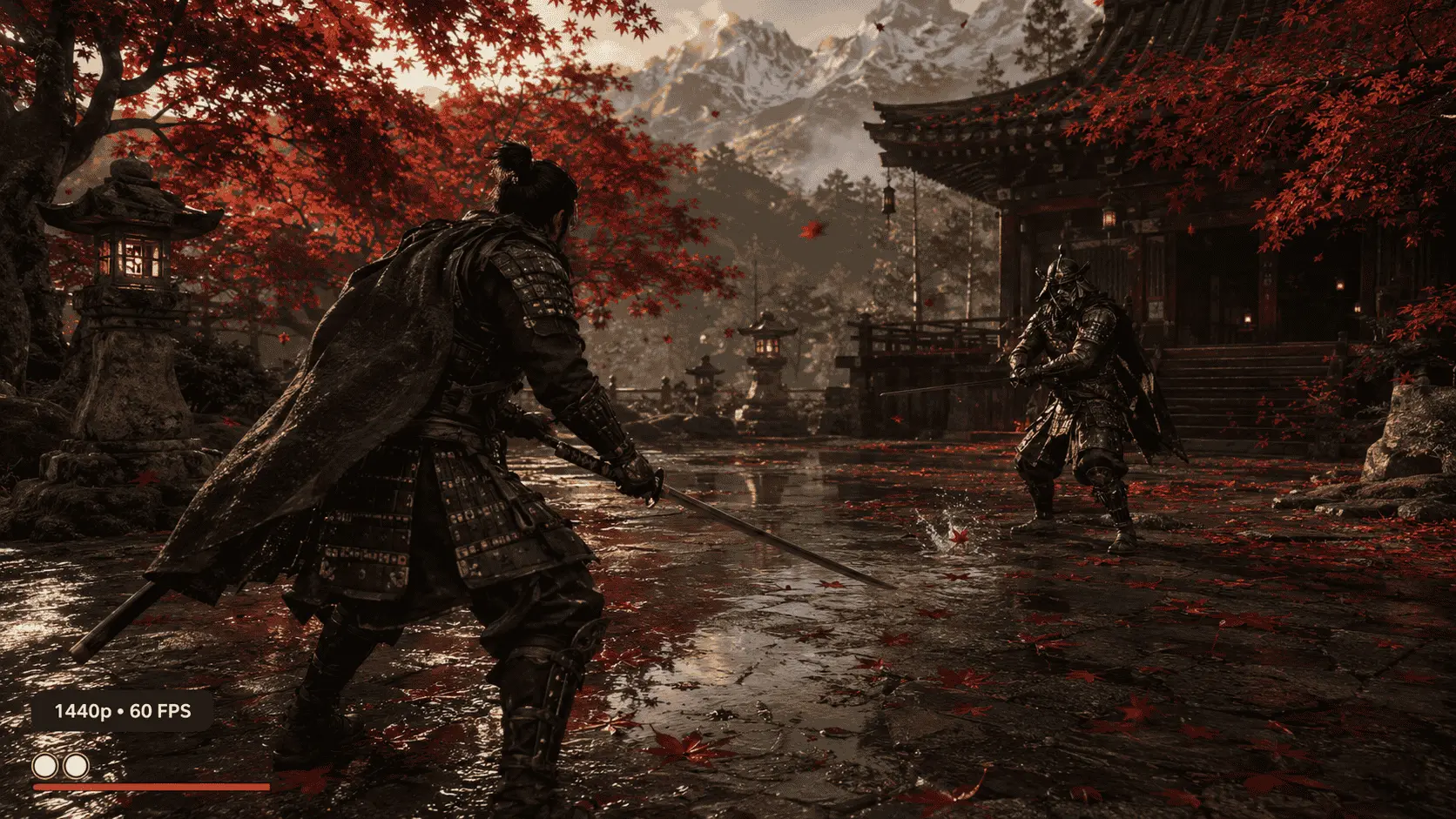
A 2560 × 1440 image contains approximately 78% more pixels than 1080p, which moves the official graphics requirement to an RTX 3070 or RX 6800. The High preset targets 60 FPS, so this tier suits players who want sharper image quality without accepting the slower response of a 30 FPS cap.
Sony assigns the same hardware to 1440p/60 and 4K/30 because the two targets create a similar pixel-throughput workload. At their native output resolutions, 1440p/60 represents about 221 million pixels per second, while 4K/30 represents about 249 million. This calculation does not account for differences in memory use, asset quality, or internal resolution, but it explains why the two modes can occupy the same official tier.
A system that approaches 60 FPS but cannot maintain it should reduce a few graphics settings before lowering the output resolution. Upscaling can also help, but its quality mode and internal resolution must be recorded when comparing the result with native 1440p performance.
4K at 30 or 60 FPS
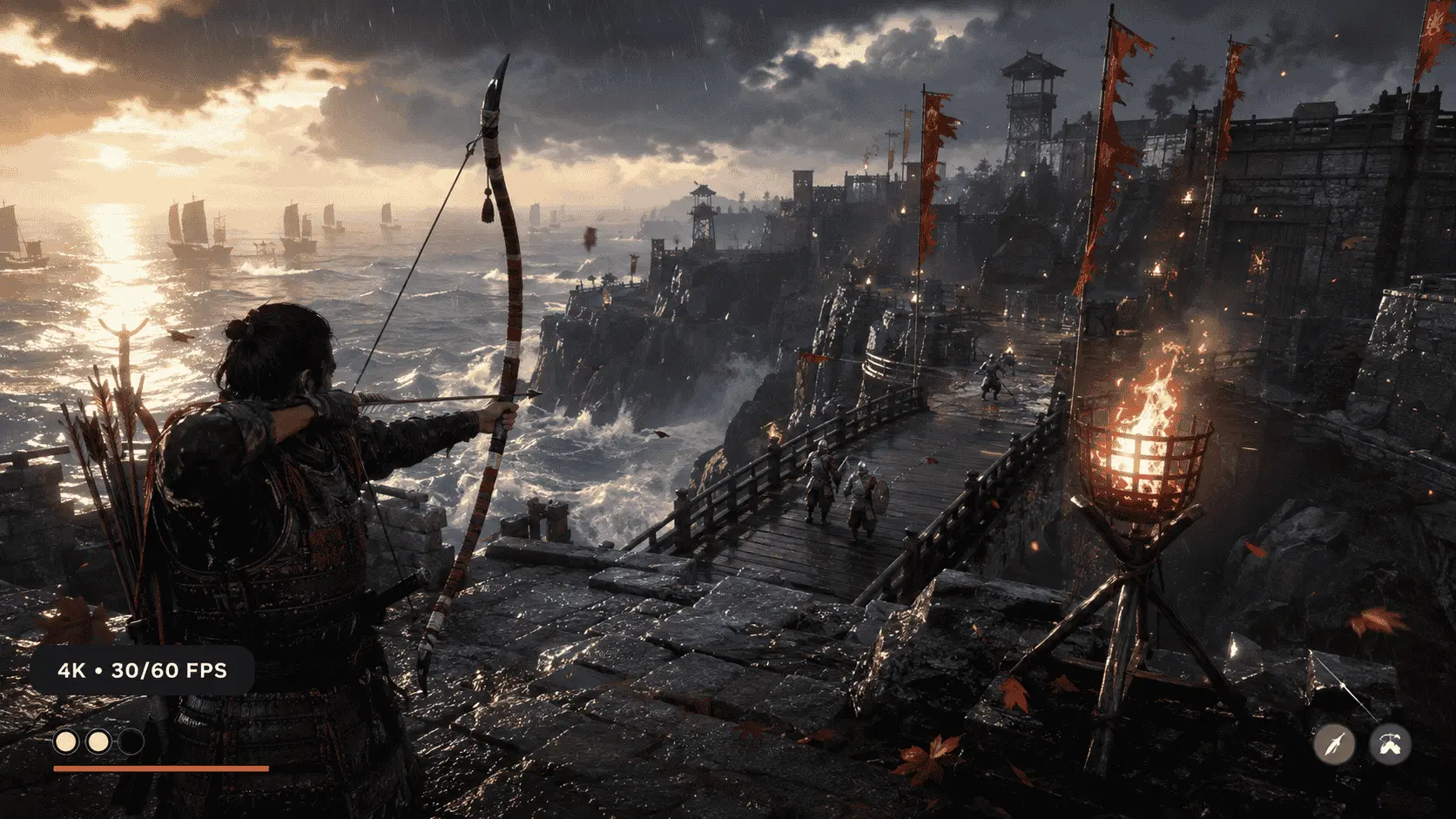
A 3840 × 2160 frame contains four times as many pixels as 1080p. At 60 FPS, that equals nearly 498 million output pixels per second before considering effects, post-processing, or reconstruction. This is why Sony raises the GPU requirement from an RTX 3070 or RX 6800 for 4K/30 High to an RTX 4080 or RX 7900 XT for 4K/60 Very High.
The 4K/30 option prioritizes image detail over responsiveness and can suit players using the High-tier hardware on a large display. The 4K/60 target provides smoother motion but leaves less performance headroom for demanding locations. PC Gamer’s launch-build testing found that even an RTX 4080 Super remained below 80 FPS at 4K Very High, demonstrating how quickly the GPU workload rises at this resolution despite the absence of ray tracing.
A GPU below the Very High tier may still produce a satisfactory 4K result by using the High preset, lowering selected settings, or enabling a quality upscaling mode. Native rendering, upscaled rendering, and frame-generated output must remain separate when judging whether the system has reached the intended 60 FPS target.
CPU, RAM, VRAM, and storage for Ghost of Tsushima Director’s Cut
Each hardware requirement controls a different part of the experience. The processor prepares game logic and rendering work, system RAM holds active game and operating-system data, VRAM stores graphics resources, and the storage drive supplies installed assets. A shortage in one area can cause problems that a stronger component elsewhere cannot correct.
CPU requirements
The CPU has a greater effect when the game is running at lower resolutions or targeting high frame rates. Reducing the resolution removes work from the GPU, but it does not reduce tasks such as animation, world simulation, enemy behaviour, or draw-call preparation. Once the graphics card can produce frames quickly enough, the processor may determine the upper frame-rate limit.
The official 1080p/60 tier moves from the minimum Core i3-7100 or Ryzen 3 1200 to a Core i5-8600 or Ryzen 5 3600. This is a substantial increase in processing resources: the Core i5-8600 has six cores, while the Ryzen 5 3600 has six cores and twelve threads. Core count alone is not a reliable comparison, however, because architecture, clock speed, cache, and memory performance also influence the result.
PC Gamer’s release-build testing found that adding more CPU cores provided limited gains once the system had a capable six-core processor. Higher clock speed mattered more, while AMD’s 3D V-Cache produced a modest improvement mainly in low-resolution tests and 1% low results. A faster CPU can therefore improve frame-rate consistency, but it is unlikely to deliver a large 1440p or 4K gain when the graphics card is already fully occupied.
8 GB versus 16 GB RAM
Eight gigabytes of system RAM qualifies only for the minimum 720p/30 tier. Windows, launchers, security software, browsers, voice chat, and recording tools all consume part of that capacity before the game loads. When physical memory becomes full, Windows may move less active data to the storage drive, which is much slower than RAM and can introduce pauses when that data is needed again.
Sixteen gigabytes is the official requirement for 1080p, 1440p, and 4K targets. It provides more room for the game and background processes, making it the sensible capacity for normal play. Closing browsers, overlays, and recording software may help an 8 GB system, but it does not convert that PC into the recommended tier.
Sony does not specify a required memory speed or channel configuration. Faster or dual-channel memory can affect performance in some systems, but capacity remains the first concern here. Moving from 16 GB to 32 GB can provide additional headroom for streaming, editing, or heavy multitasking; it should not be presented as a required upgrade for the game itself.
How much VRAM is needed?
VRAM is memory located on or assigned to the graphics processor. It holds textures, geometry, render targets, shadow data, and other resources needed to construct the image. It is separate from system RAM, so a PC with 16 GB of RAM does not correct a graphics card with insufficient dedicated memory.
Sony specifically names the 4 GB version of the GTX 960 for the minimum tier. At higher resolutions and presets, the game must hold more detailed resources and larger rendering buffers in VRAM. A card can have enough raw processing speed for a frame-rate target but still encounter limitations if the selected settings exceed its available graphics memory.
PC Gamer measured actual VRAM use with Microsoft PIX rather than reporting the larger amount reserved by the game. Its launch-build testing found that 8 GB cards were generally sufficient when settings were kept below their maximum values. Actual use could exceed 8 GB at 4K Very High in detailed towns or villages, although the tested RTX 3060 Ti maintained a low but consistent frame rate rather than producing constant stutter.
VRAM pressure does not cause one universal symptom. Depending on the card, driver, and system memory, it may produce lower-resolution textures, brief pauses after rapid camera movement, unstable frame times, or a sharp performance loss. Reducing texture quality and avoiding maximum settings at 4K are the most relevant responses when an otherwise capable 8 GB card shows these symptoms.
HDD versus SSD storage
The official capacity requirement is 75 GB of available space. This figure describes the space needed for installation; it should not be treated as an exact download size because store compression, patches, and temporary installation data can change the amount transferred or required during an update.
An HDD is permitted only at the minimum tier, where Sony still recommends an SSD. Every higher tier specifies 75 GB of SSD space. A solid-state drive reduces loading time and can supply game assets more quickly as the player moves through the open world. It does not increase the graphics card’s rendering performance, so moving the game to an SSD should not be expected to transform a GPU-limited average frame rate.
Sony does not require a particular SSD interface or transfer speed. A healthy SATA SSD meets the stated storage type, while an NVMe drive may load data faster in some conditions. The practical priority is installing the game on an SSD with enough free capacity for the current installation, future patches, and normal drive operation.
Graphics settings and upscaling
A PC that falls slightly short of its chosen performance tier does not need every setting reduced at once. The better approach is to begin with the closest official preset, measure performance in a demanding area, and lower the settings that add substantial GPU work without changing the overall presentation enough to justify their cost.
Settings to reduce first
The Very High preset is not the same as manually setting every option to its maximum value. Shadows, volumetric fog, and ambient occlusion can be raised beyond the preset, but doing so adds GPU load for comparatively small visual changes during normal play. Returning these options to their preset values is a sensible first step when a system is close to its target but cannot maintain it.
Shadows control their resolution and complexity, while volumetric fog affects atmospheric lighting across forests, fields, and weather conditions. Ambient occlusion adds contact shading where objects meet, giving vegetation, buildings, and characters more depth. Lowering each option by one level generally preserves its effect while reducing the work required to render it.
Texture quality should be adjusted according to VRAM rather than lowered automatically. Reducing it may help a graphics card that shows memory-related pauses or texture-loading problems, but it often produces a smaller frame-rate gain when VRAM is not full. An 8 GB card targeting 4K should be more conservative with texture quality than the same card running at 1080p.
The Very Low and Low presets make broader cuts to image quality and expose the game’s aggressive level-of-detail transitions. Medium is therefore the preferable lower boundary for systems that can sustain it. Very Low remains useful when reaching a stable frame rate matters more than foliage density, distant detail, and shadow quality.
DLSS, FSR, and XeSS
Upscaling renders the game at a lower internal resolution and reconstructs the image at the selected output resolution. This reduces GPU work, but the visual result depends on the technology, quality mode, output resolution, scene movement, and graphics card.
| Technology | Main purpose | Hardware considerations |
|---|---|---|
| NVIDIA DLSS Super Resolution | Upscaling | Requires a GeForce RTX GPU |
| AMD FSR 3 | Upscaling | Available across a wider range of compatible AMD, NVIDIA, and Intel GPUs |
| Intel XeSS | Upscaling | Works on compatible GPUs and is optimized for Intel Arc hardware |
| NVIDIA DLAA | Native-resolution anti-aliasing | Uses RTX hardware to improve image quality rather than increase performance |
| FSR 3 Native AA | Native-resolution anti-aliasing | Improves edge treatment without reducing the internal resolution |
The official PlayStation PC feature announcement confirms support for DLSS 3 and FSR 3 upscaling and frame generation, Intel XeSS upscaling, NVIDIA DLAA, and FSR 3 Native AA. These options allow the upscaling method to be selected according to the installed GPU rather than restricting every player to one reconstruction system.
Quality mode should be the first upscaling option tested at 1440p or 4K because it retains a higher internal resolution than Balanced or Performance mode. Lower modes can recover more performance, but fine foliage, hair, distant objects, and particles have fewer source pixels available for reconstruction. At 1080p, this loss is more visible because the starting pixel count is already lower.
Nixxes updated AMD FSR to version 3.1.4 in Patch 8, game version 1053.8.1023.1614. The same update added recognition for driver-enabled FSR 4 on compatible AMD hardware. Benchmark results recorded on the May 2024 launch build should not be assumed to represent the image quality or stability of this later FSR implementation.
Frame generation
Frame generation creates interpolated frames between traditionally rendered frames. It can raise the displayed FPS substantially, but it does not make the processor and game logic run at the generated frame rate. Input is still based on the underlying rendered performance, so 80 displayed FPS produced from a low base can feel less responsive than 80 natively rendered FPS.
The feature works best after the PC has already reached a stable and responsive base frame rate. It is useful for improving motion clarity on high-refresh displays or raising a strong 4K result, but it should not be used to describe an unstable minimum-spec system as a 60 FPS configuration.
NVIDIA DLSS Frame Generation requires supported GeForce RTX 40-series or newer hardware. AMD FSR frame generation supports a broader range of compatible GPUs and can be paired with different upscaling methods in supported configurations. NVIDIA Reflex is also available to reduce system latency, but it cannot make generated frames equivalent to fully rendered frames.
Generated frames can show errors around thin branches, particles, interface elements, or fast camera movement because the system must estimate visual information that was not conventionally rendered. Performance comparisons should therefore report the base FPS, displayed FPS, upscaler, quality mode, and frame-generation setting separately.
No ray tracing
Ghost of Tsushima Director’s Cut does not provide ray-traced reflections, shadows, or global illumination on PC. Its graphics workload uses conventional rasterized rendering, so the demanding 4K requirements come from resolution, effects, image quality, and frame-rate targets rather than ray tracing.
This also means there is no ray-tracing setting to disable for a quick performance gain. Systems struggling at High or Very High should adjust shadows, volumetric fog, ambient occlusion, output resolution, or upscaling before making more destructive reductions to the overall preset.
Laptops, integrated graphics, and handhelds
Portable systems require a different compatibility check from desktop PCs. Mobile GPUs can use different power limits, integrated graphics share memory with the processor, and handheld devices operate at lower resolutions within strict thermal and battery limits. Matching a familiar model name is therefore not enough to predict performance.
Gaming laptops
A laptop GPU is not automatically equal to the desktop card with a similar name. Mobile versions commonly have fewer active resources, lower power limits, different memory configurations, or reduced clock speeds. An RTX 4070 Laptop GPU should be assessed as a mobile product rather than compared directly with the desktop RTX 4070.
Total graphics power, usually listed as TGP, defines how much electrical power the laptop allows the GPU to use. Two laptops containing the same mobile GPU can deliver different frame rates when one model runs it at a higher TGP and has stronger cooling. Shared heat pipes, processor power, fan profiles, and room temperature can also affect sustained clock speeds during a long gaming session.
Run the laptop while connected to its original power adapter and select its performance mode before testing the game. Battery operation and quiet profiles often restrict CPU and GPU power. Windows should also be configured to launch the game with the high-performance GPU; otherwise, a system with dedicated graphics may mistakenly use its slower integrated processor.
A useful laptop benchmark must identify the complete GPU name, TGP, processor, RAM configuration, resolution, preset, and upscaling mode. Results from a higher-powered implementation should not be treated as a guarantee for a thinner laptop carrying the same GPU label. When the power limit cannot be confirmed, use the next lower official tier as the safer expectation.
Integrated graphics
Integrated graphics use system memory instead of having a separate pool of high-bandwidth VRAM. This means the processor and graphics cores must share both capacity and memory bandwidth. A laptop with 16 GB of installed RAM may have less than that available to Windows and the game once part of it is assigned to graphics.
The official minimum names a GTX 960 with 4 GB of dedicated memory or an RX 5500 XT. Most older Intel UHD, Intel Iris Xe, AMD Vega, and entry-level integrated GPUs fall below this graphics baseline even when they support the required graphics API. DirectX compatibility allows the game to use the hardware; it does not establish enough rendering performance.
Newer integrated GPUs may run the single-player game at a reduced resolution with lower settings and upscaling, but the result depends on the exact processor, configured power limit, memory speed, and whether the RAM operates in dual-channel mode. Increasing the amount of memory reserved for the integrated GPU does not create additional processing power or memory bandwidth.
Treat integrated-graphics performance as unsupported unless a benchmark matches the exact processor and memory configuration. The test should show native or internal resolution, preset, upscaling mode, base frame rate, and frame-time behaviour. A short clip showing a displayed FPS counter is insufficient if it omits these conditions or uses frame generation without reporting the underlying performance.
Steam Deck
The original Steam Deck status caused confusion because the single-player campaign could run while the complete store package remained unsupported due to Legends multiplayer. Nixxes resolved this distinction in Patch 8: the single-player game is now Steam Deck Verified, Legends is a separate Steam DLC, and the game includes a dedicated Steam Deck graphics preset and interface adjustments.
Steam Deck verification applies to the single-player component. Legends still requires a PlayStation account, and its separation should not be interpreted as verification of multiplayer on the device. Nixxes also does not publish a guaranteed locked frame rate for every location, so the Verified status confirms supported compatibility rather than one universal performance result.
The Deck’s 1280 × 800 display reduces the pixel workload compared with 1080p, while its dedicated preset accounts for the device’s fixed hardware and power limits. Using that preset is more reliable than copying desktop Medium settings individually. Upscaling can recover additional performance, but aggressive modes will produce a softer image even on the smaller screen.
Other handheld gaming PCs
Windows handhelds such as the ROG Ally and Legion Go can operate at different power limits and often use displays with higher native resolutions than the Steam Deck. Running at 1080p, 1200p, or 1600p increases GPU demand sharply, so native display resolution should not be assumed to be the correct gaming resolution.
Performance should be tested while recording the device’s power mode, output resolution, internal resolution, memory allocation, and upscaling setting. Raising the power limit may improve frame rates, but it also increases heat, fan noise, and battery consumption. A lower resolution with a stable base frame rate is preferable to using frame generation to hide performance that is already inconsistent.
Software and account requirements
Hardware performance is only one part of compatibility. The game also depends on a supported 64-bit operating system, specific CPU instructions, store components, and—when Legends multiplayer is used—a PlayStation account.
Windows and CPU instructions
The published operating-system requirement is Windows 10 64-bit across all four hardware tiers. A 32-bit installation cannot run the game or address the memory capacities required by modern graphics workloads. Windows should also be updated before installation because old system components can cause launcher, driver, or PlayStation PC SDK errors.
Windows 11 is not listed as a separate tier in Sony’s requirements table, but Nixxes has released compatibility improvements for Windows 11 builds through post-launch patches. The exact official wording should remain “Windows 10 64-bit” rather than being rewritten as “Windows 10 or later,” while current Windows 11 users should not interpret the table as a general statement that their operating system is unsupported.
Processor model and speed are not the only CPU-level conditions. According to Nixxes’ current CPU instruction guidance, updated March 11, 2026, the game requires support for AVX and F16C instructions. Most processors released from 2012 onward include both, but some older desktop CPUs, server-derived Xeons, and unusual low-power models may not.
AVX2 is not listed as part of the current minimum instruction requirement. Readers should check AVX and F16C support for their exact processor through the manufacturer’s specification page rather than relying only on its release year. If either instruction is missing, lowering graphics settings will not solve the resulting launch error.
PlayStation account requirements
A PlayStation account is not required to play the complete single-player campaign or Iki Island expansion. Players can also earn Steam or Epic Games Store achievements without signing in. Linking a Steam account to PlayStation for the available early-unlock items is optional.
A PlayStation account is required for two features:
- Legends online multiplayer
- The PlayStation overlay, including PlayStation Trophy support
Legends became a separate Steam DLC in Patch 8, but it remains available without an additional purchase to owners of Ghost of Tsushima Director’s Cut. Separating the multiplayer component made the single-player installation eligible for Steam Deck verification; it did not remove the account requirement from Legends.
Legends supports cross-platform sessions between Windows PC, PlayStation 4, and PlayStation 5. Cross-play, the PlayStation friends list, and PlayStation Trophies depend on signing in, while the offline campaign does not. Players interested only in Jin Sakai’s story do not need to create or connect a PlayStation account.
Ultrawide displays and performance
The PC version supports 21:9 ultrawide, 32:9 super-ultrawide, and 48:9 triple-monitor configurations. These modes expand the horizontal view, but they also increase the number of pixels the GPU must render. The official requirements do not provide separate hardware tiers for ultrawide resolutions.
A 3440 × 1440 display contains about 34% more pixels than standard 2560 × 1440. A 5120 × 1440 super-ultrawide display contains approximately 7.37 million pixels, placing its GPU workload much closer to 4K’s 8.29 million pixels than ordinary 1440p. A PC that meets the 1440p tier may therefore need reduced settings or upscaling when driving a wider panel at the same vertical resolution.
Frame-rate expectations should be based on the monitor’s complete resolution rather than the “1440p” label alone. Benchmarks recorded at 2560 × 1440 cannot be transferred directly to 3440 × 1440 or 5120 × 1440.
Mouse, keyboard, and controller support
Mouse and keyboard controls are fully customizable, while Steam Input can remap supported controllers. Players using an Xbox-style controller do not need a DualSense controller to access the core game, although button prompts and touchpad-related actions may differ by device and configuration.
A PlayStation DualSense controller supports haptic feedback and adaptive triggers, but the full feature set requires a wired USB connection. Bluetooth may provide standard controller input, yet it should not be assumed to deliver every haptic or trigger effect available over USB.
The PC version also supports unlocked frame rates, allowing suitable hardware and high-refresh displays to operate beyond 60 FPS. A high monitor refresh rate does not create additional frames by itself; the CPU and GPU must still render them, or frame generation must be enabled and reported separately.
Which upgrade matters most?
The correct upgrade depends on the performance target and the component preventing the PC from reaching it. Buying a faster graphics card will not solve a processor bottleneck, while adding more RAM will not raise frame rates when the GPU is already operating at full capacity.
Confirm the limiting component
Test the game in the same demanding location before and after changing one setting. Task Manager or a trusted hardware-monitoring overlay can show GPU use, VRAM use, system-memory consumption, processor load, temperatures, and clock speeds during the comparison.
| Observed behaviour | Likely limitation | Most relevant action |
|---|---|---|
| Frame rate rises clearly after lowering resolution | GPU processing power | Lower resolution, enable upscaling, or upgrade the GPU |
| Frame rate changes little after lowering resolution | CPU, frame-rate cap, or background process | Check CPU performance, temperatures, caps, and background activity |
| Textures load incorrectly or frame times worsen as VRAM fills | Graphics memory | Lower texture quality or choose a GPU with more suitable VRAM |
| System RAM remains nearly full and storage activity increases | System memory | Close background programs or move from 8 GB to 16 GB |
| Loading is slow and the game is installed on an HDD | Storage | Move the installation to an SSD |
| Performance declines after several minutes | Power or thermal limits | Check temperatures, cooling, laptop power mode, and clock speeds |
Overall CPU use can be misleading because one heavily loaded game thread may limit performance while the total percentage remains below 100%. Check individual CPU cores and GPU utilization rather than relying on one combined processor figure.
Upgrade the GPU first for higher resolutions
The graphics card is the first upgrade to consider when the goal is higher resolution, a higher preset, or a stable 60 FPS while GPU use is already near its limit. This is the most likely restriction for systems moving from 1080p to 1440p or 4K because pixel workload grows while the game’s official CPU requirement stops increasing after the High tier.
Choose the GPU according to the intended resolution and preset rather than aiming only to exceed the minimum requirement. A card suitable for 1080p Medium may still be a poor purchase for 1440p High. VRAM should also match the target: a fast card with limited graphics memory can encounter problems when high-resolution textures and 4K rendering buffers exceed its capacity.
Before buying a desktop GPU, check power-supply capacity, required power connectors, case clearance, and processor compatibility. A large GPU upgrade paired with a processor below the intended tier may move the bottleneck to the CPU. On most gaming laptops, the GPU is not replaceable, making lower settings, upscaling, or a complete system replacement the practical options.
Upgrade the CPU when lowering resolution does not help
A processor upgrade becomes relevant when the graphics card is not fully occupied, the frame rate changes little at a lower resolution, and one or more CPU cores remain heavily loaded. This pattern indicates that the GPU is waiting for the processor to prepare additional work.
Confirm that the problem is not caused by thermal throttling, a low-power profile, background software, or a frame-rate cap before replacing hardware. Older desktop platforms may also require a new motherboard and memory when moving to a newer processor generation, making a CPU change a platform-level cost rather than a single-component purchase.
Add RAM when the system has 8 GB
Moving from 8 GB to 16 GB brings the PC in line with every official target above 720p/30. The upgrade is justified when memory use approaches the installed capacity, Windows begins using the page file heavily, or closing browsers and background programs reduces stutter.
Use a matched memory kit supported by the motherboard or laptop where possible. Two compatible modules can provide dual-channel operation, increasing memory bandwidth as well as capacity. This matters more for integrated graphics because the GPU shares system memory.
A PC that already has 16 GB should not be upgraded to 32 GB solely to meet the game’s requirements. Additional memory can help with streaming, recording, content creation, or heavy multitasking, but it does not correct an underpowered graphics card or guarantee a higher average frame rate.
Move the game to an SSD
Moving the installation from an HDD to an SSD is the most direct storage improvement. It can shorten loading times and give the game faster access to streamed assets, while also meeting the storage type specified for the 1080p, 1440p, and 4K tiers.
An SSD upgrade should not be judged by average FPS alone. Its benefit appears in loading behaviour, asset delivery, and reduced dependence on slow mechanical access. A SATA SSD is sufficient to meet the stated requirement; replacing one healthy SSD with a faster NVMe model is less urgent than correcting inadequate GPU, CPU, or RAM capacity.
Keep more than the stated 75 GB available so patches and temporary update files have room to complete. The publisher does not specify an exact additional allowance, so a fixed buffer should not be presented as an official requirement.
Frequently Asked Questions
Can Ghost of Tsushima run with 8 GB of RAM?
Yes, but 8 GB is specified only for the minimum 720p/30 FPS target on Very Low settings.
Sony requires 16 GB for 1080p/60 and every higher performance tier.
Is an SSD required?
An HDD is permitted at the minimum tier, although Sony recommends an SSD.
The 1080p, 1440p, and 4K tiers specify 75 GB of SSD space, making an SSD the practical choice for normal play.
How much VRAM does the game need?
The minimum NVIDIA requirement is specifically a GTX 960 with 4 GB of VRAM.
Higher resolutions and presets require more graphics memory; 8 GB cards should avoid maximum settings at 4K if VRAM use causes texture or frame-time problems.
How much storage space is required?
The official requirement is 75 GB of available storage.
More free space should remain for patches and temporary update files, but Sony does not publish a fixed additional allowance.
Can a gaming laptop run Ghost of Tsushima?
Yes, if its mobile CPU and GPU provide performance close to the intended official tier.
Check the exact laptop GPU, TGP, cooling, VRAM, and test resolution rather than comparing its name directly with a desktop graphics card.
Can integrated graphics run the game?
Most older integrated GPUs fall below the official GTX 960 4 GB or RX 5500 XT baseline.
Newer integrated graphics may work at reduced resolutions with upscaling, but performance must be verified using the exact processor, RAM configuration, and power limit.
Does Ghost of Tsushima work on Windows 11?
The official table lists Windows 10 64-bit, while later Nixxes patches include Windows 11 compatibility improvements.
A current 64-bit Windows 11 installation is not generally excluded, but Windows and graphics drivers should be kept updated.
Is Ghost of Tsushima Steam Deck Verified?
The single-player game is Steam Deck Verified following Patch 8 and includes a dedicated Deck preset.
Legends is a separate Steam DLC and should not be treated as part of the single-player verification.
Is a PlayStation account required on PC?
No PlayStation account is needed for the single-player campaign, Iki Island, or Steam and Epic achievements.
An account is required for Legends multiplayer and the PlayStation overlay, including PlayStation Trophy support.
Does the game support DLSS, FSR, and XeSS?
Yes. The PC version supports NVIDIA DLSS, AMD FSR, and Intel XeSS upscaling, along with supported frame-generation options.
NVIDIA DLAA and FSR Native AA are available for players who want native-resolution anti-aliasing rather than a performance-focused upscale.
Does Ghost of Tsushima have ray tracing?
No. The PC version does not offer ray-traced reflections, shadows, or global illumination, so there is no ray-tracing setting to disable for additional performance.
Can a PC below the minimum requirements run the game?
It may start on some unsupported configurations, but no dependable performance target applies below the minimum CPU and GPU.
Lower settings, upscaling, or frame generation cannot correct missing CPU instructions, inadequate GPU capability, or severe memory limits.