
God of War Ragnarök PC System Requirements
God of War Ragnarök requires at least an Intel Core i5-4670K or AMD Ryzen 3 1200, a GeForce GTX 1060 6 GB, Radeon RX 5500 XT 8 GB, or Intel Arc A750, 8 GB of RAM, and 190 GB of SSD space. These official minimum requirements target an average of 30 FPS at native 1080p using the Low preset. That is a playable starting point, but it does not guarantee a locked 30 FPS during demanding scenes and reduces visual detail compared with the higher presets.
The recommended Core i5-8600 or Ryzen 5 3600, RTX 2060 Super, RX 5700, or Arc A770, and 16 GB of RAM target 1080p at an average of 60 FPS on Medium settings. This should provide smoother camera movement and more responsive combat than the minimum tier. The higher official hardware tiers raise the target to 1440p at 60 FPS on High with an RTX 3070 or RX 6800, while native 4K at 60 FPS requires an RTX 3080 Ti or RX 6900 XT for High settings—or an RTX 4070 Ti or RX 7900 XT for Ultra.
God of War Ragnarök PC requirements
Sony divides the PC requirements into five tiers, each tied to a specific resolution, graphics preset, and average frame rate. The current Steam listing adds Intel Arc alternatives to the Minimum and Recommended tiers, but no official Intel equivalents are listed for 1440p or 4K.
| Specification | Minimum | Recommended | High | Performance | Ultra |
|---|---|---|---|---|---|
| Performance target | 1080p, 30 FPS average, Low | 1080p, 60 FPS average, Medium | 1440p, 60 FPS average, High | 4K, 60 FPS average, High | 4K, 60 FPS average, Ultra |
| NVIDIA GPU | GeForce GTX 1060 6 GB | GeForce RTX 2060 Super | GeForce RTX 3070 | GeForce RTX 3080 Ti | GeForce RTX 4070 Ti |
| AMD GPU | Radeon RX 5500 XT 8 GB | Radeon RX 5700 | Radeon RX 6800 | Radeon RX 6900 XT | Radeon RX 7900 XT |
| Intel GPU | Arc A750 | Arc A770 | Not specified | Not specified | Not specified |
| Intel CPU | Core i5-4670K | Core i5-8600 | Core i7-7700K | Core i7-7700K | Core i5-11600K |
| AMD CPU | Ryzen 3 1200 | Ryzen 5 3600 | Ryzen 7 2700X | Ryzen 7 2700X | Ryzen 7 3700X |
| RAM | 8 GB | 16 GB | 16 GB | 16 GB | 16 GB |
| Operating system | Windows 10 20H1, 64-bit | Windows 10 20H1, 64-bit | Windows 10, 64-bit | Windows 10, 64-bit | Windows 10, 64-bit |
| DirectX | DirectX 12 | DirectX 12 | DirectX 12 | DirectX 12 | DirectX 12 |
| Storage | 190 GB SSD | 190 GB SSD | 190 GB SSD | 190 GB SSD | 190 GB SSD |
Sources: Santa Monica Studio’s five-tier PC requirements and the current Steam system requirements.
What do the five tiers mean?
God of War Ragnarök‘s every tier describes a complete performance target rather than a collection of interchangeable parts. A PC with an RTX 3070 but only 8 GB of system RAM does not fully meet the High specification, just as a suitable processor cannot compensate for a graphics card below the listed GPU level.
The Minimum tier is intended for native 1080p at an average of 30 FPS using Low settings. It establishes the supported entry point, but demanding battles and visually complex areas may still fall below the stated average. The Recommended tier raises the target to 60 FPS at 1080p and uses the Medium preset, providing smoother camera movement and combat while retaining more visual detail.
The High tier is the relevant reference for native 1440p at 60 FPS. The Performance and Ultra tiers both target native 4K at 60 FPS, but Ultra requires a faster GPU because it increases graphics quality rather than resolution. Moving from an RTX 3080 Ti to an RTX 4070 Ti, or from an RX 6900 XT to an RX 7900 XT, is therefore tied to the preset change from High to Ultra.
Sony’s targets were established at native resolution without DLSS, FSR, or XeSS. Upscaling can improve performance on supported graphics cards, but it should not be used to reinterpret a lower-tier PC as officially meeting a higher tier. Driver versions, game patches, laptop power limits, background processes, and the demands of individual scenes can also change the frame rate.
Can your PC run God of War Ragnarök?
A PC meets a requirement tier only when its GPU, VRAM, CPU, RAM, operating system, and storage all satisfy that tier. Matching the listed graphics card while falling short on memory or processor performance does not make the complete system equivalent.
Check the processor and installed RAM under Settings > System > About in Windows. The exact GPU and its dedicated memory appear under Task Manager > Performance > GPU. Compare the full component names with the official table, including model numbers, laptop designations, and VRAM capacity.
Check your GPU and VRAM
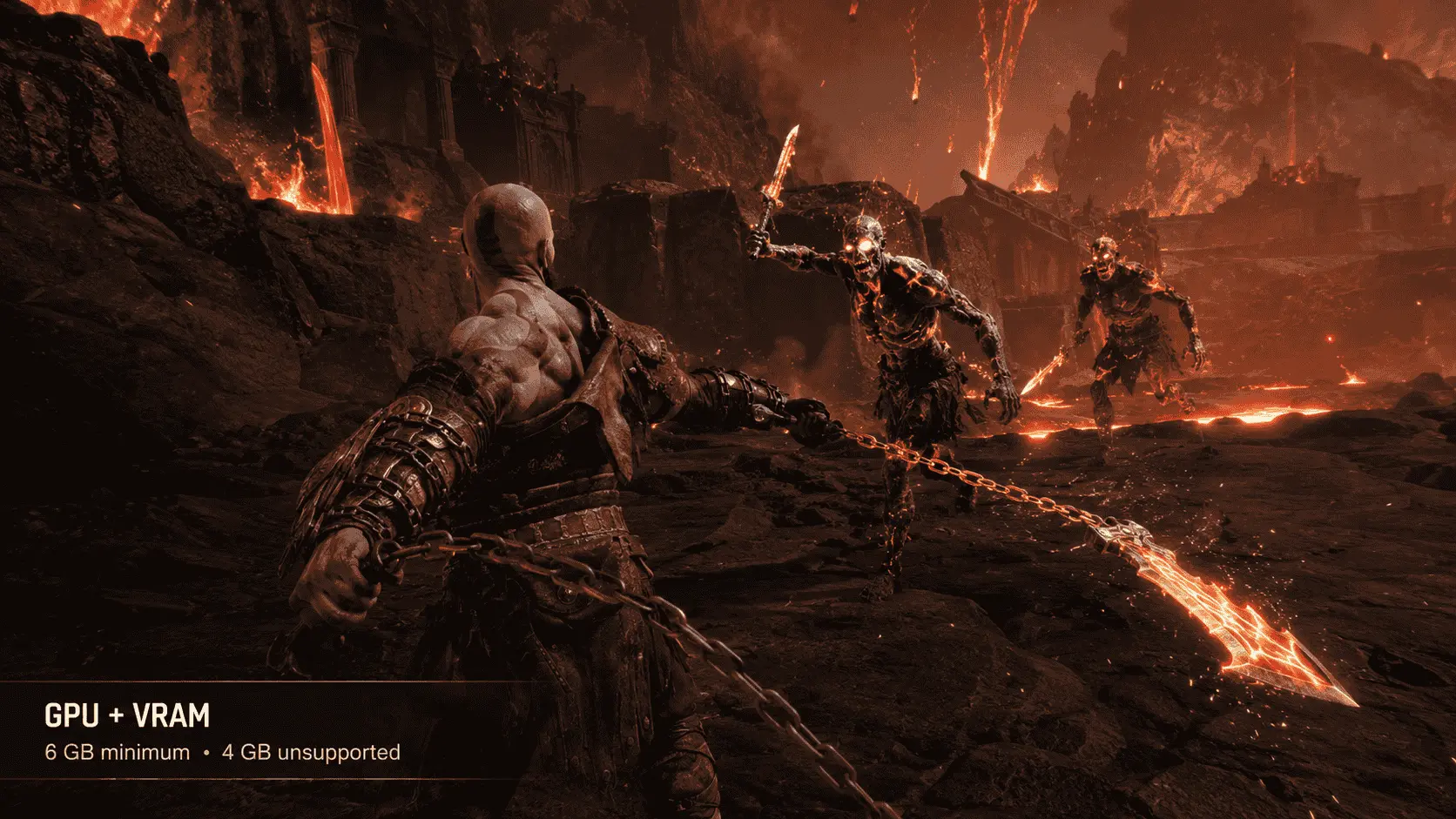
The supported graphics baseline for God of War Ragnarök is a GeForce GTX 1060 with 6 GB of VRAM, Radeon RX 5500 XT with 8 GB, or Intel Arc A750. A GTX 1060 3 GB does not meet the minimum requirement even though it shares the GTX 1060 name. The same limitation applies to graphics cards that offer different VRAM capacities under one product family.
VRAM is the dedicated memory used to hold textures, frame buffers, geometry data, and other graphics resources. Higher resolutions and graphics presets increase this demand because the GPU must retain more detailed assets and process larger frames. Frame generation can place further pressure on available graphics memory.
Patch 2 removed the restriction that originally prevented GPUs with less than 6 GB of VRAM from launching the game. However, Santa Monica Studio’s official Patch 2 warning still classifies 4 GB cards as unsupported. Such a card may start the game, but it can encounter unstable performance, degraded texture quality, memory-related stuttering, or crashes. Being able to launch the game is therefore not the same as meeting its minimum requirements.
Intel Arc A750 and A770 are dedicated graphics cards with their own VRAM. They should not be confused with Intel UHD, Iris Xe, or other integrated graphics built into a processor. Integrated GPUs normally use shared system memory and sit below the game’s published graphics baseline. They may produce an image at reduced settings in some configurations, but there is no official integrated graphics performance target.
Check your CPU and RAM
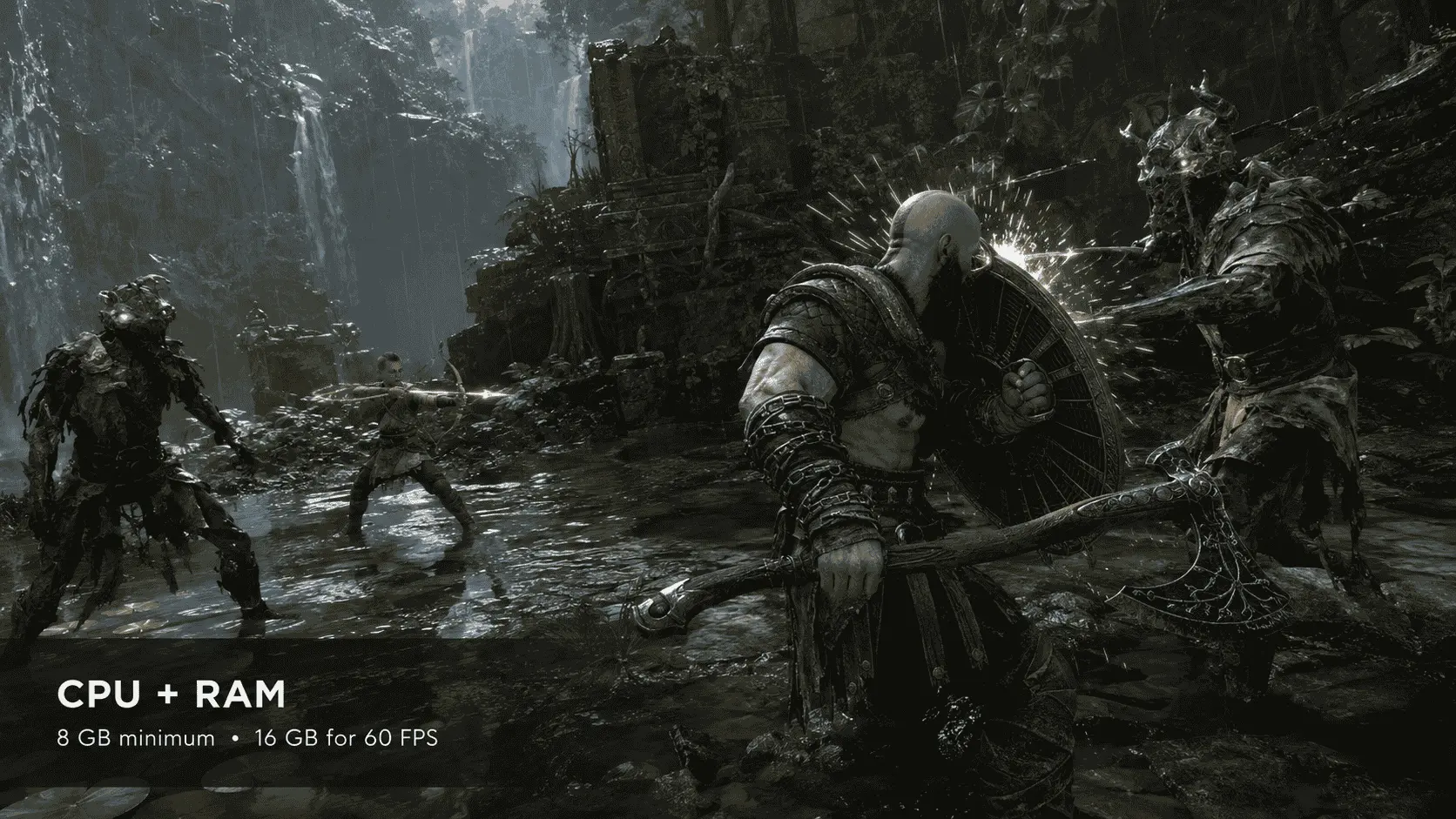
The minimum processors are the Intel Core i5-4670K and AMD Ryzen 3 1200. They are paired with the 30 FPS target because preparing 30 frames per second places less demand on the processor than sustaining 60 FPS. The Recommended tier moves to a Core i5-8600 or Ryzen 5 3600 for 1080p at an average of 60 FPS.
A faster GPU cannot always compensate for a processor below the intended tier. The CPU handles game logic, animation, physics, draw calls, and preparation of each frame before the GPU renders it. If the processor cannot prepare frames quickly enough, lowering the resolution may produce little improvement because the GPU is not the main limitation.
Only the Minimum tier lists 8 GB of system RAM. Every 60 FPS tier requires 16 GB. Windows, launchers, browser tabs, recording tools, and background applications also consume memory, leaving less available to the game. A PC with 8 GB may meet the entry specification, but closing unnecessary applications becomes more important and memory-related interruptions are more likely. Installing 16 GB brings the system in line with every tier above Minimum.
Check Windows, DirectX, and storage
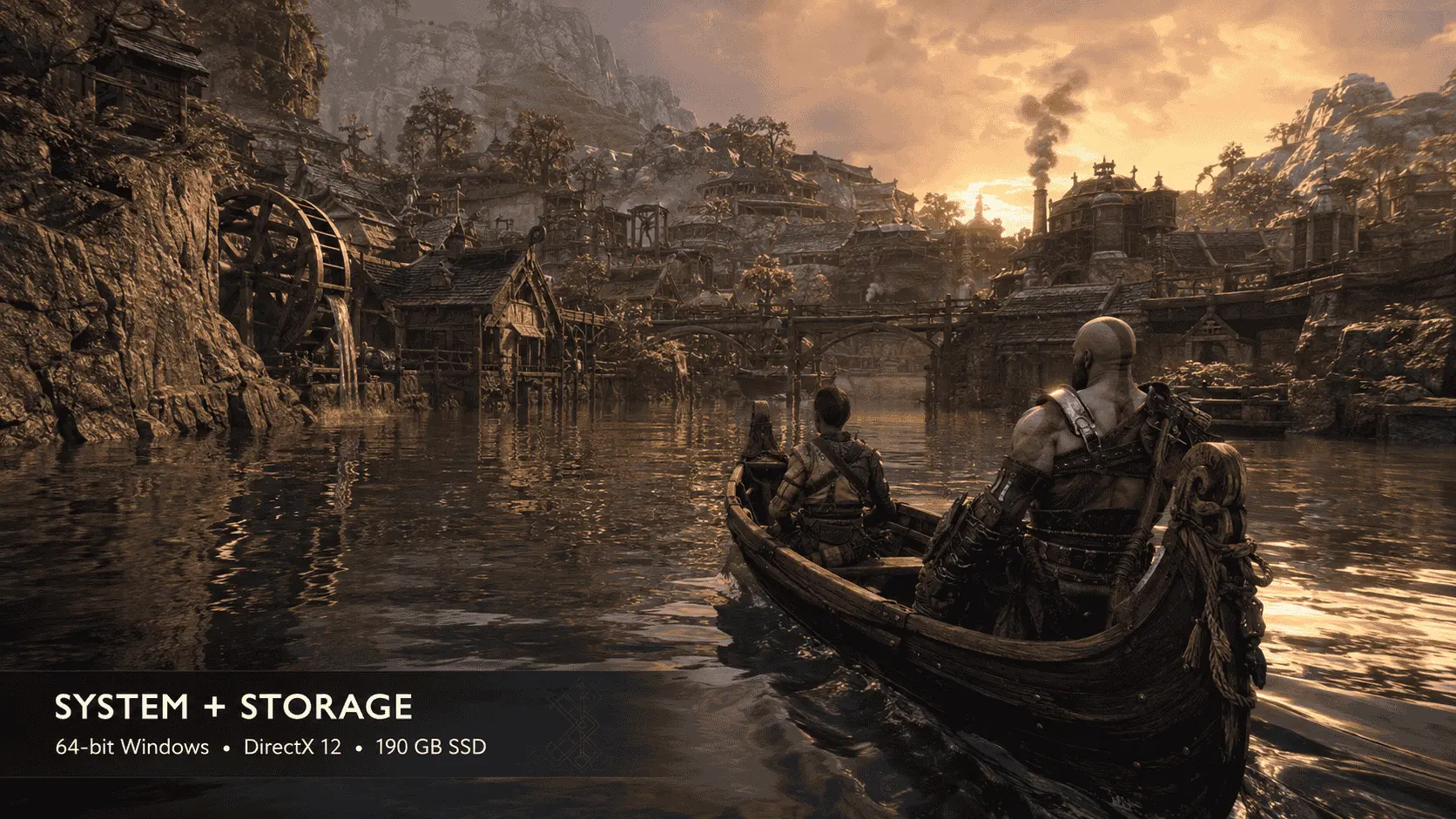
The current requirements specify a 64-bit installation of Windows 10 20H1 and DirectX 12. Windows 7, Windows 8, and 32-bit versions of Windows do not meet the listed requirement. Windows 11 is not named separately in the specification table, although the game has been tested and played on it. A supported 64-bit Windows installation, current system updates, and a compatible DirectX 12 graphics driver remain necessary.
All five tiers require 190 GB of available SSD space. This figure is the capacity that should be reserved before installation, not necessarily the amount downloaded from the storefront. Download packages can be compressed, while installed files, temporary installation data, patches, and future updates may require additional working space.
A hard disk drive does not meet the published storage requirement. An HDD may have enough capacity, but its slower access times can affect asset streaming and loading. The game should be installed on an SSD with more than the minimum free space so that updates can be downloaded and applied without filling the drive.
Check laptop hardware carefully
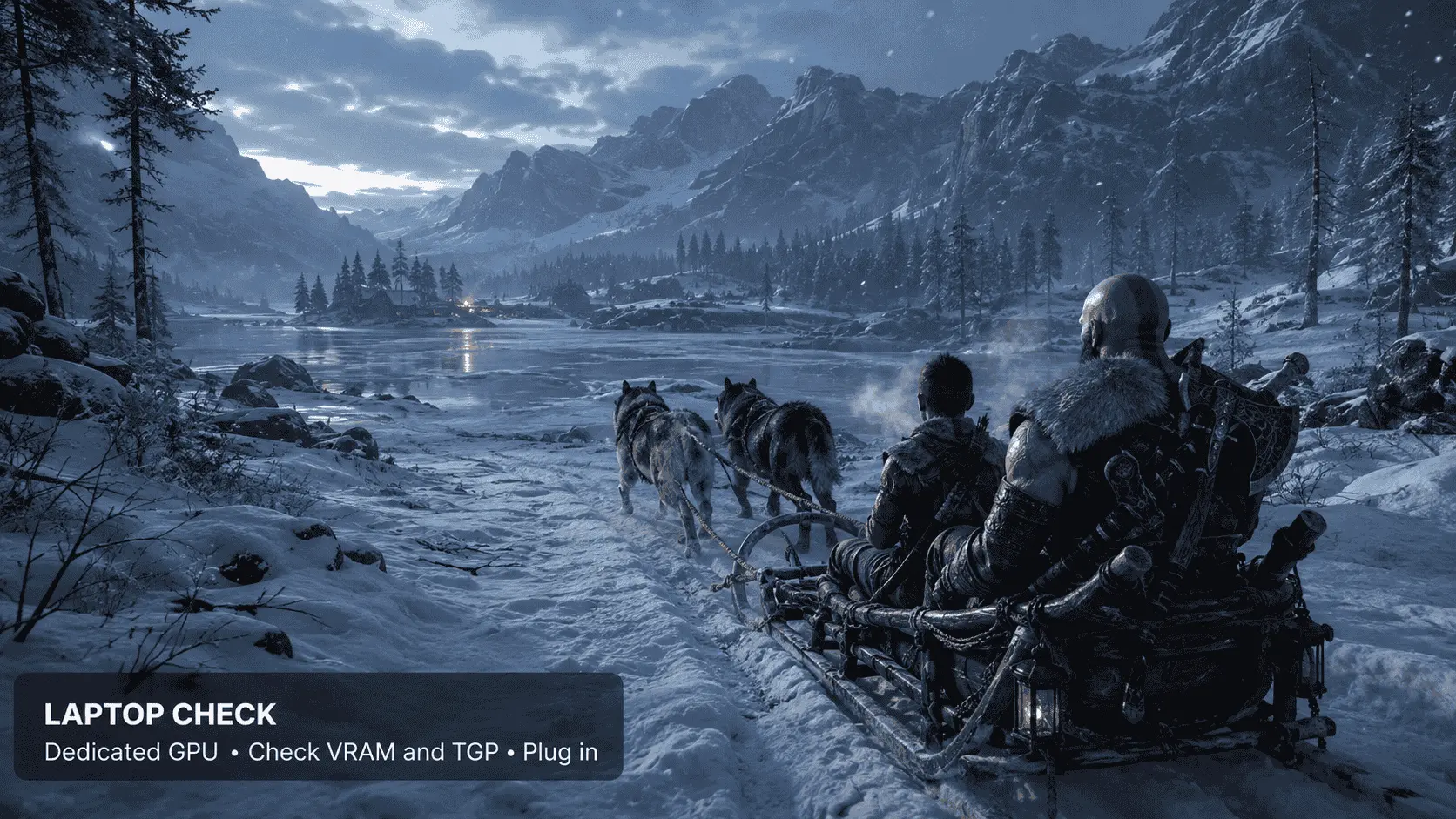
Laptop and desktop graphics cards with similar names can deliver different performance. A mobile RTX 3070, for example, should not be automatically treated as equivalent to the desktop RTX 3070 listed for the High tier. Laptop GPUs operate within manufacturer-defined power limits, and two laptops using the same GPU name can have different Total Graphics Power, clock speeds, cooling capacity, and sustained performance.
Check whether the laptop GPU has enough dedicated VRAM and whether the game is using it instead of the processor’s integrated graphics. Windows Graphics settings, the GPU control panel, and Task Manager can confirm which graphics processor is active. The laptop should also be connected to power and set to its intended performance mode during play, as battery-saving modes commonly reduce CPU and GPU power.
Processor suffixes matter as well. Mobile chips marked with U, H, HS, or HX are designed for different power ranges and should not be judged only by their Core i5, Core i7, Ryzen 5, or Ryzen 7 branding. A dependable laptop comparison requires the complete CPU and GPU names, GPU power limit, VRAM capacity, installed RAM, and results from a laptop with a closely matched configuration.
What performance should you expect?
The official requirements are the most reliable starting point, but they are qualification targets rather than guaranteed results for every PC. Sony identifies the resolution, preset, and average frame rate for each tier but does not publish the test scene, driver version, complete memory configuration, or minimum frame rate. Performance can therefore differ between quiet exploration, effects-heavy combat, and wider areas.
Official targets versus measured results
TechSpot published a 38-GPU benchmark of God of War Ragnarök on September 25, 2024. The test used a Ryzen 7 7800X3D, 32 GB of DDR5-6000 memory, Windows 11, and a PCIe 4.0 NVMe SSD. Nvidia cards used driver 561.09, AMD cards used 24.20.11.01, and the Intel Arc A770 used 32.0.101.6078.
The benchmark covered a demanding area reached after nearly four hours of play. Presets were tested at native resolution with TAA, and the game was restarted between graphics changes so that settings were fully applied. The published article did not identify the exact game build number, making the results useful as launch-period evidence rather than a current performance guarantee.
| Resolution and preset | GPU performance recorded by TechSpot | What the result indicates |
|---|---|---|
| 1080p High | RTX 4060 and RX 6750 XT reached about 60 FPS; RX 7600 averaged 52 FPS | High requires more GPU performance than Sony’s 1080p Medium recommendation |
| 1440p High | RTX 3070 and RX 6800 XT were the approximate 60 FPS entry points | The tested AMD threshold was higher than the RX 6800 named in Sony’s High tier |
| 4K High | RTX 4070 Super averaged 60 FPS and RX 7900 XT reached 63 FPS | Native 4K places a much heavier load on the GPU even without Ultra settings |
| 4K Ultra | RTX 4070 Ti Super reached 60 FPS; RTX 4070 Ti and RX 7900 XT finished slightly below it | A demanding test scene may fall short of Sony’s Ultra target despite matching the listed GPU |
These results do not make Sony’s specifications incorrect. The official figures describe average performance across the developer’s test conditions, while TechSpot selected a demanding repeatable scene and used a high-end processor to reduce CPU limitations. Patches, drivers, background software, cooling, and differences between individual game areas can change the result.
A PC that matches an official tier should therefore be treated as targeting that level, not guaranteeing it. A system averaging 60 FPS can still fall below 60 during demanding moments, while less demanding scenes may run considerably faster. Consistent frame delivery also affects perceived smoothness, so two systems with the same average can feel different if one produces wider frame-time variation.
Native rendering and upscaling
Native rendering means the game produces each frame at the selected output resolution before applying its anti-aliasing process. At native 4K, the GPU renders 3840 × 2160 pixels, or approximately 8.3 million pixels per frame. At native 1440p, it renders about 3.7 million. The 4K workload therefore contains 2.25 times as many pixels before accounting for changes in graphics quality.
DLSS, FSR, and XeSS lower the internal rendering resolution and reconstruct the image to the selected output resolution. This reduces GPU workload and can make a higher resolution or preset practical on hardware that falls short at native rendering. Image clarity may decrease, with the effect depending on the output resolution, selected quality mode, motion, and the upscaler used.
TechSpot measured an uplift of about 25% from Quality upscaling at 1440p in its Ultra-preset test. At 4K, Quality upscaling improved performance by 38% on the RTX 4070 Super and 37% on the RX 7900 XT. These figures apply to that September 2024 game build, test scene, and driver set; they should not be applied as fixed percentages to every GPU.
Sony’s launch information named DLSS 3.7, FSR 3.1, and XeSS 1.3, while the current Steam description lists a different XeSS version. A later patch also added support for newer AMD FSR technology without naming the version in its release note. The game supports all three upscaler families, but the exact version should be verified in the current build rather than copied from one unchanged storefront description.
Frame generation and latency
Frame generation inserts reconstructed frames between conventionally rendered frames. It can increase the displayed frame rate and improve the appearance of motion, but the generated frames do not process new player input or advance game logic independently.
If the game renders at 30 FPS before frame generation and displays close to 60 FPS after it, controls will not respond like a native 60 FPS presentation. The base frame rate still determines how frequently the game processes a newly rendered response to input. Frame generation works best after settings and upscaling have already produced a stable base frame rate.
It can also consume additional VRAM. Cards close to their memory limit may gain displayed frames but develop texture or frame-time problems from the added memory pressure. Establishing stable performance without frame generation makes it easier to determine whether the GPU, VRAM, or CPU is causing a slowdown.
Nvidia DLSS Frame Generation did not initialise correctly when the PC version launched, but Patch 2 fixed the problem. Results or troubleshooting advice recorded before that patch should not be treated as the current behaviour.
Ray tracing and ultrawide performance
God of War Ragnarök does not include a ray-tracing mode on PC. Its enhanced reflections, lighting, shadows, and geometric detail use the game’s conventional rasterised rendering system. As a result, an RTX-branded graphics card is not required for ray-tracing effects, although supported Nvidia cards can use features such as DLSS, Frame Generation, and Reflex.
The PC version supports 21:9 ultrawide and 32:9 super-ultrawide displays, but a wider resolution increases the number of pixels rendered. A 3440 × 1440 monitor contains about 4.95 million pixels, roughly 34% more than standard 2560 × 1440. A 5120 × 1440 display contains twice as many pixels as standard 1440p and approaches the workload of 4K.
An RTX 3070 or RX 6800 targeting 60 FPS at 2560 × 1440 High should not automatically be expected to deliver the same frame rate at 3440 × 1440. Lowering the preset, enabling Quality upscaling, or applying a frame-rate cap may be necessary to compensate for the wider pixel count.
Best settings for your PC
The best configuration is the one that maintains the chosen base frame rate during demanding gameplay without exceeding available VRAM. Maximum settings are not automatically the right choice, and a high displayed frame rate created through frame generation does not replace stable conventional rendering.
Start with a stable base frame rate
Use the following order to prevent one setting from hiding a separate hardware limitation:
- Install the current game patch and a stable graphics driver. Restart Windows after updating the driver. Gaming laptops should be connected to power and set to their intended performance mode.
- Choose a frame-rate target. Use 30 FPS for hardware near the Minimum tier and 60 FPS for Recommended or higher configurations. Higher targets require additional CPU and GPU headroom.
- Disable frame generation for the initial test. Start with native rendering or a Quality upscaling mode so the conventional frame rate can be measured without generated frames changing the displayed result.
- Select the preset tied to the closest official tier. Use Low for Minimum hardware, Medium for Recommended, High for the 1440p and 4K Performance tiers, and Ultra only for hardware close to the Ultra specification.
- Test a repeatable demanding area. Use the same route or battle for each comparison and allow enough time for textures and effects to load. A quiet starting location is not a reliable performance test.
- Lower GPU workload if the target is missed. Move from native rendering to Quality upscaling first. If performance remains insufficient, lower the preset by one level or use a more aggressive upscaling mode.
- Enable frame generation last. Keep it only if the base frame rate is stable, controls remain responsive, and VRAM use stays within a workable range.
A clear performance increase after lowering resolution or enabling upscaling usually points to a GPU limitation. If those changes produce little improvement, the processor, background activity, a frame-rate cap, or a laptop power limit may be restricting performance instead. Lowering resolution cannot resolve a CPU bottleneck because it mainly reduces work assigned to the GPU.
Restart the game before making a final comparison after changing presets, upscalers, or frame-generation settings. Independent testing found small performance differences after a restart, indicating that some graphics changes may not be fully reflected during an immediate on-the-fly comparison.
Reduce VRAM pressure
The graphics menu reports allocated VRAM as a percentage of the amount recommended by the operating system. Santa Monica Studio revised this display in Patch 3 and changed texture quality to use fixed-size VRAM caches. A reading above 100% may still run, but the developer warns that it can reduce performance.
Texture quality should be the first setting reduced when the VRAM estimate exceeds the recommended amount, textures appear late, or performance deteriorates during longer sessions. Lowering texture quality reduces memory demand more directly than lowering settings that primarily affect GPU processing.
Frame generation should also be disabled when memory pressure is already high. It requires additional graphics resources and can push a card that is close to its VRAM limit into unstable behaviour. A higher displayed frame rate is not useful if it introduces texture problems, severe frame-time variation, or crashes.
A 6 GB card should begin with the Low or Medium preset at 1080p and monitor the game’s VRAM estimate before increasing texture quality. An 8 GB card has more room, but High or Ultra textures at 1440p can still create pressure. Launch-period testing recorded more than 9 GB of VRAM use at 1440p in some conditions, although allocation is not the same as a strict capacity requirement and later patches changed texture caching.
A 4 GB card remains unsupported even if Patch 2 allows the game to launch. Reducing texture quality and resolution may lower memory demand, but no combination of settings changes the official 6 GB minimum.
Choose a sensible starting point
| Hardware position | Starting resolution and preset | Base target | First adjustment if performance is low |
|---|---|---|---|
| Meets Minimum | 1080p Low | 30 FPS | Enable Quality upscaling, then reduce the output resolution if necessary |
| Meets Recommended | 1080p Medium | 60 FPS | Use Quality upscaling before lowering the preset |
| Meets High | 1440p High | 60 FPS | Enable Quality upscaling or move to Medium |
| Meets Performance | 4K High | 60 FPS | Use Quality upscaling, followed by Balanced if required |
| Meets Ultra | 4K Ultra | 60 FPS | Use Quality upscaling or move from Ultra to High |
| 3440 × 1440 ultrawide | High-tier hardware or better | 60 FPS | Use Quality upscaling to offset the 34% higher pixel count than standard 1440p |
| Gaming laptop | One cautious step below the desktop tier with the same GPU name | 30 or 60 FPS | Confirm GPU power mode and cooling before reducing image quality |
Upscaling is the preferred first option at 1440p and 4K because these resolutions provide more source information for reconstruction. At 1080p, aggressive Balanced or Performance modes use a much lower internal resolution and can noticeably reduce fine detail. Native rendering or Quality mode should be tested first at that output resolution.
Moving from Ultra to High can provide a useful performance improvement without changing the output resolution. In launch-period benchmark testing, the reduction produced approximately 10–15% more performance, depending on the GPU. Moving from High to Medium created a larger gain while preserving much of the game’s visual presentation.
A consistent frame-rate cap can feel smoother than an uncapped result that repeatedly rises and falls. At 60 FPS, each frame has approximately 16.7 milliseconds to render; at 30 FPS, the budget is 33.3 milliseconds. A 40 FPS cap provides a 25-millisecond frame time, but it should be used with a variable-refresh-rate display or a 120 Hz screen to avoid uneven presentation on a fixed 60 Hz monitor.
Players targeting 60 FPS should prioritise a stable rate without frame generation before increasing the preset. Players limited to 30 FPS should favour consistency, adequate VRAM headroom, and clear image quality over an unstable attempt to display a higher number.
What should you upgrade first?
Upgrade the component preventing the intended resolution and frame rate rather than replacing the newest-looking or oldest-looking part. The GPU is the usual limitation at 1440p and 4K, but insufficient VRAM, 8 GB of system RAM, slow storage, or an older processor can prevent the rest of the system from reaching its expected performance.
| Current limitation | Likely effect | First action |
|---|---|---|
| GPU has less than 6 GB of VRAM | Unsupported configuration, texture problems, stuttering, or crashes | Upgrade the graphics card |
| GPU meets Minimum, but the target is 1080p at 60 FPS | Low or Medium settings fail to sustain the desired rate | Move toward Recommended-class GPU performance |
| System has only 8 GB of RAM | Limited memory after Windows and background applications | Upgrade to 16 GB |
| Game is installed on an HDD | Storage does not meet the official requirement | Move the installation to an SSD |
| SSD has less than 190 GB available | Installation or future updates may fail | Free space or install a larger SSD |
| Lowering resolution produces a large frame-rate increase | GPU processing is the main limitation | Lower GPU settings or upgrade the GPU |
| Lowering resolution produces little improvement | CPU, frame cap, power limit, or background process may be restricting performance | Diagnose the CPU and system before buying a GPU |
| Laptop loses performance during longer sessions | Power or temperature limits may be reducing clock speeds | Check power mode, cooling, and GPU wattage before replacing hardware |
Upgrade the GPU first when
A graphics-card upgrade has the highest priority when the current GPU has less than 6 GB of dedicated VRAM. Patch 2 may allow a 4 GB card to launch the game, but settings changes cannot convert it into a supported configuration. More VRAM also gives textures, higher resolutions, and frame generation additional working space.
The GPU should also be upgraded when lowering the output resolution or enabling upscaling produces a clear performance increase. That behaviour indicates that the graphics workload is limiting the frame rate. Moving from 1080p to 1440p increases pixel count by about 78%, while moving from 1440p to 4K increases it by 125%, so higher resolutions require considerably more GPU performance.
A player with a GTX 1060 6 GB or RX 5500 XT 8 GB can target 1080p at 30 FPS on Low, but reaching the official 1080p 60 FPS target requires performance closer to an RTX 2060 Super, RX 5700, or Arc A770. Native 1440p at 60 FPS moves the reference point to an RTX 3070 or RX 6800, while native 4K requires one of the two higher official tiers.
Do not replace a capable GPU solely because its usage appears high. A graphics card operating close to full utilisation is expected when it is producing the highest frame rate available at the chosen settings. An upgrade becomes relevant when that fully utilised GPU cannot reach the required performance after reasonable preset and upscaling adjustments.
Upgrade RAM or storage when
A system with 8 GB of RAM meets only the Minimum tier. Upgrading to 16 GB aligns it with every 60 FPS tier and leaves more memory for Windows, the game launcher, and background applications. The improvement may appear as fewer interruptions or less memory pressure rather than a large increase in the average frame rate.
The official requirements do not list more than 16 GB for any tier. Installing 32 GB can benefit heavy multitasking, streaming, content creation, or other games, but it should not be presented as necessary for God of War Ragnarök. Additional capacity above 16 GB does not guarantee higher FPS when the GPU or CPU is the limiting component.
Storage should be addressed before evaluating performance if the game is installed on an HDD. Every official tier specifies an SSD, but Sony does not require a particular SSD interface. A SATA SSD meets the written storage condition; an NVMe drive is not mandatory based on the published requirements.
Capacity matters as much as drive type. A nominal 256 GB SSD provides less usable space after formatting and leaves little room once a 190 GB game and its update headroom are considered. A larger drive is more practical when Windows, other applications, and several games share the same storage device.
Upgrade the CPU when
A CPU upgrade is justified when the processor falls below the CPU listed for the chosen tier or when controlled testing identifies a processor limit. Overall CPU utilisation alone is not conclusive because one heavily loaded thread can restrict performance while the total percentage remains moderate.
Test the same demanding area twice: first at the normal resolution and preset, then at a much lower resolution and Low settings. Temporarily disable V-Sync and any frame-rate cap so they do not hide the result. If performance changes very little while GPU utilisation falls, the CPU or another system-level restriction is likely preventing the graphics card from producing more frames.
A Core i5-4670K or Ryzen 3 1200 is intended for the 30 FPS Minimum tier. The Core i5-8600 and Ryzen 5 3600 are the relevant official references for 1080p at 60 FPS, while the higher tiers use a Core i7-7700K, Core i5-11600K, Ryzen 7 2700X, or Ryzen 7 3700X. The required CPU therefore depends on the frame-rate target as well as the resolution.
Consider the complete platform cost before upgrading an older processor. A newer CPU may also require a different motherboard and memory. If the current processor already meets the target tier and the GPU remains fully occupied, spending the budget on graphics performance will usually produce a more visible improvement.
Most gaming laptops do not allow their CPU or GPU to be replaced. RAM and SSD upgrades may still be possible, depending on whether the memory is soldered and whether an additional storage slot is available. When a laptop’s fixed GPU has less than 6 GB of VRAM, replacing the complete system may be the only supported hardware path.
Frequently Asked Questions
Can a 4 GB GPU run God of War Ragnarök?
A 4 GB graphics card may launch the game after Patch 2, but it does not meet the official requirement. Santa Monica Studio continues to classify 4 GB cards as unsupported and warns that they may experience poor performance or crashes.
Lowering resolution and texture quality can reduce memory demand, but it cannot turn a 4 GB card into a supported configuration.
Is 190 GB of SSD space really required?
Yes. Every official performance tier specifies 190 GB of available SSD space. The actual download may be smaller because storefront files can be compressed, but installation, extracted data, patches, and temporary update files require additional capacity.
The drive should have more than exactly 190 GB free before installation. Filling an SSD close to capacity can leave insufficient working space for later updates. An HDD does not meet the published storage requirement, even if it has enough free capacity.
Does God of War Ragnarök run on Windows 11?
Yes, the PC version can run on Windows 11. Independent GPU testing has documented the game operating on a fully updated Windows 11 test system. However, the official storefront requirement names 64-bit Windows 10 20H1 rather than listing Windows 11 separately.
Windows 11 users still need a DirectX 12-compatible GPU, a current graphics driver, sufficient storage, and hardware that meets the chosen performance tier. A Windows version alone cannot compensate for a graphics card, processor, or VRAM capacity below the required level.
Does God of War Ragnarök support ray tracing?
No. The PC version does not include a hardware ray-tracing mode. Its reflections, lighting, shadows, and geometric detail use conventional rasterised rendering.
NVIDIA RTX cards can use supported features such as DLSS, Frame Generation, and Reflex, but the RTX name does not activate ray-traced graphics in this game.
Is a PlayStation Network account required on PC?
No. PlayStation Network sign-in became optional for God of War Ragnarök on PC on January 30, 2025. The current PlayStation PC support page confirms that players can use the game without linking an account.
Signing in remains optional for PlayStation trophies, friend-management features, and early access to the Armor of the Black Bear set with an additional resource bundle. An internet connection is still needed to download the game, install updates, and complete the normal activation requirements of the selected PC storefront, but a PSN login is not required for the single-player campaign.
Is God of War Ragnarök Steam Deck Verified?
Yes. Steam has classified God of War Ragnarök as Steam Deck Verified. Verification means the game meets Valve’s compatibility criteria for input, display, interface, and general operation; it does not promise 60 FPS or performance equal to a desktop meeting Sony’s Recommended tier.
A 30 FPS target with reduced settings and upscaling is more realistic for the Steam Deck. Performance can vary between areas, and later sections may be more demanding than the opening hours. Keeping SteamOS and the game updated is important because post-launch patches have addressed Steam Deck controls and performance-related issues.