
Fortnite PC Requirements | Minimum & Recommended Specs
Fortnite can run on a PC with a Core i3-3225 processor, Intel HD 4000 or Radeon Vega 8 graphics, 8 GB of RAM, and 64-bit Windows 10. These are Epic Games’ official minimum Fortnite PC requirements, but they indicate basic compatibility rather than smooth gameplay or a stable 60 FPS.
For more consistent performance, Epic recommends 16 GB of RAM, an NVMe SSD, a Core i5-7300U or Ryzen 3 3300U-class processor, and a GTX 960 or Radeon R9 280-class graphics card. Your actual frame rate will also depend on the resolution, rendering mode, graphics settings, laptop power limits, cooling, drivers, and background programs, so matching the minimum specification alone does not confirm how well Fortnite will run.
Fortnite PC requirements at a glance
Epic Games publishes three hardware tiers for Fortnite: minimum, recommended, and Epic Quality Presets. The minimum tier confirms that the game can run, while the other tiers provide more processing power, graphics memory, and storage speed for steadier performance or higher visual settings.
| Component | Minimum Requirements | Recommended Requirements | Epic Quality Presets |
|---|---|---|---|
| Operating system | Windows 10 version 22H2 64-bit or Windows 10 Enterprise version 21H2 64-bit | Windows 10 or Windows 11 64-bit | Windows 10 or Windows 11 64-bit |
| Processor | Intel Core i3-3225 at 3.3 GHz | Intel Core i5-7300U at 3.5 GHz, AMD Ryzen 3 3300U, or equivalent | Intel Core i7-8700, AMD Ryzen 7 3700X, or equivalent |
| Graphics | Intel HD 4000 or AMD Radeon Vega 8 | NVIDIA GeForce GTX 960, AMD Radeon R9 280, or an equivalent DirectX 11 GPU | NVIDIA GeForce RTX 3070, AMD Radeon RX 6700 XT, or equivalent |
| Video memory | Not specified | 2 GB VRAM | 8 GB VRAM or more |
| System memory | 8 GB RAM | 16 GB RAM or more | 16 GB RAM or more |
| Storage | No type or capacity specified | NVMe solid-state drive | NVMe solid-state drive |
| Practical purpose | Basic compatibility at reduced settings | A stronger baseline for regular play | Fortnite’s most demanding graphics preset |
These specifications were checked against Epic Games’ official Fortnite PC requirements on September 4, 2026. Epic does not assign a guaranteed resolution or frame rate to these tiers, so the table should not be interpreted as a promise of 60, 144, or 240 FPS.
Minimum requirements
A PC at the minimum level should launch and run Fortnite, but reduced graphics settings may be necessary. The Intel HD 4000 and Radeon Vega 8 named by Epic are integrated graphics processors, which use system memory instead of having a separate pool of dedicated VRAM. On an 8 GB system, Windows, Fortnite, and background applications must therefore compete for the same limited memory.
The minimum specification is useful as a compatibility threshold, not as a buying recommendation. Frame drops and stuttering can still occur during landing, rapid movement, or crowded fights because these situations place greater demand on the processor, graphics hardware, memory, and storage.
Recommended requirements
Epic’s recommended tier raises system memory to 16 GB, adds a dedicated GTX 960 or R9 280-class graphics card with 2 GB of VRAM, and calls for an NVMe SSD. This gives Fortnite more memory for game data and background processes while reducing the loading delays associated with slower mechanical drives.
The word “equivalent” requires careful comparison. A newer graphics processor is not automatically faster because model tier, architecture, memory bandwidth, cooling, and laptop power limits can change its performance. The exact CPU and GPU model should be compared with Epic’s named parts before treating a PC as recommended-spec hardware.
Epic Quality Presets requirements
The Epic-quality tier is intended for Fortnite’s most demanding visual settings. Its RTX 3070 or RX 6700 XT-class graphics requirement is considerably higher than the normal recommended tier, and its 8 GB VRAM target provides more space for high-resolution textures and advanced graphics effects.
This tier should not be confused with the hardware needed for competitive play. Players using Performance Mode and reduced settings may pursue high frame rates with less graphics power, while Epic settings place a heavier load on the GPU. Even when a PC meets the Epic-quality specification, the final frame rate will still depend on resolution, rendering features, drivers, processor performance, and thermal conditions.
How to check whether your PC can run Fortnite?
A reliable compatibility check requires the exact CPU, GPU, RAM, Windows version, and storage type. Labels such as “Core i5,” “Ryzen 5,” or “Nvidia graphics” are too broad because they cover products with different ages, performance levels, and power limits.
1. Find your processor and RAM
Press Windows key + R, enter msinfo32, and select OK. The System Information window will show the processor model beside Processor and the installed memory beside Installed Physical Memory (RAM).
Record the complete processor name, including its model number and any final letters. For example, Intel Core i5-7300U and Core i5-12400F are not interchangeable simply because both carry the Core i5 label. The model number identifies the processor generation and its position within that product family.
Fortnite requires 8 GB of RAM and recommends 16 GB or more. Installed capacity does not show whether the memory is operating in single-channel or dual-channel mode, but it provides the first compatibility check.
2. Identify the graphics processor
Press Ctrl + Shift + Esc to open Task Manager, choose Performance, and select GPU. The graphics processor’s complete name appears in the upper-right corner.
Some PCs show more than one GPU. A laptop may list integrated graphics as GPU 0 and a dedicated Nvidia or AMD processor as GPU 1. Fortnite should use the more capable dedicated GPU when one is available.
Task Manager also separates Dedicated GPU memory from Shared GPU memory. Dedicated memory is the VRAM installed on a graphics card. Shared memory is system RAM that Windows can make available to the GPU. These figures should not be combined when comparing the PC with Fortnite’s 2 GB or 8 GB VRAM specifications.
3. Check the Windows version
Press the Windows key + R, enter winver, and select OK. Windows will display its edition, version, and operating-system build.
Fortnite’s current minimum specification requires a supported 64-bit edition of Windows 10. Epic lists Windows 10 or Windows 11 64-bit for the recommended and Epic-quality tiers. A PC can have sufficient processing power but still fall outside the requirement if its operating system is unsupported or out of date.
The System Type entry in System Information confirms whether Windows is 64-bit. It normally appears as x64-based PC on a compatible Intel or AMD system.
4. Confirm the storage type and free space
Open Task Manager, select Performance, and choose the drive containing Fortnite. Windows normally identifies the drive as an SSD or HDD beneath its name.
Epic recommends an NVMe SSD for the recommended and Epic-quality specifications. An NVMe drive is a type of SSD that communicates through a high-speed PCI Express connection. A SATA SSD is slower than an NVMe model but remains much faster at accessing small files than a mechanical hard drive.
To check available capacity, open File Explorer, select This PC, and view the free space shown under the drive. Compare this figure with the current installation estimate in the Epic Games Launcher rather than relying on an old storage number from another website.
5. Compare every component separately
Compare the CPU, GPU, RAM, operating system, and storage with the official requirement table. The PC meets a tier only when all relevant components reach that level.
A system with 32 GB of RAM does not meet the recommended specification if its graphics processor remains below the minimum. Likewise, installing a powerful graphics card cannot correct an unsupported operating system or a processor that is unable to prepare frames quickly enough.
The lowest-performing relevant component usually sets the practical limit. This is often called a bottleneck, but it is not a permanent label attached to one part. The bottleneck can move from the CPU to the GPU when the player raises the resolution or graphics quality.
6. Select settings that match the hardware
Start with Performance Mode when the PC has integrated graphics or hardware close to the minimum specification. Use low settings and set a realistic frame-rate limit instead of choosing Unlimited.
A PC closer to the recommended tier can begin at 1080p with moderate settings. DirectX 12 is more appropriate when the player wants advanced graphics options or supported super-resolution technologies. Keep ray tracing disabled unless the GPU has sufficient performance beyond basic compatibility.
7. Test performance under useful conditions
Enable Fortnite’s FPS display and play a mode that reflects normal use. A quiet Creative island can show whether the game launches, but it does not represent the processor and graphics load of a crowded Battle Royale match.
Watch for low average FPS, sudden drops, delayed textures, or stuttering. Test while the laptop is connected to power and close programs that are not needed. Allow time for shader preparation after changing the rendering mode or updating the graphics driver.
Record the resolution, rendering mode, graphics preset, and frame-rate limit used during the test. Without these details, the result cannot be compared meaningfully with another PC or benchmark.
How to compare unfamiliar CPUs and GPUs
Model names should be compared through documented performance, not clock speed or memory capacity alone. A newer processor can complete more work per clock than an older one, while a laptop chip may operate at a lower sustained power level than a desktop part.
For CPUs, check the architecture, generation, core configuration, power class, and measured Fortnite results. Core count matters, but high frame-rate play also depends on how quickly the processor completes individual game tasks. A newer six-core CPU can outperform an older model with more cores.
For GPUs, compare the exact desktop or laptop model, VRAM capacity, memory bandwidth, supported graphics features, and power limit. A graphics card with 8 GB of VRAM is not automatically faster than one with 6 GB because VRAM capacity does not measure processing speed.
Use benchmarks recorded with the same Fortnite version, resolution, rendering mode, and graphics settings you intend to use. Give more weight to average FPS and one-percent-low FPS than to a brief peak. If the testing conditions are missing, treat the result as an estimate rather than proof that the PC will meet your target.
How much RAM, VRAM, and storage does Fortnite need?
Fortnite requires at least 8 GB of system RAM, while Epic recommends 16 GB or more. The normal recommended specification lists 2 GB of video memory, and the Epic Quality Presets specification raises that figure to 8 GB. Epic recommends an NVMe SSD for both the recommended and Epic-quality tiers but does not publish a fixed storage-capacity requirement on its current system-requirements page.
RAM, VRAM, and storage perform different jobs. System RAM holds data currently needed by Fortnite, Windows, and other running programs. VRAM holds graphics data used by the GPU. Storage keeps the installed game files and supplies data as Fortnite loads maps, textures, and other assets.
Is 8 GB of RAM enough?
Eight gigabytes meets Fortnite’s official minimum, but it provides little unused memory after Windows and normal background programs have loaded. The Epic Games Launcher, a web browser, voice-chat software, recording tools, and security programs can all reduce the amount available to the game.
The limitation becomes more noticeable on integrated graphics. Intel HD 4000 and Radeon Vega 8 do not have a separate pool of dedicated video memory, so they reserve part of the system RAM for graphics. An 8 GB PC may therefore provide Fortnite with considerably less than 8 GB after Windows and the integrated GPU take their shares.
Sixteen gigabytes is the safer capacity for regular play. It gives the operating system and background applications more room without forcing Fortnite to move data repeatedly between RAM and storage. Additional memory will not automatically increase FPS when the processor or GPU is the limiting component, but it can reduce memory-related stuttering and slowdowns.
Memory configuration also matters. Two compatible 8 GB modules can operate in dual-channel mode, increasing the rate at which data moves between the processor and memory. This is useful for any gaming PC and can have a larger effect on integrated graphics because the GPU relies on the same system memory. A single 16 GB module offers the correct capacity but less memory bandwidth than a properly configured dual-channel kit.
Thirty-two gigabytes is not an official Fortnite requirement. It may benefit a player who streams, records gameplay, edits video, or keeps memory-heavy programs open, but it is not necessary solely because Fortnite lists 16 GB as recommended.
How much VRAM matters?
VRAM is memory located on a dedicated graphics card. It stores textures, frame buffers, geometry, lighting data, and other information required to render an image. It should not be added to system RAM or treated as a replacement for it; a PC with 16 GB of RAM and 2 GB of VRAM still has two separate memory pools with different purposes.
Epic lists 2 GB of VRAM for the standard recommended specification and 8 GB or more for the Epic Quality Presets. Some requirement pages incorrectly place 8 GB of VRAM in the normal recommended tier, but that figure belongs to the more demanding Epic-quality specification.
VRAM use rises when the player increases resolution, texture quality, view distance, or advanced DirectX 12 effects. Ray tracing also needs memory for additional scene and lighting data. A graphics card can have enough processing power for a setting but still suffer stuttering or delayed texture loading if its VRAM capacity is exceeded.
Lowering texture quality is the most direct response to limited VRAM. Reducing resolution or choosing Performance Mode can also decrease the graphics-memory workload. These changes will not solve a system-RAM shortage because VRAM and RAM address different limitations.
Integrated graphics do not provide a directly comparable amount of dedicated VRAM. Windows may report shared graphics memory, but this value is the maximum system memory the GPU can borrow rather than fast memory installed on a separate graphics card. A large shared-memory figure does not make an integrated GPU equal to a dedicated card with the same stated capacity.
SSD or hard drive?
Fortnite can run from storage other than an NVMe SSD when the rest of the system supports it, but Epic recommends an NVMe drive for its recommended and Epic-quality tiers. An SSD accesses game files much faster than a mechanical hard drive, which can reduce loading times and help the game retrieve streamed assets without long storage delays.
An SSD does not guarantee a higher average frame rate. Once the required data is in memory, the CPU and GPU produce the frames. Storage becomes relevant when Fortnite needs to load new assets, prepare a match, install an update, or recover data that could not remain in limited RAM.
Fortnite does not have one permanent installation size. Updates can replace or add files, while optional components change how much space is required. High-resolution textures and pre-downloaded streamed assets can increase the installation, so a size quoted from an older season may no longer be accurate.
The Epic Games Launcher shows the current space required for each available component. Open Library, select the three dots beside Fortnite, and choose Options. The launcher will display the installed features and their storage requirements. Epic’s Fortnite storage-management instructions also confirm that you can remove high-resolution textures when you don’t need them.
The drive should have more free space than the displayed installation size. Fortnite updates may need temporary working space while files are downloaded, verified, unpacked, and replaced. Keeping a reasonable margin also prevents the SSD from becoming full, which can interfere with Windows updates and normal system operation.
Choose the right rendering mode
Fortnite’s rendering mode changes how the game uses the CPU, GPU, and memory. Performance Mode reduces graphics complexity to improve frame rates, while DirectX 12 supports higher-quality effects and modern image-reconstruction technologies. The better option depends on whether the player values competitive performance or visual detail.
| Rendering Mode | Main Benefit | Main Trade-Off | Best Suited To |
|---|---|---|---|
| Performance Mode | Lower hardware load and higher potential FPS | Reduced object, texture, and lighting detail | Older PCs, integrated graphics, and competitive play |
| DirectX 12 | Better visual features and access to modern upscaling options | Greater GPU and VRAM demand | Mid-range or high-end PCs prioritising image quality |
| DirectX 12 with Ray Tracing | More accurate reflections, shadows, and lighting | Considerably lower frame rates | Supported high-end hardware where visual quality matters most |
A rendering-mode change requires Fortnite to restart. Players should test each suitable mode under similar conditions rather than judging performance from different maps, game modes, or match stages.
Performance Mode
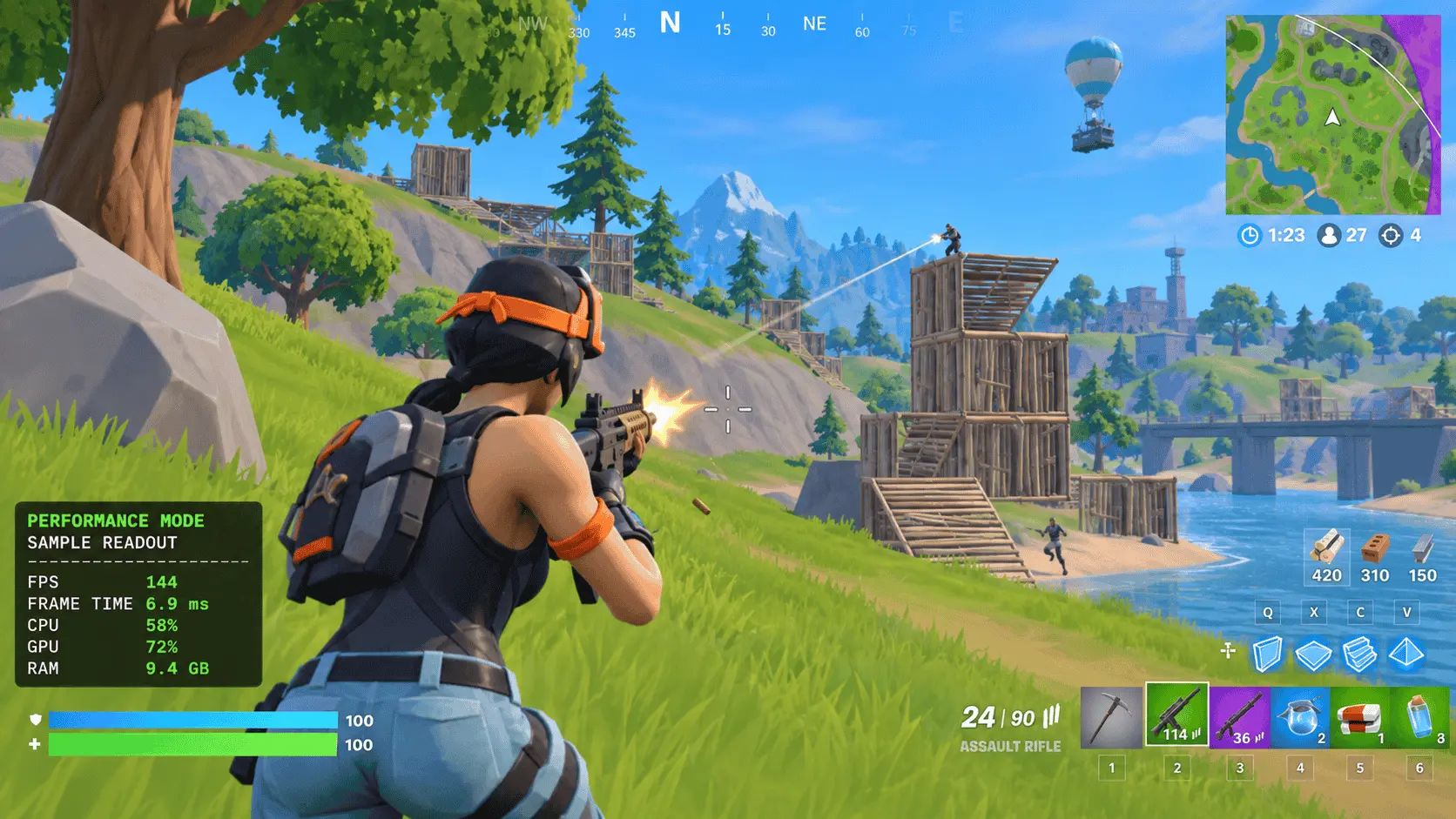
Performance Mode lowers visual quality to reduce memory use and lighten the workload on the CPU and GPU. According to Epic Games’ Performance Mode explanation, it is available across Fortnite’s game modes and can help lower-powered systems maintain a smoother frame rate.
This mode is the logical starting point for a PC using integrated graphics or an older dedicated GPU. It is also useful for competitive players who prefer a higher frame rate and lower input delay over detailed shadows, lighting, textures, and environmental objects. Lower mesh settings can make parts of the environment appear simpler, but player visibility remains more important than visual detail in this use case.
Performance Mode cannot remove every hardware limitation. A weak processor may still struggle during crowded fights, while limited RAM can cause stuttering when Windows and background programs compete with the memory game. Installing Fortnite on an SSD can improve loading and asset access, but it will not turn a processor-limited system into a high-frame-rate PC.
Epic’s older Performance Mode tests should not be treated as current performance guarantees. Those results were recorded at 720p on specific laptop hardware and an earlier version of Fortnite. Game updates, drivers, memory configuration, cooling, and match conditions can produce different results on the same named components.
DirectX 12
DirectX 12 is the appropriate mode for players who want Fortnite’s higher-quality graphics options. It supports anti-aliasing and super-resolution methods such as Temporal Super Resolution, Nvidia DLSS, and Intel XeSS when the installed hardware supports them.
Super resolution renders the game internally at a lower pixel count and reconstructs the image at the selected output resolution. This can increase performance because the GPU processes fewer pixels, although lower quality modes may reduce fine detail or introduce visible image artefacts. Native rendering produces every displayed pixel directly and normally provides a cleaner reference image, but it places a heavier load on the GPU.
DirectX 12 can also require shader compilation when Fortnite, Windows, or the graphics driver changes. Shaders are small programs used to calculate materials, lighting, and other graphics effects. Compiling them can cause temporary stuttering during early matches, so performance should not be judged from the first few minutes after a major update or driver installation.
Players using DirectX 12 should keep Fortnite and the graphics driver updated. If performance remains unstable after shaders have been prepared, the next checks should include GPU memory use, temperatures, background applications, and the selected graphics settings.
Epic graphics and ray tracing
Fortnite supports hardware ray tracing on compatible PCs through DirectX 12. Ray tracing calculates the paths of light to produce more accurate reflections, shadows, global illumination, and ambient occlusion. These effects improve scene lighting, but they require far more graphics processing than Performance Mode.
Epic states that full hardware ray tracing requires an Nvidia GeForce RTX 2060 or better, with DirectX 12 enabled. It is not available in Performance Mode, and Epic’s ray-tracing guidance recommends disabling it for competitive play because of its frame-rate cost.
Meeting the RTX 2060 compatibility threshold does not guarantee smooth performance at every resolution or quality setting. Resolution, ray-traced effects, texture quality, and available VRAM all affect the workload. DLSS can recover some lost performance on supported Nvidia GPUs by lowering the internal rendering resolution, but the result still depends on the selected quality mode and output resolution.
Players targeting Epic graphics should use the Epic Quality Presets specification as the more relevant hardware reference. Players targeting high competitive frame rates should normally use Performance Mode and spend their performance budget on frame-rate consistency rather than ray-traced lighting.
What PC do you need for your frame-rate target?
A PC that merely runs Fortnite is not necessarily suitable for 60, 144, or 240 FPS. Higher frame-rate targets reduce the time available to produce each frame, increasing the importance of CPU speed, memory performance, cooling, and background workload.
The following hardware profiles are practical starting points rather than guaranteed specifications. They assume 1080p output, 16 GB of dual-channel RAM, an SSD, current graphics drivers, and no thermal throttling. Performance Mode is assumed for competitive targets, while the high-quality profile uses DirectX 12.
| Player Goal | Practical Hardware Starting Point | Likely Limitation |
|---|---|---|
| Basic play at reduced settings | Epic’s minimum specification with Performance Mode | Integrated graphics, shared memory, or an older CPU |
| Approximately 60 FPS at 1080p | Epic’s recommended tier or a comparable modern PC | GPU at higher settings or CPU on older systems |
| 120–144 FPS competitive play | Modern six-core desktop CPU with a dedicated mid-range GPU | CPU performance during busy fights |
| 240 FPS competitive play | Recent high-performance gaming CPU with a capable dedicated GPU | CPU frame times, memory latency, and cooling |
| High-quality DirectX 12 graphics | Hardware close to or above Epic’s Epic-quality tier | GPU performance and VRAM |
| Ray tracing at high settings | Epic-quality hardware with additional GPU headroom | Ray-tracing workload, resolution, and VRAM |
These profiles should be checked against benchmarks recorded on the current Fortnite version. A useful benchmark must identify the CPU, GPU, RAM configuration, resolution, rendering mode, graphics settings, driver version, and test location. A result that omits these conditions cannot confirm whether another PC will achieve the same frame rate.
60 FPS targets
Epic’s recommended specification is the more sensible starting point for 60 FPS than its minimum tier. The GTX 960 or R9 280-class GPU provides dedicated graphics memory, while 16 GB of RAM leaves more capacity for Windows and background software. An NVMe SSD also reduces the storage delays that can contribute to loading problems and asset-streaming hitches.
The recommended tier does not guarantee a locked 60 FPS because Epic does not assign it a fixed resolution or preset. A PC near this level may need Performance Mode or reduced settings at 1080p. DirectX 12 with high shadows, effects, or resolution can move the same system below its target.
Players buying a PC for 60 FPS should avoid choosing hardware that only matches the oldest minimum components. A newer four-core or six-core processor, 16 GB of dual-channel memory, an SSD, and a dedicated graphics card provide more room for Fortnite updates and normal background tasks. This also reduces the risk of purchasing a system that technically runs the game but cannot maintain consistent frame times.
120, 144, and 240 FPS targets
Competitive frame rates require the PC to complete each frame quickly. At 60 FPS, the system has approximately 16.7 milliseconds to produce a frame. This falls to 8.3 milliseconds at 120 FPS, 6.9 milliseconds at 144 FPS, and 4.2 milliseconds at 240 FPS. A brief CPU delay that is barely visible at 60 FPS can therefore prevent a system from maintaining 240 FPS.
A modern six-core desktop processor is a reasonable starting point for 120 or 144 FPS, paired with 16 GB of dual-channel RAM and a dedicated mid-range GPU. Performance Mode reduces the graphics workload, but the CPU must still process player movement, building, physics, and other game activity. Crowded late-match situations can produce lower frame rates than an empty Creative map.
A stable 240 FPS target requires a faster gaming processor, low and consistent frame times, sufficient memory bandwidth, and effective cooling. The graphics card must also have enough capacity for the chosen resolution, but replacing the GPU may produce little improvement if GPU utilisation is already low. In that condition, the processor or memory subsystem is more likely to be limiting performance.
Players should compare one-percent-low results instead of relying only on peak or average FPS. A benchmark that briefly reaches 240 FPS but drops far below that level during combat does not demonstrate a stable 240 FPS experience. Testing should include a demanding Battle Royale or Zero Build scenario rather than only a quiet replay or Creative map.
The display must also support the intended result. A 60 Hz monitor cannot display 144 distinct frames each second, while a 144 Hz or 240 Hz monitor can show more of the frames produced by the PC. Producing frames above the monitor’s refresh rate may still reduce input delay, but the benefit becomes smaller as the frame rate rises.
High-quality and ray-traced targets
High-quality DirectX 12 settings shift more of the workload to the GPU. Epic’s RTX 3070 or RX 6700 XT-class graphics recommendation, combined with 8 GB of VRAM, is the relevant baseline for the Epic Quality Presets. This target is separate from competitive Performance Mode, which removes demanding visual features to favour FPS.
Resolution has a direct effect on GPU workload. A 2560 × 1440 image contains about 78% more pixels than 1920 × 1080, while 3840 × 2160 contains four times as many. Raising resolution therefore requires the GPU to process substantially more image data for each frame.
Ray-traced reflections, shadows, and lighting add another demanding workload. Super resolution can reduce the internal pixel count and recover performance, but its quality and speed depend on the selected mode. A system capable of Epic settings at 1080p may need lower settings or upscaling at 1440p or 4K.
Native rendering, super resolution, and frame generation must be treated as different test conditions. Native rendering produces the scene at the selected output resolution. Super resolution reconstructs a higher-resolution image from fewer internally rendered pixels. Frame generation inserts generated frames between traditionally rendered frames, increasing the displayed FPS without improving game simulation or input response by the same proportion. Benchmark figures should state which of these methods was active before they are used to judge a PC.
Can integrated graphics run Fortnite?
Fortnite can run without a dedicated graphics card if the processor includes supported integrated graphics. Epic names Intel HD 4000 and AMD Radeon Vega 8 in its minimum specification, but these examples indicate basic compatibility rather than a stable 60 FPS experience.
Integrated graphics are built into the processor or the same chip package. They use system RAM for graphics data instead of carrying dedicated VRAM on a separate card. Their performance depends on the graphics architecture, processor power limit, cooling, and memory configuration, so the reported amount of shared graphics memory does not show how fast the GPU is.
Performance Mode is the appropriate starting point for most integrated-graphics systems. Low textures and meshes reduce the graphics workload, while a lower 3D resolution decreases the number of pixels used to render the game world. The interface can remain at the monitor’s selected output resolution, so lowering 3D resolution is different from reducing the Windows desktop resolution.
A weak integrated GPU may need to render Fortnite at 1280 × 720 or use a reduced 3D-resolution percentage. Moving from 1920 × 1080 to 1280 × 720 reduces the number of rendered pixels from about 2.07 million to 0.92 million per frame. This gives the GPU less work, although distant objects and fine details will appear less clear.
Memory bandwidth has a strong effect on integrated graphics. A dual-channel configuration allows the processor and GPU to move data faster than a comparable single-channel setup. For example, two compatible 8 GB modules usually provide a better foundation than one 16 GB module when the integrated GPU is the main graphics device. The exact improvement depends on the processor and memory speed.
Laptop power settings can also change the result. An integrated GPU may operate at lower clock speeds on battery power or in a quiet profile. Testing should be performed with the charger connected, Windows set to an appropriate power mode, and the laptop manufacturer’s performance profile enabled. The cooling vents should remain unobstructed so rising temperatures do not reduce clock speeds.
Intel HD 4000 is much older than Radeon Vega 8, despite both appearing in the same minimum list. They should not be assumed to provide equal performance. The Vega 8 name also appears in several processors with different clock speeds, memory support, and power limits, creating further variation between systems.
Newer integrated graphics are not automatically suitable for a particular frame-rate target. Names such as Intel UHD, Iris Xe, Radeon Graphics, or Radeon 780M describe different architectures and configurations. The full processor model is needed because the integrated GPU is often identified only as part of that processor.
To assess an integrated-graphics PC, check the exact CPU model, installed RAM capacity, number of memory modules, memory speed, and laptop power mode. Then test Fortnite in Performance Mode with the FPS display enabled. Begin at the screen’s native resolution, lower the 3D-resolution percentage in small steps, and stop when the frame rate becomes stable without making the image unacceptably unclear.
A dedicated graphics card becomes the more practical option when the integrated GPU cannot maintain the desired frame rate at acceptable image quality. Before upgrading, confirm that the processor is not already the main limitation and that the desktop has a suitable power supply, case space, and graphics-card slot.
Settings to try before buying new hardware
A settings change can solve poor Fortnite performance when the hardware is capable but configured incorrectly. Record the current resolution, rendering mode, graphics settings, average FPS, and visible problems before making changes. This baseline shows whether each adjustment improves the result.
1. Update the game, Windows, and graphics driver
Install pending Fortnite and Epic Games Launcher updates before testing. An older game version cannot provide a useful comparison with current requirements or current benchmark results.
Check Windows Update and install the stable graphics driver provided for the exact Nvidia, AMD, or Intel GPU. Graphics driver updates can correct crashes, missing textures, rendering faults, and performance problems introduced by game changes.
Restart the PC after completing the updates. A restart clears pending processes and ensures that the new driver is loaded before Fortnite starts.
2. Verify the Fortnite installation
Damaged or incomplete game files can cause crashes, missing assets, and unusual loading behaviour. Open the Epic Games Launcher, select Library, click the three dots beside Fortnite, choose Manage, and select Verify.
The launcher will compare the installed files with the current game version and replace files that are missing or damaged. Verification does not remove the player’s account progress or purchased content because those records are connected to the Epic account.
3. Close unnecessary background programs
Close programs that consume CPU time, RAM, storage bandwidth, or GPU resources. Common examples include browser tabs, game launchers that are not needed, video-editing software, recording tools, and applications downloading updates.
Overlays can also affect performance or cause conflicts on some systems. Disable non-essential overlays temporarily, then test Fortnite again. If performance improves, re-enable them one at a time to identify the program responsible.
Do not close Windows security services or unfamiliar system processes. The purpose is to remove known applications that are not needed during play, not to disable normal operating-system functions.
4. Choose the suitable rendering mode
Use Performance Mode when the PC has integrated graphics, an older dedicated GPU, or a competitive frame-rate target. This mode reduces visual complexity and lowers the workload placed on the processor, graphics hardware, and memory.
Use DirectX 12 when the system has a capable dedicated GPU and the player wants higher-quality lighting, anti-aliasing, super resolution, or ray tracing. DirectX 12 can produce temporary shader-related stuttering after a driver or game update, so test more than the first few minutes.
Changing the rendering mode requires a restart. Compare both modes at the same resolution and frame-rate limit. A result recorded under different conditions cannot show which mode performs better.
5. Set an achievable frame-rate limit
A frame-rate cap prevents the PC from spending resources on frames beyond the chosen target. It can reduce power use, temperature, fan noise, and large swings in GPU load.
Choose a limit the system can maintain during demanding gameplay. A PC that fluctuates between 90 and 140 FPS may feel more consistent with a 90 or 120 FPS cap, depending on its one-percent-low performance. A 144 FPS limit is not useful if the system frequently falls below 100 FPS in fights.
The monitor’s refresh rate also matters. A 144 Hz monitor can display up to 144 full refreshes each second, while a 60 Hz display cannot show the visual benefit of 144 separate frames in the same way. Producing extra frames can still reduce input delay, but it also increases the workload and heat generated by the PC.
V-Sync can prevent visible screen tearing by coordinating frame delivery with the display, but it may add input delay. Competitive players often disable it and use a supported variable-refresh technology such as FreeSync or G-Sync. Players who value a tear-free image over the lowest input delay may prefer to keep it enabled.
6. Lower settings in a controlled order
Reduce one setting at a time and repeat the same test. Begin with the options most closely connected to the identified limitation.
- Shadows: Lowering shadows can reduce a demanding graphics workload without changing the basic game resolution.
- Effects: Reduced effects can improve visibility and lower GPU load during action-heavy scenes.
- Textures: Lower textures when VRAM is limited or textures load slowly. This setting may have a smaller FPS effect when sufficient VRAM is available.
- View distance: Lowering view distance reduces the detail shown at longer ranges. Test whether the visual trade-off is acceptable for the modes you play.
- Meshes: Low meshes reduce object complexity in Performance Mode and can help weaker systems.
- 3D resolution: Reduce this in small steps when the GPU remains fully occupied. It can produce a clear FPS improvement, but image detail becomes softer as the internal resolution falls.
- Ray tracing: Disable it when the goal is higher FPS or lower input delay. Its lighting and reflection calculations place a heavy load on supported GPUs.
Keep the display resolution at the monitor’s native setting at first. Adjusting 3D resolution allows Fortnite to render the game world at a lower internal resolution without making the interface and Windows desktop use a non-native display mode.
7. Retest under repeatable conditions
Use the same Fortnite mode, resolution, route, and approximate match conditions after each change. Record the average FPS, one-percent-low FPS when available, GPU utilisation, temperatures, and the problem being investigated.
Test long enough for temperatures to stabilise. A short test may hide thermal throttling that begins after the CPU or GPU has been under load for several minutes.
The change has worked when it improves the original problem without creating an unacceptable loss of image quality or stability. If lowering resolution and graphics settings produces little improvement, the CPU may be the main limit. If FPS rises sharply, the GPU was carrying most of the workload. This distinction provides stronger evidence for an upgrade than the component name or age alone.
Frequently Asked Questions
What are the minimum PC requirements for Fortnite?
Fortnite requires an Intel Core i3-3225 processor, Intel HD 4000 or AMD Radeon Vega 8 graphics, 8 GB of RAM, and a supported 64-bit version of Windows 10.
These specifications confirm basic compatibility, but low settings or Performance Mode may be required. They do not guarantee a stable 60 FPS.
What are the recommended Fortnite PC requirements?
Epic recommends a Core i5-7300U, Ryzen 3 3300U, or equivalent processor; a GTX 960, Radeon R9 280, or equivalent DirectX 11 GPU; 2 GB of VRAM; 16 GB of RAM; and an NVMe SSD.
The recommended operating system is 64-bit Windows 10 or Windows 11. Epic does not attach a guaranteed resolution or frame rate to this tier.
Can Fortnite run without a dedicated graphics card?
Yes, Fortnite can run when the processor includes compatible integrated graphics. Intel HD 4000 and AMD Radeon Vega 8 appear in Epic’s minimum specification.
Integrated graphics use system RAM, so memory capacity, dual-channel operation, power limits, and Performance Mode can strongly affect playability.
Can Fortnite run with 4 GB of RAM?
Four gigabytes is below Fortnite’s current minimum requirement of 8 GB. The game may fail to launch correctly or suffer severe stuttering when Windows and Fortnite run out of available memory.
Eight gigabytes is the official minimum, while 16 GB is the recommended capacity.
Is 8 GB of RAM enough for Fortnite?
Eight gigabytes meets the official minimum but may leave little memory for Windows, the Epic Games Launcher, voice chat, and other background programs.
Sixteen gigabytes is a more reliable choice for consistent gameplay. The difference becomes more important when integrated graphics reserve part of the system RAM.
Can Fortnite run at 60 FPS on a low-end PC?
A low-end PC may reach 60 FPS with Performance Mode, low settings, and a reduced 3D resolution. The result depends on the exact CPU, GPU, RAM configuration, cooling, and match conditions.
Reaching 60 FPS in a quiet area does not confirm that the PC will maintain it during landing or crowded fights.
Is a GTX 1650 good enough for Fortnite?
A desktop GTX 1650 can run Fortnite and generally exceeds the GTX 960-class GPU listed in Epic’s recommended specification.
Performance Mode suits competitive frame-rate targets, while demanding DirectX 12 settings may require compromises. Laptop GTX 1650 performance varies with graphics power limits and cooling.
What PC is needed for 144 FPS in Fortnite?
A practical 144 FPS target starts with a modern six-core desktop processor, a capable dedicated GPU, 16 GB of dual-channel RAM, and an SSD.
Performance Mode and reduced graphics settings are normally used. Stable performance during fights depends heavily on CPU speed and memory performance.
What PC is needed for 240 FPS in Fortnite?
A stable 240 FPS target requires a high-performance gaming CPU, fast dual-channel memory, a capable dedicated GPU, effective cooling, and Performance Mode.
The system has about 4.2 milliseconds to produce each frame at 240 FPS. One-percent-low results matter more than brief peaks above the target.
Does Fortnite require DirectX 12?
DirectX 12 is required for advanced graphics features such as supported super-resolution options and hardware ray tracing.
It is not the only compatibility path because Epic’s standard recommended specification still lists an equivalent DirectX 11 GPU. Performance Mode is better suited to lower hardware demand.
Does Fortnite require an SSD?
An SSD is not listed in Fortnite’s minimum requirements, but Epic recommends an NVMe SSD for the recommended and Epic-quality tiers.
An SSD can reduce loading times and storage-related asset delays. It will not correct low FPS caused by an inadequate CPU or GPU.
How much storage space does Fortnite need?
Fortnite does not have one permanent installation size because updates and optional components change the required capacity.
The Epic Games Launcher shows the current size under Library > Fortnite > Options. High-resolution textures and pre-downloaded streamed assets require additional storage.
Can a laptop run Fortnite?
A laptop can run Fortnite when its exact processor, GPU, RAM, operating system, and storage meet the required level.
Test it while connected to power. Cooling, memory configuration, graphics power limits, and dedicated-GPU selection can make similarly named laptops perform differently.
Why does Fortnite lag when the PC meets the requirements?
Meeting the requirements does not prevent low FPS, stuttering, high ping, or packet loss. Low FPS usually relates to the CPU, GPU, resolution, or graphics settings.
Stuttering can result from shader compilation, limited memory, slow storage, heat, or driver problems. High ping and packet loss are network issues, so lowering graphics settings will not fix them.
Can Fortnite run on Windows 7 or Windows 8?
Windows 7 and Windows 8 do not meet Fortnite’s current official PC requirements.
Epic lists supported 64-bit versions of Windows 10 for the minimum tier and Windows 10 or Windows 11 64-bit for the recommended tiers.