
Stellar Blade PC requirements | Minimum, Recommended & 4K Specs

For Stellar Blade on PC, the minimum requirements are Windows 10 64-bit, Intel Core i5-7600K or AMD Ryzen 5 1600X, 16 GB RAM, GTX 1060 6 GB or Radeon RX 580 8 GB, DirectX 12, and 75 GB storage; this setup targets 1080p, Low settings at around 60 FPS, with an SSD recommended.
For a better experience, PlayStation recommends an Intel Core i5-8400 or Ryzen 5 3600X, 16 GB RAM, an RTX 2060 Super or Radeon RX 5700 XT, and a 75 GB SSD, targeting 1440p at Medium settings and 60 FPS. For 4K at 60 FPS on Very High settings, PlayStation recommends an RTX 3080 or Radeon RX 7900 XT, while the CPU and RAM requirements remain relatively modest: an i5-8400/Ryzen 5 3600X and 16 GB RAM.
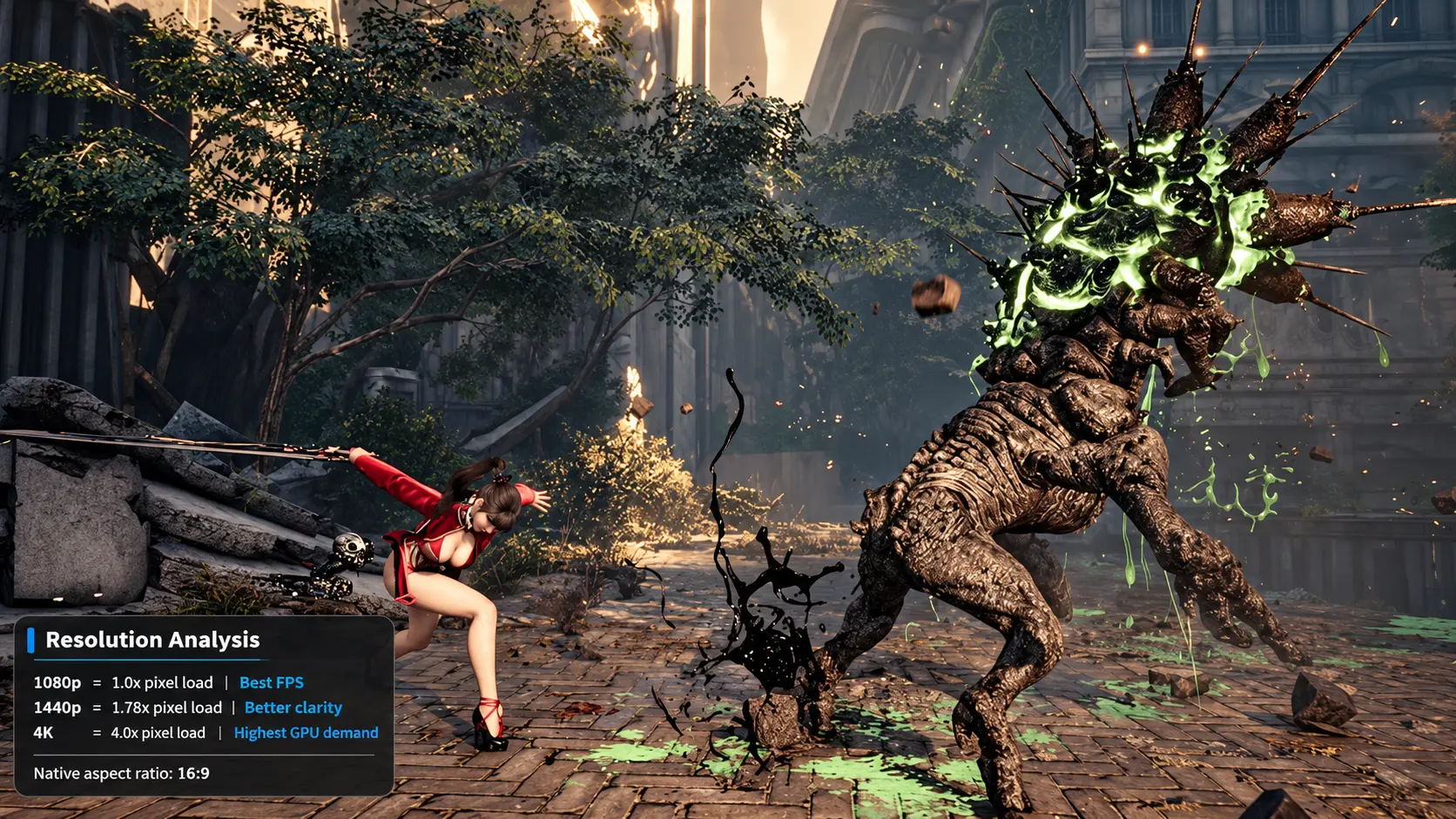
Stellar Blade PC requirements at a Glance
Below are the official PC requirements for Stellar Blade, along with a practical recommended configuration for a smoother and more comfortable gaming experience.
| Component | Official Minimum | Official Recommended | Practical Recommendation |
|---|---|---|---|
| Operating System | Windows 10 64-bit | Windows 10 64-bit | Windows 11 64-bit |
| CPU | Intel Core i5-7600K / AMD Ryzen 5 1600X | Intel Core i5-8400 / AMD Ryzen 5 3600X | AMD Ryzen 5 5600 / Intel Core i5-12400F or better |
| GPU | GeForce GTX 1060 6 GB / Radeon RX 580 8 GB | GeForce RTX 2060 Super / Radeon RX 5700 XT | RTX 3060 Ti / RTX 4060 / RX 6700 XT or better |
| RAM | 16 GB | 16 GB | 16 GB minimum; 32 GB preferred |
| Storage | 75 GB | 75 GB SSD | NVMe SSD with around 100 GB of free space |
| DirectX | DirectX 12 | DirectX 12 | DirectX 12 |
| Target Performance | 1080p Low at 60 FPS | 1440p Medium at 60 FPS | 1080p / 1440p High at stable 60+ FPS |
The official recommended specifications are quite reasonable. An RTX 2060 Super with a Ryzen 5 3600X is officially aimed at 1440p Medium settings at 60 FPS, so hardware around this level should provide a comfortable gaming experience. However, if you are building or upgrading a PC today, buying older hardware such as the RTX 2060 Super does not make much sense. An RTX 3060 Ti, RTX 4060, or RX 6700 XT would be a better choice, giving you more performance headroom for higher graphics settings and more stable frame rates.
For RAM, 16 GB is enough to run Stellar Blade, and that is also the official requirement. However, if you usually keep Chrome, Discord, recording software, or other applications running in the background, 32 GB will provide a more comfortable overall experience. The game is also not extremely demanding on the CPU, so a Ryzen 5 5600 or Intel Core i5-12400F paired with a capable graphics card would make a well-balanced setup.
An SSD is strongly recommended. Although the minimum specifications can work with slower storage, the official recommended configuration lists an SSD. An NVMe SSD will provide faster loading times, smoother asset loading, and better overall responsiveness compared with an HDD.
In simple terms, for 1080p 60 FPS, an RTX 3060 or RTX 4060-level system should be more than comfortable. For 1440p High settings at 60+ FPS, an RTX 3060 Ti, RTX 4060 Ti, or RX 6700 XT would be a better choice. If your PC already has an RTX 3070, RTX 3080, RTX 4070, or something more powerful, you are in a very good position to run Stellar Blade at high settings.
How to Check If Your PC Can Run Stellar Blade
The easiest way to find out whether your PC can run Stellar Blade is to compare your system hardware with the game’s official minimum and recommended requirements. You mainly need to check your processor, graphics card, RAM, VRAM, available storage, Windows version, and DirectX support.
A convenient option is the Auto Detector available on CheckCanIRunIt.com. Instead of finding every component manually, you can download the Windows Installer or Portable version, select the game, and run a local hardware scan. The tool detects your CPU, GPU, RAM, dedicated VRAM, storage and drive type, Windows version, and DirectX information, then compares those components with the game’s published minimum and recommended requirements.
The report tells you whether your system meets the recommended level, only meets the minimum requirements, falls below the minimum, or needs manual review for a component that cannot be identified reliably. The hardware scan is performed locally rather than uploading your hardware profile to the website.
You can also check everything manually without installing a detector. Open Task Manager > Performance to find your CPU, GPU, RAM, and storage information. For more detailed graphics and DirectX information, press Windows + R, type dxdiag, and press Enter. Once you know your exact hardware models, compare them with the official Stellar Blade requirements rather than comparing only labels such as “Core i5” or “GeForce RTX,” since performance can vary greatly between different generations and models.
Another useful method is to search for gameplay benchmarks using your exact CPU and GPU combination. For example, a search such as “Stellar Blade RTX 3060 Ryzen 5 5600 benchmark” can give you a better idea of expected frame rates at 1080p or 1440p. However, benchmark videos should be treated as supporting evidence rather than a guarantee because drivers, RAM configuration, graphics settings, cooling, laptop power limits, game updates, and background applications can all affect performance.
The safest approach is to use the official requirements as your baseline, use an automatic detector or manual comparison to check compatibility, and then look at independent benchmarks if you want a clearer idea of actual FPS. Meeting the minimum requirements generally means the game should be able to run, while meeting or exceeding the recommended specifications gives you a better foundation for smoother gameplay and higher graphics settings.
How Stellar Blade Uses Your PC Hardware During Gameplay
Stellar Blade is a fast-paced action game where smooth frame delivery matters just as much as average FPS. Combat relies heavily on dodging, parrying, quick camera movement, particle effects, detailed character models, and large environments, so different parts of your PC are doing different jobs while you play. The interesting part is that Stellar Blade does not put the same level of pressure on every component.
The official specifications give us a good clue about how the game scales. From the Recommended preset at 1440p Medium 60 FPS all the way to the Very High preset at 4K 60 FPS, Sony keeps the CPU recommendation at roughly the same level—Core i5-8400 or Ryzen 5 3600X—and keeps RAM at 16GB. The GPU, however, moves from an RTX 2060 Super/RX 5700 XT to an RTX 3080/RX 7900 XT. That tells us that higher resolution and graphics settings in Stellar Blade depend much more heavily on GPU performance than on buying a much faster processor.
GPU: The Most Important Component for Graphics and Resolution
The graphics card does most of the heavy work once you begin increasing resolution and visual quality. At 1080p, the GPU has fewer pixels to render, but moving to 1440p or 4K considerably increases the amount of work required for every frame. Shadows, lighting, volumetric effects, screen-space reflections, character detail, and environmental detail also add GPU load.
This is why the official GPU recommendation changes so much between quality levels. Sony lists an RTX 2060 Super or RX 5700 XT for 1440p Medium at 60 FPS, an RTX 2070 Super or RX 6700 XT for 1440p High at 60 FPS, and an RTX 3080 or RX 7900 XT for 4K Very High at 60 FPS. The CPU requirement barely changes between these presets.
Independent PC benchmarking also shows that Stellar Blade scales quite well on graphics hardware. DSOGaming reported more than 70 FPS at 1440p Max even on an RTX 2080 Ti in its test system, while an RTX 3080 came close to native 4K Max at 60 FPS, occasionally dropping into the 50s.
From a gameplay point of view, this means that if your system already has a decent six-core CPU but struggles at 1440p or 4K, upgrading the GPU will normally make a much larger difference than replacing the processor.
VRAM: Important When You Increase Texture Quality
VRAM is the memory built into your graphics card. Stellar Blade uses it to hold textures, character assets, environmental data, and other graphics resources that the GPU needs while rendering the scene.
This becomes more important because the PC version supports higher-resolution background textures and a 4K texture option. Those textures can improve surface detail, but they also require more graphics memory.
For normal 1080p or sensible 1440p settings, an 8GB graphics card can still be useful, but you should not automatically select every texture option at maximum. ComputerBase’s testing recommends 12GB of VRAM for maximum-detail 2560×1440, 3440×1440, and 3840×2160 configurations, while 8GB was not considered ideal for those max-detail targets.
In simple terms, if the game is giving you good FPS but starts showing inconsistent performance after increasing texture quality, VRAM usage is one of the first things worth checking.
CPU: Important for High FPS, but Stellar Blade Is Not Extremely CPU Heavy
The processor handles the work that is not purely graphical: game logic, animation updates, enemy behavior, object processing, and the instructions required to prepare frames for the GPU.
Stellar Blade appears fairly forgiving on the CPU side. In DSOGaming’s CPU scaling tests, performance improved as more CPU cores and threads were enabled, but the test reached a CPU/RAM limit after roughly six cores/threads. More importantly, the game was still capable of exceeding 60 FPS with relatively limited CPU resources in that test.
That matches the official requirements. Sony uses the same i5-8400 or Ryzen 5 3600X recommendation from 1440p Medium through 4K Very High, while increasing the GPU requirement instead.
So, for a normal 60 FPS target, you do not need a flagship processor. A stronger CPU becomes more useful when you are trying to push an unlocked frame rate toward 100, 120, 144 FPS or higher, where the processor has to prepare frames much faster.
RAM: 16GB Is Enough for the Game Itself
Sony lists 16GB of system RAM for every official performance tier, including 4K Very High. That is a useful indication that Stellar Blade itself does not require 32GB to deliver its intended experience.
RAM holds game data that the processor and graphics subsystem need while the game is running. If the system runs short of memory, Windows may begin relying more heavily on storage, which is much slower than RAM.
For a PC dedicated mainly to gaming, 16GB can still handle Stellar Blade. Moving to 32GB makes more sense if you keep browsers, Discord, launchers, recording software, or other programs running alongside the game. Do not expect 32GB by itself to suddenly add a large amount of FPS if 16GB was already sufficient.
SSD: It Helps Loading and Asset Streaming, Not Raw GPU Performance
Storage works differently from the CPU and GPU. Installing Stellar Blade on an SSD will not make an RTX 2060 perform like an RTX 3080, but it can improve how quickly the system reads game files, textures, and level data.
Sony supports an HDD at the minimum 1080p Low specification, but an SSD is required for the Recommended, High, and Very High configurations.
That makes an SSD the sensible choice for this game. An NVMe drive can provide fast loading and data access, but once the game is fully loaded and GPU-limited, upgrading from one decent SSD to a faster SSD normally will not give you the kind of FPS increase you would get from a graphics card upgrade.
How DLSS and FSR Reduce the GPU Load
Stellar Blade also gives PC players another way to balance visual quality and performance. The game officially supports NVIDIA DLSS 4 resolution scaling and frame generation, DLAA, NVIDIA Reflex, and AMD FSR 3, along with an unlocked frame rate.
Upscaling is useful when the GPU is struggling at a high resolution. Instead of rendering every frame at the monitor’s full native resolution, the game renders internally at a lower resolution and reconstructs the final image. This reduces GPU workload and can increase FPS, which is useful at 1440p and 4K.
Frame Generation goes a step further by creating additional frames between traditionally rendered frames. It can make motion on a high-refresh-rate monitor look much smoother, but generated frames do not increase the speed at which the game itself processes your controls. ComputerBase’s testing also notes that Frame Generation can raise displayed FPS without improving input latency, which is an important distinction in a timing-heavy action game such as Stellar Blade.
For that reason, a stable 60–90 FPS base frame rate is more valuable than simply chasing the largest FPS number through Frame Generation. Once the game already feels responsive, Frame Generation can then be used to make animation and camera movement look smoother on a high-refresh-rate display.
What Matters Most While Actually Playing?
In the case of Stellar Blade pc requirements, the GPU and VRAM have the biggest effect when you increase resolution, texture quality, and graphics settings. The CPU still matters, but a decent mid-range processor is sufficient for a 60 FPS target. Sixteen gigabytes of RAM meets the game’s official requirements, while an SSD keeps loading and asset access from becoming an unnecessary weak point.
This also explains why two PCs with the same amount of RAM can provide completely different experiences. A system with 32GB RAM but a weak graphics card may still struggle at 1440p, while a machine with 16GB RAM and a much stronger GPU can deliver considerably better frame rates. In Stellar Blade, choosing balanced hardware matters more than simply looking for the largest number in one specification.
Frequently Asked Questions
Can my PC run Stellar Blade?
If your PC has at least an Intel Core i5-7600K or Ryzen 5 1600X, 16 GB of RAM, and a GTX 1060 6 GB or RX 580 8 GB, it meets the minimum requirements.
For smoother gameplay and higher graphics settings, hardware closer to the recommended specifications is a better target.
How much RAM does Stellar Blade need on PC?
Stellar Blade requires 16 GB of RAM across its official PC specification tiers.
If you keep browsers, Discord, recording software, or other programs open while gaming, 32 GB provides more multitasking headroom.
Can Stellar Blade run on 8 GB RAM?
8 GB of RAM is below the official PC requirement for Stellar Blade.
A system with only 8 GB may experience memory limitations, stuttering, or increased reliance on the Windows page file, so 16 GB should be treated as the practical minimum.
Do I need an SSD for Stellar Blade?
An SSD is recommended for the higher official performance tiers.
It improves loading times and asset access compared with an HDD. An NVMe SSD is a good choice if your system supports one, although storage speed does not replace the need for a capable CPU or GPU.
What GPU is recommended for Stellar Blade at 1080p?
An RTX 3060, RTX 4060, RX 6600 XT, or another GPU in a similar performance class provides a sensible target for comfortable 1080p gameplay.
Older graphics cards may still run the game, but you may need to reduce graphics settings or use upscaling to maintain a stable frame rate.
What GPU is good for Stellar Blade at 1440p?
For 1440p gameplay, an RTX 3060 Ti, RTX 4060 Ti, RX 6700 XT, or a stronger graphics card is a more suitable choice.
A faster GPU gives you more room to use higher graphics settings while maintaining a stable frame rate at the increased resolution.
Is Stellar Blade more CPU or GPU demanding?
Stellar Blade becomes increasingly GPU-dependent as resolution and graphics settings are raised.
A capable mid-range CPU can handle a 60 FPS target in many cases, while the graphics card becomes the more important component at 1440p and 4K.
How much VRAM is enough for Stellar Blade?
Around 8 GB of VRAM can handle sensible graphics settings at common resolutions.
A graphics card with 12 GB or more gives additional headroom for higher texture quality, 1440p, and 4K configurations where graphics memory usage can increase.
Does Stellar Blade support DLSS and FSR?
Yes. The PC version supports NVIDIA DLSS and AMD FSR technologies that can improve performance by reducing the internal rendering workload and reconstructing the image at a higher output resolution.
These options are particularly useful when playing at demanding resolutions such as 1440p or 4K.
How can I check whether my PC meets the Stellar Blade requirements?
You can manually compare your CPU, GPU, RAM, VRAM, Windows version, and storage with the official Stellar Blade PC requirements.
You can also use the CheckCanIRunIt Auto Detector, which analyzes your system hardware and compares it with the game’s minimum and recommended specifications to help determine whether your PC meets the required hardware level.