
Forsaken PC Requirements & How to Play on Roblox
Forsaken is a popular survival horror game on Roblox, but before you start playing, you need to know whether your computer can handle it. If you have an older laptop or a PC without a dedicated graphics card, you might wonder how much RAM the game needs, whether it will run smoothly, and how to install it. The good news is that Forsaken doesn’t require an expensive gaming computer. You can play it on Roblox, as long as your system meets the platform’s basic requirements. You will also need a Roblox account to access the game, which is easy to create even if you have never used Roblox before.
What Is Forsaken on Roblox?
Forsaken is a multiplayer survival horror game developed by Forsaken Dev Team on Roblox. It follows an asymmetrical gameplay system where one player becomes the killer while the others play as survivors. Each side has different objectives, and the outcome depends on teamwork, timing, and how effectively players use their characters’ abilities.
As a survivor, your job is to complete objectives, support your teammates, and stay alive until the timer reaches zero. The killer, on the other hand, must hunt down and eliminate the survivors before the match ends. Each round creates a different experience depending on the characters, map, and decisions players make.
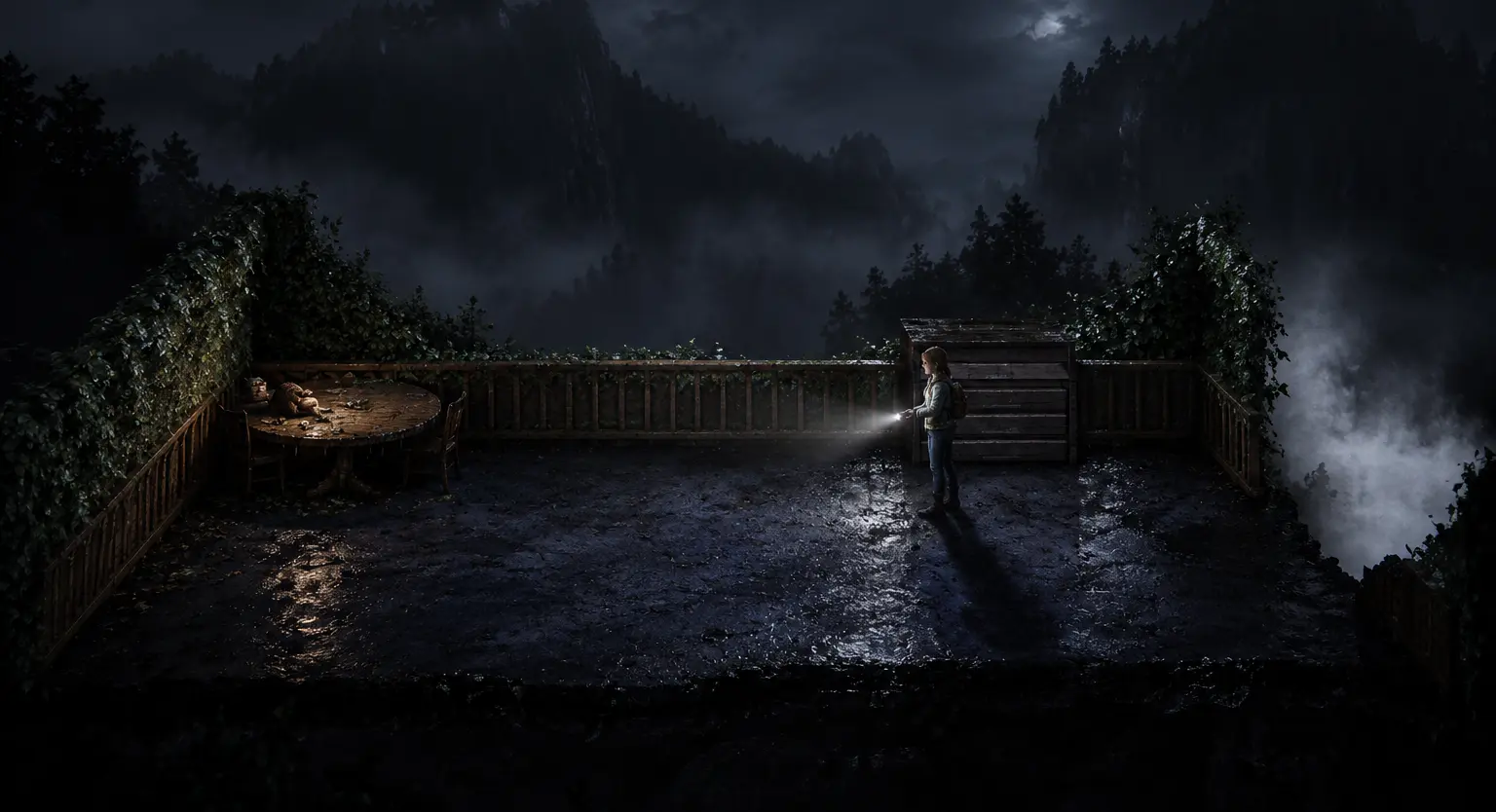
The game is available through Roblox rather than as a separate PC installation. This means you need the Roblox application and a compatible computer to play it. Forsaken is also listed as an alpha game, so its features, characters, and performance may change with future updates.
Forsaken PC Requirements
Forsaken doesn’t have an officially published, separate set of PC requirements. Instead, players can use Roblox’s minimum hardware requirements to determine whether their computers support the platform.
However, there’s a difference between meeting the minimum requirements and running a game comfortably. A PC might successfully launch Roblox but still experience frame drops during a demanding Forsaken match.
Minimum and Recommended Forsaken PC Specs
The table below compares Roblox’s published baseline requirements with practical hardware recommendations for playing Forsaken more comfortably.
| Component | Minimum Roblox Requirements | Recommended for Forsaken |
|---|---|---|
| Operating System | Windows 10/11, 64-bit | Windows 10/11, 64-bit |
| Processor | Relatively modern 1.6 GHz CPU or better | Recent Intel Core i3/i5 or AMD Ryzen 3/5 |
| RAM | At least 1 GB | 8 GB |
| Graphics Card | DirectX 10-compatible graphics | Modern Intel UHD, Iris Xe, AMD Radeon integrated graphics, or better |
| Storage | 300 MB for Roblox installation | 2 GB free space as a precaution |
| Internet | 4–8 Mbps | Stable broadband connection |
Note: The minimum figures are based on the official Roblox system requirements. The recommended column represents practical estimates rather than specifications published by the Forsaken developers. Neither column guarantees a particular FPS.
Processor Requirements
Roblox recommends a relatively modern processor running at 1.6 GHz or higher. However, processor speed alone doesn’t explain how well Forsaken will perform because newer CPUs can process instructions more efficiently than older models.
If your computer has a recent Intel Core i3 or AMD Ryzen 3 processor, it should provide a reasonable starting point. An older dual-core processor may still launch Roblox, but its performance will depend on the exact model and how much work Windows is handling in the background.
RAM Requirements
Roblox officially lists at least 1 GB of RAM for Windows, but I wouldn’t recommend using that number as a buying or upgrade target. Windows itself requires memory, and other applications consume additional RAM while you play.
For Forsaken, 8 GB is a more sensible target. It gives the operating system and Roblox more room to operate without frequently running short of memory. A computer with 4 GB may still be usable at lower settings, although the experience can vary considerably.
Graphics Card Requirements
Roblox requires graphics hardware supporting DirectX 10 or a higher feature level. You don’t necessarily need a dedicated NVIDIA or AMD graphics card, because many Intel and AMD processors include integrated graphics capable of running Roblox.
For example, a laptop with recent Intel UHD or Iris Xe graphics may handle Forsaken at reduced settings. Older integrated GPUs can struggle with visual effects, complex maps, or busy scenes. Lowering graphics quality can help reduce that workload.
Storage and Internet Requirements
Roblox recommends at least 300 MB of storage for its installation. This isn’t a fixed size for Forsaken because game resources, cached files, and future updates can occupy additional space. Keeping a couple of gigabytes free is a reasonable precaution.
An internet connection is also necessary because Forsaken is a multiplayer game. Roblox recommends a connection of at least 4–8 Mbps for a single-user household. Connection stability matters as much as download speed, since high latency or packet loss can affect movement and interactions during a match.
Can You Run Forsaken on a Low-End PC?
Yes, Forsaken can run on some low-end computers, provided they meet Roblox’s system requirements. You don’t need to own a gaming laptop to try it, but a computer that barely meets the platform requirements may struggle with smooth gameplay.
Think of a student using a budget laptop with 4 GB RAM, an older Intel Core i3 processor, and integrated graphics. The laptop might be adequate for browsing, documents, and watching videos, but running a multiplayer game places different demands on its hardware. In Forsaken, that could mean occasional stuttering when effects appear or multiple players are nearby.
A newer laptop with 8 GB RAM and a more capable integrated GPU has a better chance of delivering stable performance. Before spending money on upgrades, I would start with lower graphics settings and check whether the game remains responsive during an ordinary match.
Can Forsaken Run on 2 GB RAM?
A computer with 2 GB RAM is not a practical choice for playing Forsaken on Windows 10 or 11. Although Roblox publishes a lower memory baseline, Windows and background processes also need available RAM.
You may encounter slow loading, freezing, or an inability to run the operating system and game reliably. If your computer supports a memory upgrade, increasing the RAM would be more useful than trying to fix every performance issue through graphics settings.
Can Forsaken Run on 4 GB RAM?
Forsaken may run on a 4 GB RAM computer if the processor and graphics hardware are compatible. However, limited memory can become a problem when you have a browser, messaging application, or other software running alongside Roblox.
Close unnecessary programs before launching the game and keep graphics quality low. If the system still freezes or becomes unresponsive, check Task Manager to see whether memory usage is approaching its limit.
How to Create a Roblox Account and Play Forsaken on PC
If you’ve never played a Roblox game before, you need to create an account before joining Forsaken. Roblox is the platform that hosts the game, so there’s no need to register on a separate Forsaken website.
You can complete the following process using a Windows computer and an internet browser.
Step 1: Visit the Roblox Website
Open Google Chrome, Microsoft Edge, or Firefox on your computer and visit www.roblox.com. The homepage provides options for signing up or logging into an existing account.
If you’re completely new to Roblox, select Sign Up. If you already have an account, you can skip the registration process and proceed directly to the login step.
Make sure you’re visiting the official Roblox website. You don’t need to use third-party websites or download separate account-creation software.
Step 2: Create Your Roblox Account
The Roblox registration form asks you to enter your date of birth, choose a username, and create a password. Enter your correct birthday because Roblox uses age information to determine which features and experiences are appropriate for your account.
Your username is how other players can identify your account, so choose something you’re comfortable using. Avoid including your full name, phone number, or other personal information. Your password should also be difficult for other people to guess.
Once you’ve entered the required information, select Sign Up and complete any verification Roblox requests. After successful registration, you can access your account without purchasing a subscription.
Step 3: Add and Verify Your Email Address
After creating your account, I recommend adding a recovery email before you start playing. This helps you recover access if you forget your password or have trouble logging in later.
Open your Roblox account settings and select Account Info. Choose the option to add an email address, then follow the verification instructions sent to your inbox. Younger users may need a parent’s help with account recovery settings.
You can find the complete process in the official Roblox email verification instructions. Adding two-step verification is another useful way to protect your account from unauthorized access.
Step 4: Log In to Your Roblox Account
If you’ve already created an account, return to the Roblox homepage and select Log In. Enter your username and password in the corresponding fields, then complete any security verification requested by Roblox.
You can also use a verified email address to log in through supported Roblox interfaces. If you forget your password, select Forgot Password or Username? on the login page and follow the account recovery instructions.
After logging in successfully, you’ll see the Roblox homepage, where you can browse different experiences, search for games, and manage your profile.
Step 5: Search for Forsaken on Roblox
Once you’re logged in, find the search bar near the top of the Roblox website and type Forsaken. Select the experience search option if Roblox asks what type of content you’re looking for.
You may see several experiences with similar names, so don’t select the first result without checking its details. The official Forsaken game is published by Forsaken Dev Team, and its Roblox experience ID is 18687417158.
The easier option is to open the official Forsaken game page directly. Check the developer name before continuing, as the game’s displayed title may change when updates or events are released.
Step 6: Download and Install Roblox Player
If this is your first time playing Roblox on your PC, you’ll need to install Roblox Player. Open the Forsaken game page and select the green Play button.
Roblox should display an installation prompt if the Player isn’t already installed. Follow the instructions to download and run the installer, allowing Windows to complete the setup. If your browser asks which application should open Roblox links, select Roblox Player.
After installation, return to the game page and press Play again. Roblox Player should open and begin loading the experience. The official Roblox installation guide explains this process if you encounter a browser or installation prompt you don’t recognize.
You don’t need Roblox Studio for this process. Studio is intended for creating Roblox experiences, while Roblox Player is used to play them.
Step 7: Launch Forsaken and Join a Match
When Roblox Player opens Forsaken, allow the game to load its resources. Your first launch may take longer than later sessions, depending on your internet connection and computer.
Once inside, you’ll enter the game’s interface or lobby, where you can become familiar with the available characters, settings, and match information. Follow the game’s current prompts to participate in a round.
Don’t worry if you lose your first few matches. Forsaken relies on knowing the maps, understanding your abilities, and reacting to other players. Becoming familiar with these mechanics is more useful initially than trying to win immediately.
How to Play Forsaken on Roblox for Beginners
Forsaken is built around two different roles: survivors and killers. Your objective changes according to the role you’re assigned, so understanding what each side needs to accomplish is the first part of learning the game.
Playing as a Survivor
As a survivor, your primary goal is to remain alive until the match timer reaches zero. You also need to complete objectives and support other survivors, rather than simply hiding throughout the entire round.
Pay attention to your surroundings and notice where teammates are moving. If the killer approaches, knowing the nearby paths and obstacles can help you react quickly. Different survivor characters also have their own abilities, so read the descriptions of the character you’re using.
I would recommend spending your first few rounds learning how the maps connect and when to use your abilities. Trying to memorize every character immediately isn’t necessary. Understanding your current role and staying aware of the killer’s position will give you a better foundation.
Playing as the Killer
When you’re assigned the killer role, your objective is to eliminate the survivors before the round ends. Instead of completing survivor objectives, you need to locate opponents, pursue them, and use your character’s abilities effectively.
Different killers have different movement options and attacks, which can affect how you approach a chase. Read the current ability descriptions and practise using them before attempting complicated strategies.
It’s also important to pay attention to the remaining match timer. Spending too long chasing a single survivor may leave you with insufficient time to eliminate the others.
Understanding the Controls
On PC, Roblox generally uses the WASD keys for movement, the mouse to control the camera, and the Space key to jump. Pressing Esc opens the Roblox menu, where you can access settings and other controls.
Forsaken also uses character-specific abilities and actions. Their assigned keys may vary according to the current character and game update, so check the instructions displayed inside the game instead of assuming every ability uses the same button.
You may also need some practice adjusting your camera and movement while being chased. Smooth control is important because a delayed turn or missed action can affect the outcome of a round.
Important: The official Forsaken description warns that the game contains flashing lights and loud audio. Players with photosensitive epilepsy or sensitivity to flashing effects should take that warning seriously.
How to Increase FPS in Forsaken on a Low-End PC
If Forsaken launches but doesn’t run smoothly, you can often improve its performance by changing a few Roblox and Windows settings. Before making any adjustments, try to identify whether the problem is low FPS, high network latency, or another issue.
Reduce Roblox Graphics Quality
The first setting I would change on a low-end PC is Roblox’s graphics quality. While playing Forsaken, press Esc, open Settings, and change Graphics Mode to Manual. Move the Graphics Quality slider toward the left to reduce graphical detail.
Lower settings can reduce the amount of work your graphics hardware needs to perform. The visual quality may decrease, but that trade-off can make the game more responsive on older computers.
You can find the same instructions in Roblox’s official graphics settings guide. Start with a low setting and increase it gradually if performance remains stable.
Close Unnecessary Programs
If your computer has limited RAM, running multiple applications while playing Forsaken can cause additional stuttering. A browser with several open tabs, a video playing in the background, or an unused application may consume memory and processor resources.
Open Task Manager using Ctrl + Shift + Esc and check the processes consuming the most resources. Close applications you recognize and don’t need, but avoid ending unfamiliar Windows system processes.
This adjustment is most useful when your computer is already using a large amount of memory before Roblox starts.
Update Your Graphics Drivers
Graphics drivers allow Windows and games to communicate with your GPU. Outdated or incompatible drivers may contribute to rendering problems, crashes, or poor performance.
Check whether your computer uses Intel, AMD, or NVIDIA graphics, then download the appropriate driver from the manufacturer’s official website. If you have a laptop, the manufacturer’s support page may also provide drivers tested for your exact model.
A driver update won’t turn an old GPU into a powerful one, but it can resolve compatibility issues and improve stability.
Check Your Internet Connection
Low FPS and internet lag are different problems, even though both can make Forsaken difficult to play. If the entire screen appears choppy, your computer may be struggling to render the game. If other characters jump between positions or your actions register late, the network connection may be responsible.
Try using a stable Wi-Fi connection or Ethernet cable, and avoid running large downloads while playing. If other devices are using the same connection heavily, that can also affect network performance.
How to Check Whether Your PC Meets Forsaken Requirements
You can check your computer’s hardware without installing a separate system information tool. Windows already provides information about your processor, RAM, graphics hardware, and operating system.
Open Settings > System > About to find your processor model, installed RAM, and Windows version. To inspect your graphics hardware, press Windows + R, type dxdiag, and press Enter. The DirectX Diagnostic Tool provides details about your graphics adapter and supported features.
Compare those details with the requirements table earlier in this article. For example, a computer with a recent Core i5 processor, 8 GB RAM, and compatible integrated graphics is a better starting point than a machine with 2 GB RAM and an unsupported graphics adapter.
You can also use a Can I Run It compatibility checker to compare your hardware with game specifications, although Forsaken’s lack of separate official requirements means automated comparisons may have limitations. The most useful final check is to run Forsaken itself and see whether your computer maintains responsive gameplay.
Common Problems When Installing or Playing Forsaken
Even when your computer supports Roblox, you may encounter problems with logging in, launching the game, or joining a server. The solution depends on where the problem occurs.
Roblox Won’t Let You Log In
Start by checking your username and password. If you’re using an email address, make sure it has been verified and is associated with the account you’re trying to access.
If you can’t remember your password, use the account recovery option on the official Roblox login page. Avoid websites that claim to provide free accounts or ask for your login credentials outside Roblox.
Forsaken Won’t Launch After Pressing Play
If pressing Play doesn’t open Forsaken, check whether Roblox Player is installed correctly. Your browser may also be waiting for permission to open the Roblox application.
Close the browser and Roblox Player, then try launching the game again. If the problem continues, restart Windows and follow Roblox’s official reinstall instructions rather than downloading unofficial game launchers.
Forsaken Isn’t Showing in Search Results
Roblox search results can contain experiences with similar names, and the official game may display a temporary event or update label. This can make it harder to identify the correct result.
Use the official game URL instead of relying entirely on search results. Confirm that the creator is Forsaken Dev Team and that the experience ID matches 18687417158.
If Roblox still prevents you from entering, check whether the experience is available to your account and whether any parental or content restrictions apply.
Forsaken Keeps Freezing or Lagging
Frequent freezing may indicate limited RAM, high CPU usage, graphics limitations, or a software problem. Network lag can produce similar symptoms, but it requires a different solution.
Start by lowering graphics quality and closing background applications. If the game still freezes, check Task Manager for unusually high memory or processor usage. You can also test another Roblox experience to determine whether the problem affects the entire platform or only Forsaken.
Frequently Asked Questions
Is Forsaken Free to Play on Roblox?
Yes, you can access Forsaken through Roblox without purchasing a separate PC game license. You need a Roblox account, an internet connection, and a compatible device. Optional purchases within the platform are separate from the basic process of joining the game.
Do You Need a Roblox Account to Play Forsaken?
Yes, you need to sign in to Roblox to join Forsaken through the normal PC game experience. Creating a Roblox account is free, and you can register using the official Roblox website.
Can I Play Forsaken Without a Dedicated Graphics Card?
Yes, Forsaken may run on a computer with supported integrated graphics. Performance depends on the GPU model, processor, memory, and graphics settings. Modern integrated GPUs generally provide a better starting point than older graphics hardware.
Does Forsaken Support Windows 7?
Roblox’s current Windows application requirements list 64-bit Windows 10 and Windows 11. Windows 7 isn’t supported by the current Roblox Player, so you should use a supported operating system to play Forsaken.
Do I Need to Download Forsaken Separately?
No, Forsaken runs through Roblox Player. Once Roblox is installed, opening the Forsaken experience loads the resources needed to play. You don’t need to download a separate Forsaken installer from another website.
Why Is Forsaken Lagging on My PC?
Forsaken can lag because of limited RAM, an older processor, weak graphics hardware, background applications, or network problems. Check whether the issue is choppy visuals or delayed player movement before choosing a solution.
Can I Play Forsaken With Friends?
Yes, Forsaken is a multiplayer Roblox experience. You can use Roblox’s available friend and joining features to try to enter the same experience as your friends, subject to server availability and the game’s current settings.