
Palworld System Requirements | Can Your PC Run It?
The current Palworld system requirements start with a 64-bit Windows 10 PC, an Intel Core i5-9400F processor, a GeForce GTX 1660 graphics card, 16GB of RAM, and 40GB of available SSD space. For the recommended tier, Pocketpair specifies Windows 11, an Intel Core i5-12400 or AMD Ryzen 5 5600X, a GeForce RTX 3060 Ti or Radeon RX 6700 XT, and 32GB of RAM. Both configurations require DirectX 11 and a broadband internet connection.
These specifications apply to Palworld’s current full-release PC build, replacing the lower hardware targets published during Early Access. They do not guarantee a particular resolution, graphics preset, or frame rate, and Pocketpair notes that performance can change with the number of active Pals.
Palworld system requirements for PC
Pocketpair’s current Windows requirements, checked on August 20, 2026, against Palworld version 1.0.3, are listed below.
| Component | Minimum | Recommended | Technical significance |
|---|---|---|---|
| Operating system | Windows 10 64-bit | Windows 11 64-bit | A 32-bit Windows installation does not meet either tier. |
| Processor | Intel Core i5-9400F | Intel Core i5-12400 or AMD Ryzen 5 5600X | The CPU contributes to combat, world activity, and Pal and base simulation. |
| Memory | 16GB RAM | 32GB RAM | Available memory may become more important in developed worlds or when other programs remain open. |
| Graphics card | NVIDIA GeForce GTX 1660 | NVIDIA GeForce RTX 3060 Ti or AMD Radeon RX 6700 XT | Resolution and graphics quality place most of their rendering load on the GPU. |
| DirectX | DirectX 11 | DirectX 11 | The graphics card and its driver must support the required graphics API. |
| Storage | 40GB available on an SSD | 40GB available on an SSD | An HDD does not satisfy the stated storage requirement. |
| Network | Broadband internet | Broadband internet | Network quality affects online play but does not control local frame rate. |
Pocketpair also warns that performance can vary with the number of active Pals. A new save with a small base may therefore place less demand on the system than a developed world containing more structures, production tasks, and active creatures.
Minimum requirements for Palworld
The minimum configuration is a compatibility floor, not a defined performance target. Pocketpair does not associate the Core i5-9400F and GTX 1660 combination with a specific resolution, graphics preset, or frame rate. Describing it as a guaranteed 1080p/30 FPS setup would introduce a target that the developer has not published.
Every component must meet the minimum standard. A PC with a GTX 1660 remains below specification if it has only 8GB of RAM, uses a 32-bit operating system, or stores the game on a mechanical hard drive. The minimum list also contains no official AMD alternative for the Core i5-9400F or GTX 1660. Any suggested AMD equivalent should be identified as a technical comparison rather than a developer-approved requirement.
Recommended requirements for Palworld
The recommended tier raises the CPU, GPU, and memory targets together. The Core i5-12400 and Ryzen 5 5600X provide official Intel and AMD processor options, while the RTX 3060 Ti and Radeon RX 6700 XT establish the corresponding graphics choices. Memory increases from 16GB to 32GB, creating more capacity for Palworld, Windows, voice chat, recording software, browsers, and other background processes.
Meeting the recommended tier does not guarantee 60 FPS, Epic settings, or a particular display resolution. Pocketpair has not published those conditions. The correct conclusion is that the PC satisfies the recommended hardware target; actual performance still depends on resolution, graphics settings, driver condition, cooling, world complexity, and multiplayer activity.
What changed after Early Access?
Palworld reached version 1.0 in July 2026. Pocketpair’s official Palworld page now presents the full-release edition, while Xbox’s release announcement records its July 10 launch across PC, console, and cloud.
Specifications published before the full release may refer to the Early Access build and can no longer be assumed current. The publication date, game version, and verification date matter more than a page’s search position. Current full-release requirements take priority over historical lists, while reliable performance claims require documented hardware and testing conditions.
Can I Run Palworld on My PC?
A PC falls within Palworld’s current hardware range only when its processor, graphics card, RAM, operating system, and storage meet the required level. Use the PC compatibility tool to select Palworld and receive a suitable hardware recommendation based on the game’s requirements. You do not need to enter individual components.
To check an existing computer, use the automatic PC hardware detector to identify its installed components and compare them with Palworld’s minimum and recommended specifications. Passing the comparison confirms that the PC meets a published hardware tier, but it does not guarantee a particular resolution, graphics preset, or frame rate.
Check Your PC Specifications
Record the complete model name of each component before making a comparison. Small differences such as “Ti,” “Super,” “Laptop GPU,” and the processor generation can move a component into a different performance tier.
- Check the processor, RAM, and Windows version. Press Windows + I, open System, and select About. The Device specifications area shows the processor, installed RAM, and system type. Windows specifications identify the installed Windows edition and version.
- Find the graphics card. Press
Ctrl + Shift + Escto open Task Manager, select Performance, and choose GPU. Record the complete name shown in the upper-right corner. Systems with integrated and dedicated graphics may show more than one GPU. - Confirm the storage type and free space. Open Task Manager > Performance > Disk to check whether the drive is an SSD or HDD. Open File Explorer > This PC to confirm that the intended installation drive has at least 40GB available.
- Keep the model suffixes. A GeForce RTX 3060 and RTX 3060 Ti are different graphics cards. The same rule applies to desktop and laptop versions, even when the main model number appears identical.
The dxdiag utility provides another way to confirm the processor, memory, Windows build, DirectX version, and graphics hardware. PressWindows + R, enter dxdiag, and review the System and Display tabs.
Compare Every Component
The lowest-ranked component determines whether the PC meets the minimum or recommended tier. If the CPU and GPU satisfy the recommended requirements but the system has 16GB of RAM, it sits between the two official configurations rather than fully meeting the recommended specification.
Model names should not be compared by product family alone. A Core i7 is not automatically faster than every Core i5 because architecture and generation affect performance. The same problem occurs with graphics cards: the GTX 1650 is below the named GTX 1660 minimum, while the RTX 3060 should not be treated as an exact match for the faster RTX 3060 Ti recommendation.
| System status | How to identify it | What it means |
|---|---|---|
| Below minimum | At least one required component falls below the minimum, the PC has less than 16GB of RAM, or the game is installed on an HDD. | The PC does not meet Pocketpair’s current baseline. Launching successfully would not establish reliable compatibility. |
| Meets minimum | Every component meets or exceeds the minimum, but one or more parts remain below the recommended tier. | The PC meets the documented entry point, but no resolution, preset, or frame rate is guaranteed. |
| Between tiers | The system exceeds the minimum in several areas but does not satisfy every recommended component. | Graphics settings should be chosen according to the limiting component rather than the strongest one. |
| Meets recommended | Every relevant component meets or exceeds the recommended level. | The PC satisfies Pocketpair’s higher hardware target, although performance can still change with settings and world complexity. |
A newer model number does not always establish equivalence. When the exact CPU or GPU does not appear in Pocketpair’s requirements, compare independent performance measurements that use the same desktop or laptop form factor. The benchmark should identify the tested model, power limit, resolution, game version, graphics settings, and driver rather than presenting an unsupported compatibility score.
Desktop, Laptop, and Integrated Graphics
Pocketpair’s named graphics cards are desktop models. Laptop GPUs operate under manufacturer-defined power and thermal limits, so two laptops carrying the same GPU name can perform differently. Cooling design, power profile, memory configuration, and whether the laptop is connected to its charger can all affect sustained performance.
A laptop RTX 3060 is not an RTX 3060 Ti, and its performance should not be inferred from the desktop card’s name. The full GPU label and its configured power limit are needed for a meaningful comparison. Thin laptops may also reduce CPU or GPU clock speeds during longer sessions when heat or power limits are reached.
Integrated graphics require separate consideration because they share system memory with the CPU. A PC with 16GB of installed RAM does not leave the full 16GB available to Palworld when part of that memory is reserved for graphics. Most integrated GPUs also cannot be classified against the GTX 1660 by VRAM allocation alone; assigning more shared memory does not give an integrated chip the rendering performance of a dedicated card.
On systems containing both integrated and dedicated graphics, confirm that Palworld uses the dedicated GPU. Windows allows this under Settings > System > Display > Graphics, where the game can be assigned to the High performance option. A PC may appear far below specification if the game launches on its integrated graphics processor by mistake.
Below Minimum, Minimum, or Recommended?
A below-minimum PC may still open the game, but successful startup does not prove that it can maintain stable performance during combat, exploration, or activity around a developed base. The current minimum should remain the purchase and compatibility threshold unless documented testing shows acceptable results on the exact weaker configuration.
Minimum-tier systems should begin with conservative graphics settings and be tested in more than the opening area. Recommended-tier systems have greater hardware headroom, but they still require testing at the intended resolution and preset. The number of active Pals, base complexity, background applications, multiplayer conditions, driver state, and cooling can produce different results on otherwise identical hardware.
What Performance Can You Expect in Palworld?
Pocketpair does not assign a resolution, graphics preset, average frame rate, or frame-time target to Palworld’s minimum and recommended hardware. The requirements establish two hardware levels, but they cannot support a universal claim such as “minimum means 30 FPS” or “recommended means 60 FPS.” Performance must be considered alongside resolution, graphics settings, world activity, and the condition of the PC.
Resolution and Graphics Preset
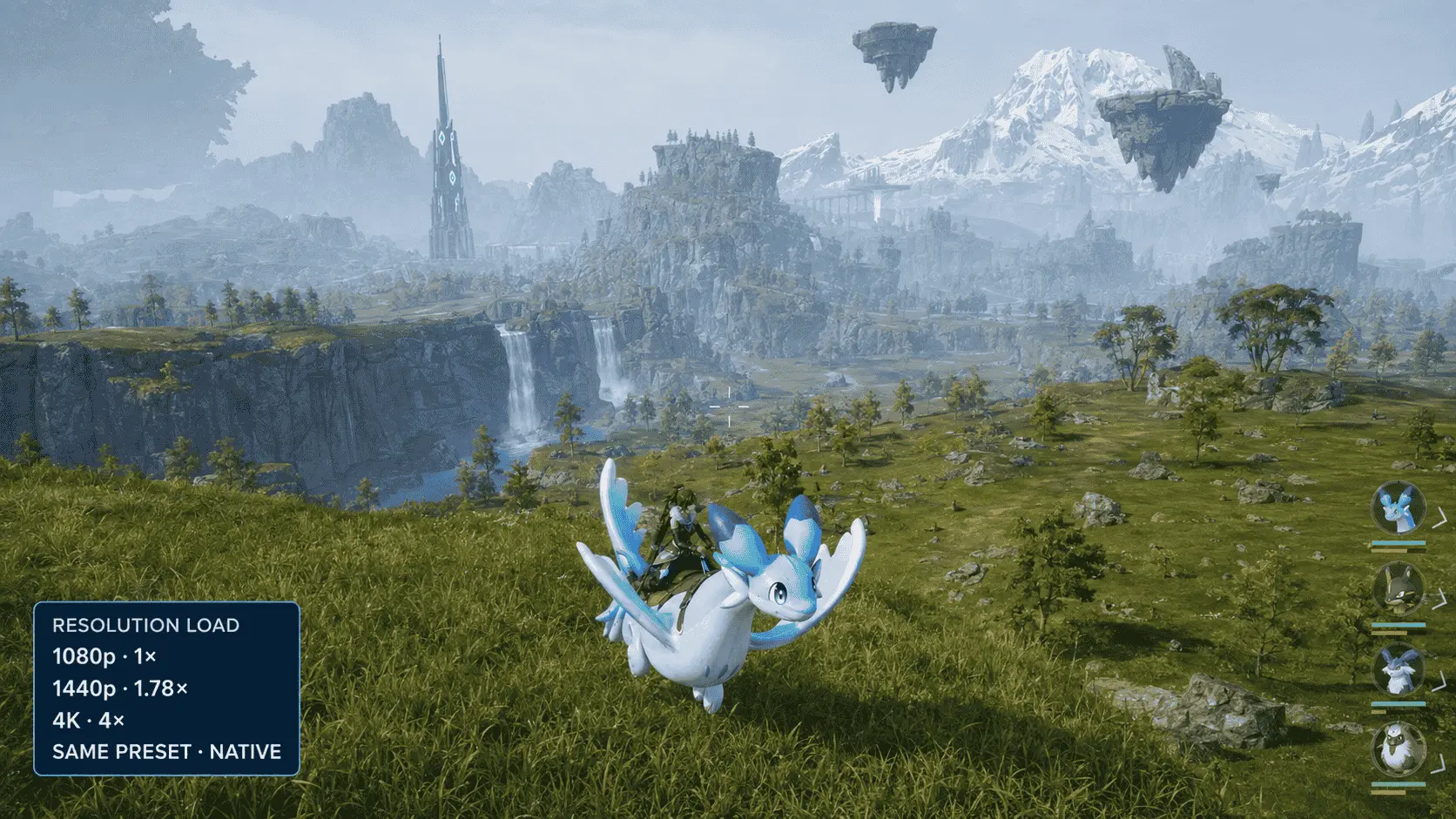
Resolution determines how many pixels the GPU must produce for each frame. Native 1440p contains about 78% more pixels than 1080p, while native 4K contains four times as many. The frame-rate difference will not follow those percentages exactly because CPU load, memory behaviour, and individual graphics settings also affect performance.
| Resolution | Pixel count | Relative to 1080p | Likely effect |
|---|---|---|---|
| 1920 × 1080 | 2.07 million | 1× | Lowest rendering demand of the three common desktop resolutions. |
| 2560 × 1440 | 3.69 million | 1.78× | Higher GPU and VRAM demand. |
| 3840 × 2160 | 8.29 million | 4× | Substantially higher GPU demand; recommended hardware does not guarantee native 4K performance. |
Graphics presets change more than image sharpness. Shadows, foliage, effects, view distance, textures, and object detail place different loads on the GPU, CPU, or video memory. Two tests at 1080p are not comparable when one uses Low settings, and the other uses Epic.
Native rendering, upscaling, and frame generation must also be reported separately. Upscaling creates the output image from a lower internal resolution, reducing the number of pixels rendered conventionally. Frame generation inserts generated frames between rendered frames. It can raise the displayed frame count, but it does not make the underlying CPU simulation or input response equivalent to the same frame rate produced without generation.
Average FPS and Frame Pacing
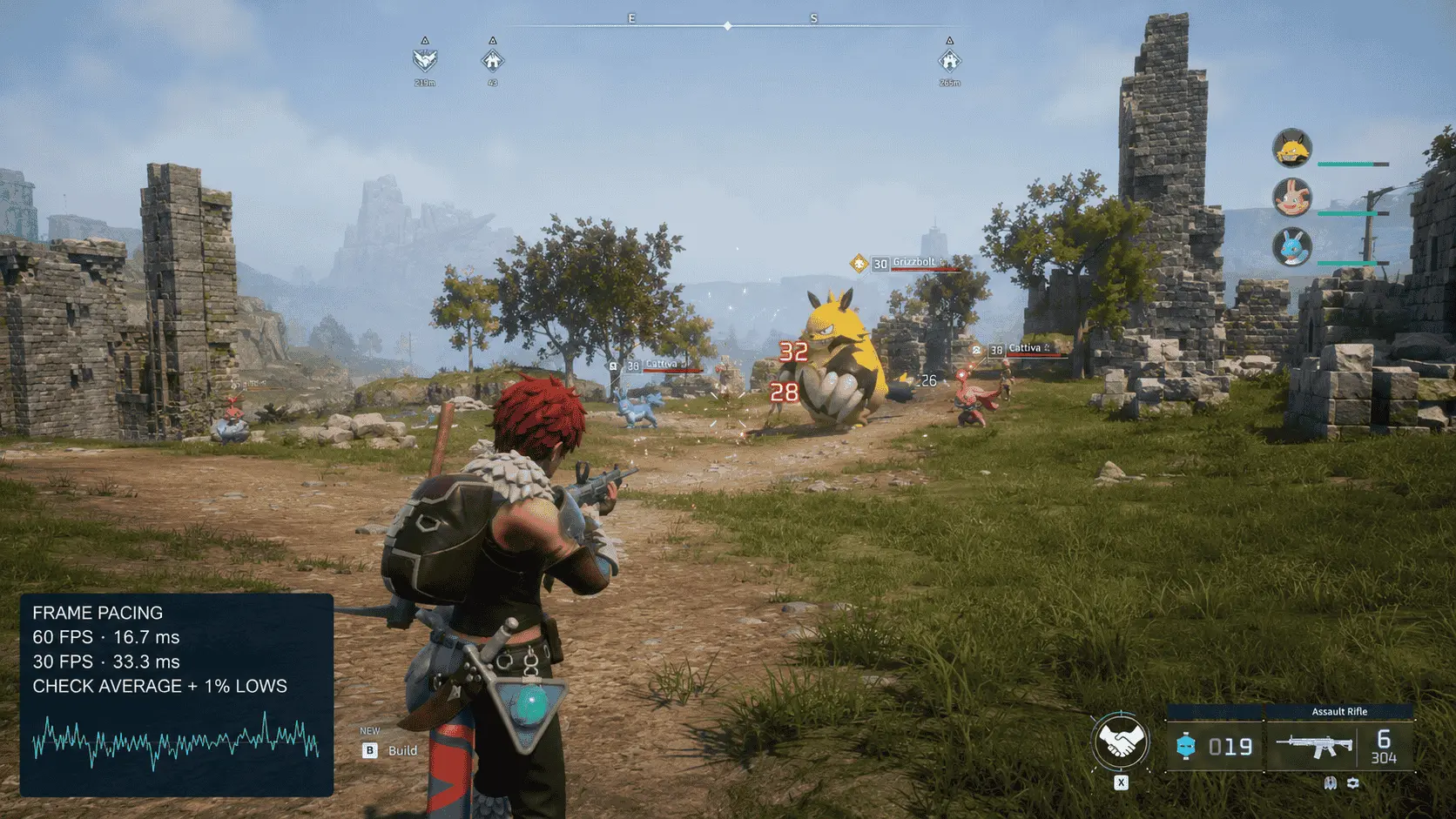
Average FPS shows overall throughput but can hide short periods of poor performance. A game may report an acceptable average while still feeling uneven because some frames take much longer to appear. Frame pacing describes how consistently those frames are delivered.
At 60 FPS, each frame has approximately 16.7 milliseconds to render. At 30 FPS, that interval increases to approximately 33.3 milliseconds. Sudden frame-time spikes can cause visible stutter even when the average remains high. A useful performance test should therefore record average FPS, 1% lows, and a frame-time graph where possible.
The 1% low represents performance during the slowest portion of the test. A large difference between the average and 1% low usually indicates inconsistent delivery rather than consistently low performance. Storage activity, memory pressure, shader compilation, asset streaming, background software, or changes in world load can contribute to these drops.
Bases, Active Pals, and Multiplayer
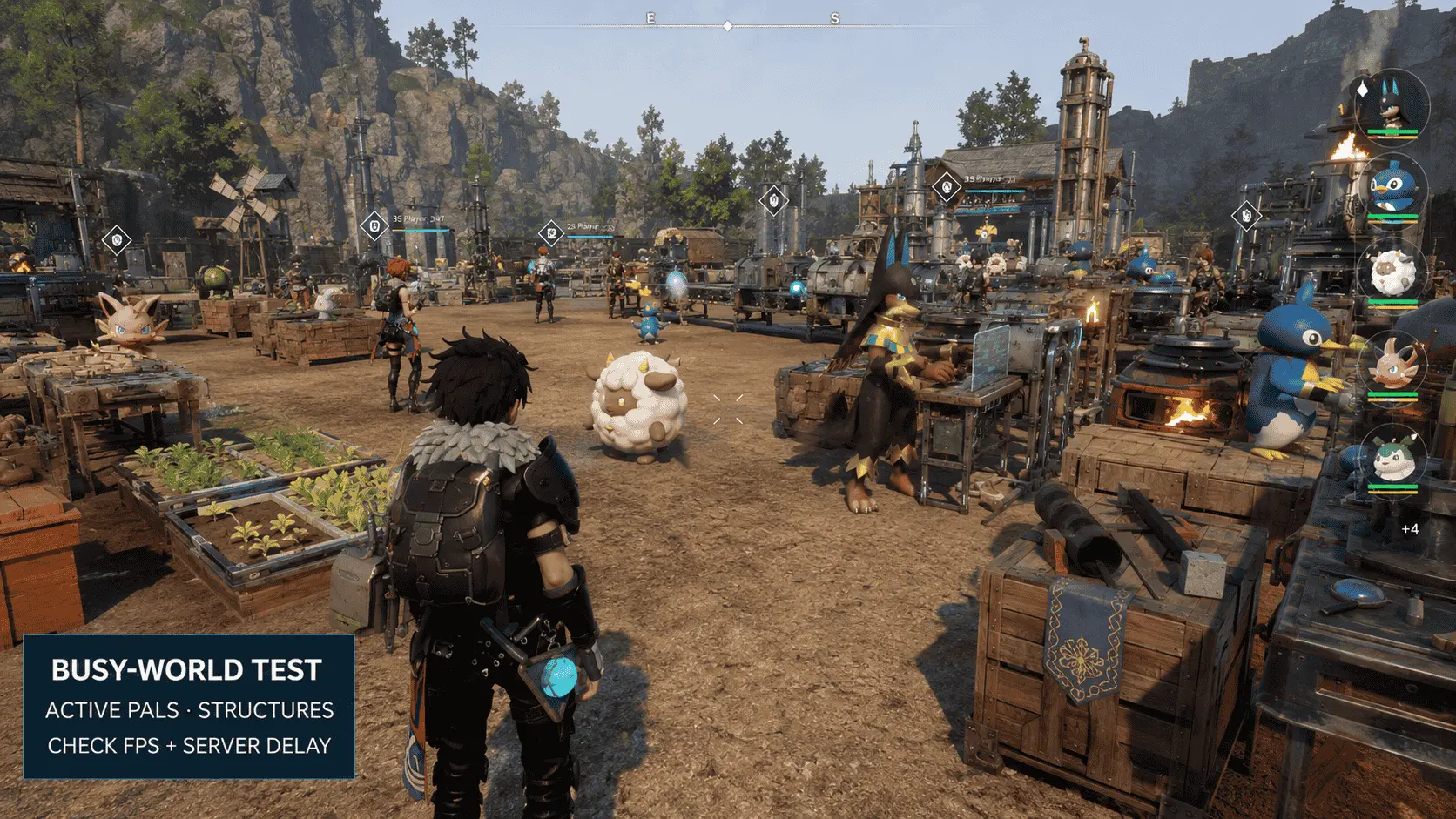
Palworld’s workload changes as a save develops. A quiet area with few characters does not represent a large base containing active Pals, buildings, production tasks, dropped items, lighting, and other moving objects. More activity can increase simulation, rendering, and memory demand at the same time.
Lowering the resolution can help when the GPU is the main limit. It may produce little improvement when performance drops are driven by Pal simulation, base activity, memory pressure, or another CPU-side workload. Testing an open area and a busy base separately helps reveal which condition causes the slowdown.
Multiplayer delay must be separated from low local FPS. Low FPS affects camera movement and animation smoothness on the player’s own screen. Network or server problems may instead cause delayed interactions, teleporting players, slow item responses, or Pals updating late while the local frame rate remains stable. If several players experience the same delay simultaneously, the host, server, or connection deserves investigation before graphics settings are reduced.
Test Performance Under Repeatable Conditions
A controlled test produces a more useful answer than a short observation after loading the game.
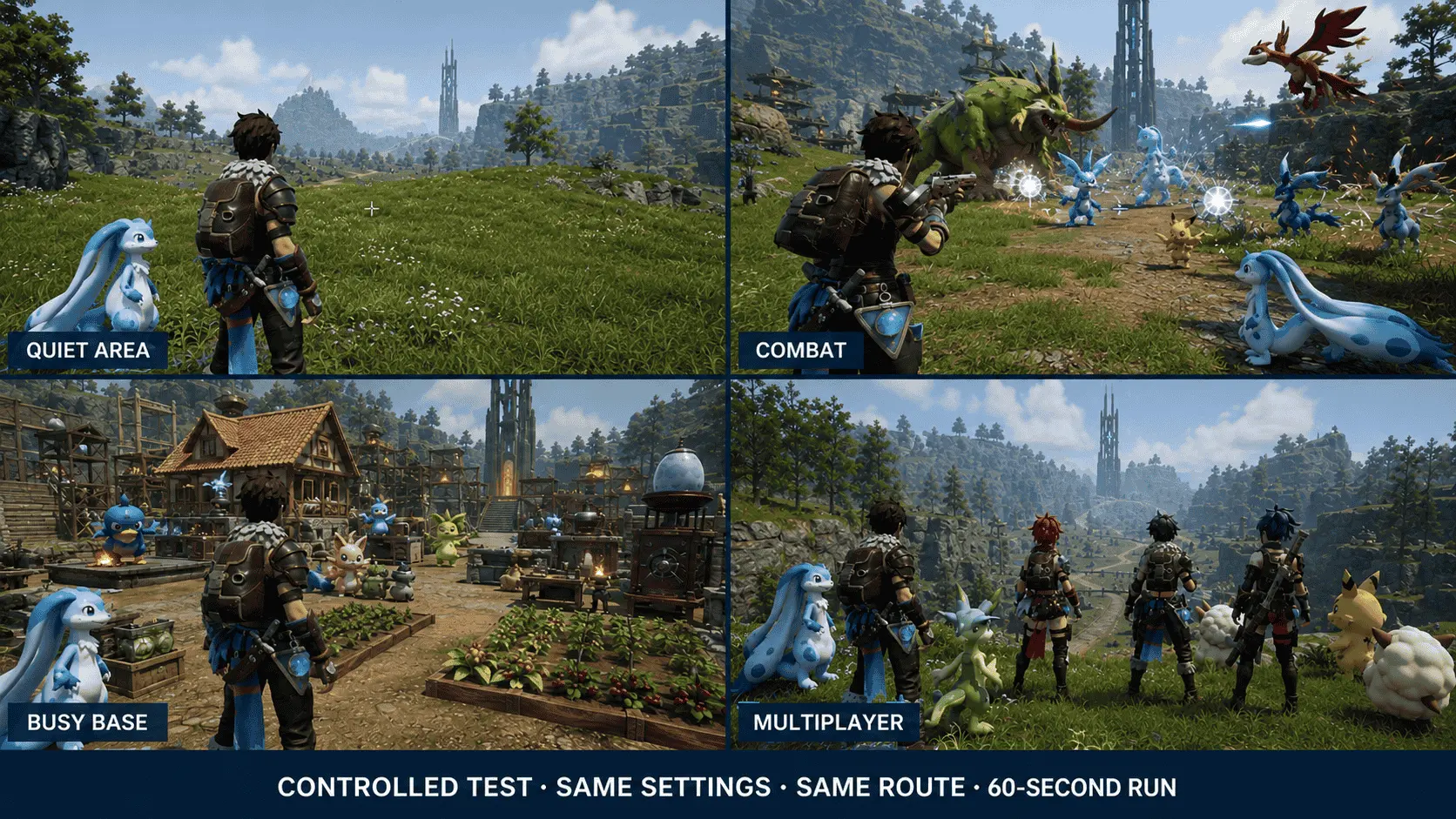
- Record the Palworld version, Windows version, graphics driver, CPU, GPU, RAM, and whether the hardware is desktop or laptop.
- Close unnecessary background programs and allow the PC to reach its normal operating temperature.
- Select one resolution, graphics preset, upscaling mode, frame-generation state, and frame-rate cap.
- Test the same route in a quiet area, during combat, and around the busiest available base.
- Record average FPS, 1% lows, frame-time behaviour, temperatures, and any visible stutter.
- Change one setting at a time and repeat the same route.
The save, location, weather, number of active Pals, multiplayer state, and test duration should remain consistent between runs. Without those conditions, a frame-rate number describes only one unidentified moment and cannot reliably predict performance on another PC.
Palworld Settings for Minimum-Spec PCs
A PC close to Palworld system requirements should prioritize consistent frame delivery before higher image quality. Start at 1920 × 1080, use a custom preset, and test performance around an active base rather than relying on the opening area. The 1080p starting point is a practical recommendation, not an official target from Pocketpair.
Use a Controlled Starting Profile
Use these values as a diagnostic baseline rather than a universal preset. Raise individual settings only after the game maintains an acceptable frame rate in demanding locations.
| Setting | Starting point | Reason |
|---|---|---|
| Resolution | 1920 × 1080 | Reduces GPU load compared with 1440p or 4K. |
| Graphics preset | Custom | Allows individual settings to be adjusted without lowering everything. |
| Frame-rate cap | Highest target the PC can maintain consistently | A stable cap can produce smoother frame pacing than frequent swings. |
| Shadows | Low or Medium | Reduces the cost of rendering dynamic shadows. |
| View distance | Medium | Limits the amount of distant world detail drawn at once. |
| Grass detail | Medium | Reduces vegetation density and associated rendering work. |
| Building draw distance | Moderate rather than maximum | Helps around developed bases containing many structures. |
| Effects quality | Medium | Reduces the cost of combat particles, explosions, and other effects. |
| Texture quality | Medium initially | Controls video-memory use without lowering render resolution. |
| Motion blur | Off if unwanted | Improves visual clarity during movement; performance gain may be minor. |
| VSync | Based on the display | Prevents tearing but can affect latency and frame pacing. |
| DLSS | Quality or Balanced on compatible RTX cards | Lowers internal rendering demand while reconstructing the output image. |
A frame-rate cap should match sustainable performance. Capping the game at 60 FPS provides little benefit if the PC regularly falls into the 40s. A lower but stable cap may feel more consistent because the time between frames changes less frequently.
Reduce the Right Settings First
Resolution and upscaling should be adjusted first when the GPU remains near full utilization. Reducing the number of rendered pixels affects the entire image and can produce a larger performance change than lowering one isolated quality option. A non-native output resolution may appear soft on an LCD, so supported upscaling is usually preferable when available.
Shadows and effects are the next useful controls for a GPU-limited system. Shadow quality affects the resolution, distance, and complexity of rendered shadows, while effects quality becomes more noticeable during combat and other particle-heavy events. Lowering each setting by one level makes it easier to judge the visual cost and performance change.
View distance, grass detail, and building draw distance affect how much world detail remains visible. Reducing them can help in open areas or developed bases, but the result may include object pop-in, shorter vegetation distance, or structures appearing later. These settings can involve both CPU and GPU work because additional objects must be processed before they are rendered.
Texture quality should not be the first setting reduced unless video memory is under pressure. Textures mainly consume VRAM; lowering them may produce little improvement when sufficient memory is already available. Warning signs of VRAM pressure can include delayed texture loading, sharp stutters when entering a new area, or unusually high dedicated GPU-memory use.
DLSS, Reflex, and Frame Generation
NVIDIA confirms that Palworld supports DLSS Super Resolution and Reflex. The company also allows newer DLSS models and Dynamic Multi Frame Generation to be applied through the NVIDIA app on supported RTX 50-series hardware, as detailed in its current Palworld graphics-feature documentation.
DLSS Super Resolution works only on GeForce RTX graphics cards. Quality mode uses a higher internal resolution and preserves more image detail, while Balanced and Performance modes reduce the internal resolution further to create additional GPU headroom. Quality is the stronger starting point at 1440p; Balanced becomes more useful when Quality does not reach the desired performance. Aggressive upscaling at 1080p can make fine details and distant objects appear less stable.
Frame generation should be evaluated separately from the underlying rendered frame rate. Generated frames can improve perceived motion, but they do not reduce CPU simulation time, server delay, or the latency of the original rendered frames. A stable base frame rate should be established before frame generation is enabled. Reflex can then reduce part of the system latency on compatible NVIDIA hardware.
GTX and AMD graphics cards cannot use NVIDIA DLSS. Their available options are to reduce the output resolution, lower GPU-heavy settings, or use another scaling method exposed by the game or graphics driver. Results from different scaling technologies should not be treated as equivalent without comparing image quality and base performance.
Recognize Problems That Settings Cannot Fix
Graphics adjustments cannot correct every performance problem. Lowering the resolution with little or no FPS improvement suggests that the GPU may not be the main limit. Slowdowns concentrated around a large working base may involve CPU simulation, object processing, or memory use. Stuttering accompanied by nearly full system memory may require closing background programs or increasing RAM rather than lowering shadows.
An HDD installation, less than 16GB of RAM, an overloaded background workload, or sustained laptop thermal throttling can keep a system below its expected performance. Delayed multiplayer interactions with a stable local frame rate point toward the network, host, or server rather than the graphics preset.
What Should You Upgrade for Palworld?
Upgrade the component that falls below Palworld’s requirements or creates the measured bottleneck. RAM, storage, GPU, and CPU upgrades solve different problems, so replacing the most expensive part first can waste money without improving the affected workload.
| Finding | Likely priority | Expected benefit | What it will not fix |
|---|---|---|---|
| Less than 16GB RAM | Memory | Meets the minimum capacity and reduces memory pressure. | A weak GPU or CPU. |
| Game installed on an HDD | SSD | Meets the storage requirement and improves loading and asset access. | Low FPS caused by rendering or simulation. |
| FPS improves when resolution is lowered | GPU | Better rendering performance at higher resolutions and settings. | Server delay or CPU-limited base activity. |
| FPS barely changes at a lower resolution | CPU or another non-GPU limit | Better simulation and object-processing performance if the CPU is confirmed as the bottleneck. | GPU-heavy Epic settings. |
| Memory remains close to full during play | RAM | More headroom for Palworld, Windows, and background programs. | Insufficient graphics performance. |
| Laptop performance declines during longer sessions | Cooling or power configuration | Helps the existing hardware maintain its intended clock speeds. | Hardware that remains below the minimum. |
| Local FPS is stable but multiplayer actions are delayed | Network, host, or server | Addresses connection or server-side delay. | Local rendering performance. |
Upgrade RAM Below 16GB
A PC with 8GB of RAM does not meet Palworld’s current minimum requirement. Reaching 16GB should take priority over graphics tuning because Windows, background services, and the game must share the available memory. When physical memory is exhausted, Windows may move data to the storage drive, which is much slower than RAM and can contribute to stuttering or delayed asset access.
Moving from 16GB to 32GB completes the recommended memory tier, but it should not be presented as an automatic FPS upgrade. The additional capacity is most useful when memory usage is already high, when several background applications remain open, or when the system is also recording, streaming, or hosting multiplayer activity.
Memory modules must match the motherboard or laptop’s supported DDR generation and capacity. A matched two-module configuration can also provide more memory bandwidth than a single module on platforms that support dual-channel operation. Some thin laptops use soldered memory, making an upgrade impossible or limiting the available options.
Move Palworld to an SSD
An SSD is required at both hardware tiers. A system using a mechanical hard drive remains outside the stated requirements even if its CPU, GPU, and RAM are sufficient. Moving Palworld to an SSD can improve loading, save access, and the delivery of game assets from storage.
Pocketpair requires an SSD but does not specify SATA or NVMe. A SATA SSD therefore meets the stated storage type, while an NVMe drive offers higher transfer performance on compatible systems. Replacing a functioning SATA SSD with an NVMe model should not be expected to correct a CPU or GPU bottleneck.
The installation drive needs at least 40GB available, but leaving only the exact minimum can create problems during updates. Game patches may require temporary space to download, unpack, and replace existing files. Additional free capacity also gives Windows and the drive more room for routine storage operations.
Upgrade the GPU for Resolution and Graphics Quality
A GPU upgrade becomes the likely priority when the existing card falls below the GTX 1660 or when reducing resolution produces a clear frame-rate improvement. That response indicates that rendering load has a strong influence on performance.
High GPU utilization alone does not prove that an upgrade is necessary. A graphics card commonly operates near full utilization when the frame rate is uncapped. The stronger evidence is a combination of insufficient performance, high GPU load, and a measurable improvement after reducing resolution, shadows, effects, or other GPU-heavy settings.
A new graphics card must also suit the rest of the system. Check the power supply’s wattage and connectors, the physical space inside the case, motherboard compatibility, and monitor resolution. A faster GPU can improve rendering performance, but it cannot remove server lag or fully correct slowdowns caused by CPU-heavy Pal and base activity.
Upgrade the CPU for Simulation Limits
A CPU upgrade deserves attention when the processor falls below the Core i5-9400F minimum or when performance remains nearly unchanged after resolution and graphics load are reduced. Slowdowns concentrated around active bases can also indicate a simulation or object-processing limit, although memory pressure and world-specific problems should be excluded first.
Overall CPU utilization can be misleading. A game may depend heavily on a limited number of threads, leaving the total utilization figure below 100% while one or more cores are fully occupied. Per-core activity, clock speed, temperature, and frame-time behaviour provide better evidence than the overall percentage alone.
CPU replacement may require a new motherboard, compatible memory, a BIOS update, or a stronger cooler. The total platform cost should be considered before choosing a processor. Buying a newer CPU based only on the Core i5, i7, or Ryzen 5 label does not establish the required performance because architecture and generation remain important.
Fix Cooling Before Replacing Laptop Hardware
Laptop CPUs and GPUs may reduce their clock speeds when temperature or power limits are reached. Performance that starts acceptably and declines after several minutes can indicate throttling rather than insufficient model-level specifications.
Connect the original charger, select the appropriate Windows and manufacturer performance modes, keep ventilation openings unobstructed, and check CPU and GPU temperatures during the same repeatable test. Cleaning blocked vents or repairing a failed fan may restore sustained performance, but aggressive software or firmware changes should not be used to exceed the laptop manufacturer’s operating limits.
Most laptop GPUs and CPUs cannot be replaced. When a laptop remains below Palworld’s minimum after its cooling and power configuration have been checked, a different system may be more practical than attempting component-level modifications.
Palworld Dedicated Server Requirements
Palworld’s dedicated server has separate requirements from the playable PC client. The server manages the world, players, Pals, bases, and network communication without rendering the game from a player’s viewpoint. Pocketpair consequently does not list a gaming GPU for dedicated-server operation.
Pocketpair’s official Palworld server requirements for version 1.0.3 specify the following hardware and operating conditions:
| Component | Official server guidance | Technical significance |
|---|---|---|
| Processor | Four or more CPU cores recommended | Handles world simulation, connected players, Pals, bases, and server processes. |
| Memory | 16GB listed; more than 32GB recommended | Provides capacity for the active world and helps reduce out-of-memory failures. |
| Storage | SSD recommended | Slow storage can affect save operations and may place world data at risk. |
| Operating system | 64-bit Windows or Linux | Pocketpair names Ubuntu and AlmaLinux as supported Linux examples. |
| Network | UDP port 8211 by default | The router and firewall must allow the required incoming traffic. |
| Router configuration | Port forwarding capability | External players need a route from the public internet to the server. |
Pocketpair states that a server can boot with 8GB of RAM but warns that the lower capacity increases the possibility of crashes caused by insufficient memory. A server starting successfully should not be confused with a stable configuration for continued use.
Server Memory Requirements
Memory demand can change as the world grows. Connected players, active Pals, developed bases, dropped objects, and longer sessions can increase the amount of server state held in memory. Pocketpair does not publish a fixed amount of RAM per player, so multiplying the player count by an assumed memory figure would create an unsupported capacity estimate.
A 16GB server matches the listed Palworld system requirements, while a capacity above 32GB follows Pocketpair’s stronger recommendation. The suitable amount between those points depends on the world, player activity, installed modifications, background services, and whether the machine performs any additional work.
Available memory matters more than installed capacity alone. An operating system, management tools, backups, security software, and other services consume part of the total RAM. Monitor the server process and remaining system memory during busy periods rather than relying only on the number printed on the memory modules.
Hosting and Playing on the Same PC
Running the dedicated server and Palworld client on one PC combines two different workloads. The client requires the CPU, GPU, RAM, and SSD resources described in the PC requirements, while the server consumes additional CPU time, memory, storage activity, and network bandwidth.
The two memory requirements should not be added as a fixed formula because neither process uses its maximum allocation at every moment. The combined machine still needs enough headroom to prevent the server, game, and Windows from competing for memory during demanding activity. A PC containing exactly the recommended 32GB client capacity may therefore require monitoring before it is trusted to host a developed world and play at the same time.
CPU contention can also appear around busy bases or when several players are active. Lowering graphics settings may reduce client-side GPU work, but it will not reduce the server’s world-simulation workload. A separate server machine can avoid this competition, although its own CPU, RAM, storage, and network connection must remain suitable.
SSD and Save Protection
Pocketpair recommends an SSD and warns that low-performance storage may corrupt saved data. The concern extends beyond loading speed because the server regularly reads and writes world information. A storage delay or interrupted write can be more serious on a persistent multiplayer world than on a short client session.
Keep sufficient free space for server files, logs, updates, and backups. Important worlds should be backed up on a schedule and before configuration changes, updates, or modifications are applied. A backup stored only on the same drive does not protect the world from drive failure.
Moving from an HDD to an SSD addresses the documented storage concern. Moving from a functioning SATA SSD to a faster NVMe drive may improve storage throughput, but it cannot correct inadequate RAM, CPU limits, or network instability.
Network and Port Requirements
The default Palworld server port, UDP 8211, is also involved in Palworld system requirements. The operating-system firewall and router must permit traffic on the configured port, and the forwarding rule must direct it to the server’s local IP address. Changing the server port requires the firewall, router, and connection details to use the same new value.
Some internet providers place customers behind carrier-grade NAT, which can prevent conventional port forwarding because the router does not receive its own public IPv4 address. A correctly configured local rule will not solve that restriction. The provider may need to supply a public address, or the server may require another supported networking arrangement.
Pocketpair does not publish a universal upload-speed requirement per player. Connection stability, latency, packet loss, player count, and other household traffic can all affect multiplayer behaviour. Delayed actions experienced by several players while the host maintains stable local FPS are more likely to involve the server or connection than the client’s graphics card.
Frequently Asked Questions
Is 8GB of RAM enough for Palworld?
No. Palworld’s current Windows client requires at least 16GB of RAM. A PC with 8GB falls below the official minimum even if its processor and graphics card are suitable.
The dedicated server documentation separately states that a server may boot with 8GB, but Pocketpair warns of a higher risk of out-of-memory crashes. That server note does not reduce the 16GB requirement for the playable PC version.
Does Palworld need 32GB of RAM?
Palworld requires 16GB at minimum and recommends 32GB. A 16GB PC meets the memory requirement but does not satisfy the complete recommended tier.
Upgrading to 32GB provides more capacity for developed worlds, Windows, voice chat, recording software, browsers, and other background programs. It should not be described as a guaranteed FPS upgrade when the system is limited by its CPU or GPU.
Can a GTX 1050 or GTX 1650 run Palworld?
The GTX 1050 and GTX 1650 are below the current GTX 1660 minimum. They may launch the game under some conditions, but neither card meets Pocketpair’s present graphics requirement.
Older requirement pages may identify the GTX 1050 as sufficient because it belonged to Palworld’s Early Access hardware target. Compatibility claims based on that configuration do not represent the current full-release build.
How much VRAM does Palworld need?
Pocketpair does not publish a separate minimum or recommended VRAM figure. The named graphics cards provide reference points rather than an official memory threshold: the GTX 1660 normally has 6GB, the RTX 3060 Ti has 8GB, and the Radeon RX 6700 XT has 12GB.
VRAM capacity alone cannot establish GPU compatibility. A slower graphics processor does not become equivalent to a GTX 1660 simply because it has 6GB or more of memory. Core performance, memory bandwidth, architecture, driver support, resolution, and graphics settings also affect the result.
Can integrated graphics run Palworld?
Integrated graphics should not be assumed to meet the GTX 1660 minimum. They share system memory with the CPU and generally operate under tighter power and bandwidth limits than a dedicated desktop graphics card.
The exact integrated GPU model, memory configuration, laptop power limit, resolution, and game version are required for a useful assessment. Increasing the amount of shared memory in firmware does not give an integrated GPU the processing performance of a dedicated GTX 1660.
Does Palworld require an SSD?
Yes. An SSD is required for both the minimum and recommended PC configurations. Installing Palworld on a mechanical hard drive falls outside Pocketpair’s current requirements.
Pocketpair does not require a specific SSD interface. A SATA SSD satisfies the stated storage type, while a compatible NVMe drive can provide higher transfer performance. Storage speed cannot compensate for inadequate CPU, GPU, or RAM performance.
How much storage space does Palworld need?
Palworld requires 40GB of available SSD space. Keeping additional capacity free is sensible because patches may need temporary room to download, unpack, and replace existing files.
The displayed installation size and required free space are not always identical. Saved data, logs, shader caches, modifications, and future updates can increase total storage use after installation.
Does Palworld require DirectX 12?
No. DirectX 11 is the listed requirement for both hardware tiers. A graphics card must support DirectX 11 through a suitable Windows driver.
Launching the game through DirectX 12, where available, is a separate configuration choice rather than a requirement. Performance results from DirectX 11 and DirectX 12 should be recorded separately because they do not represent identical test conditions.
Does Palworld support Windows 10?
Yes. Windows 10 64-bit is the minimum operating system, while Windows 11 64-bit is recommended. A 32-bit Windows installation does not meet either tier.
Operating-system compatibility does not guarantee hardware compatibility. The processor, GPU, RAM, SSD, DirectX support, and network requirements still apply.
Is an internet connection required?
Broadband internet appears in both PC hardware tiers. Multiplayer requires an active connection, but Pocketpair does not publish a universal bandwidth or latency target.
A fast download speed does not guarantee smooth multiplayer. Upload capacity, latency, packet loss, Wi-Fi interference, server performance, and other network traffic can affect responsiveness.
Are the client and dedicated-server requirements the same?
No. The playable client requires a gaming GPU and renders the game locally, while the dedicated server concentrates on world simulation, memory, storage operations, and network communication.
A PC that hosts and plays simultaneously must handle both workloads. Meeting the client requirements alone does not prove that the machine has enough unused CPU capacity, RAM, or network bandwidth to operate a developed server reliably.
Why does Palworld run worse around a large base?
A developed base can contain more active Pals, structures, production tasks, effects, and moving objects than a quiet exploration area. These elements can increase simulation, rendering, and memory demand together.
Lowering resolution may help if the GPU is the main limit. Little improvement after reducing resolution suggests that CPU processing, active world simulation, memory pressure, or another non-GPU factor deserves investigation.